Using the Control Panel 3
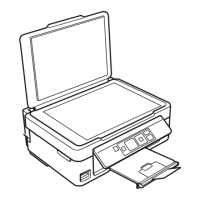
The control panel makes it easy to use all the features of your product. To save energy, the
LCD screen goes dark after several minutes of inactivity. Press any button to wake it up.
Here’s how the buttons and light work:
Button Description
P Turns the product on or off
Green light indicates that the product is connected to your wireless network
Returns to the Home screen and lets you select
Wi-Fi Setup, Copy, Print Photos,
Scan, or Setup
y
Cancels the current operation or returns to the previous screen
l, r,
u, d
Access more options or display more photos
OK
Confirms your selection
x Starts printing, copying, or scanning
Power button
Arrow buttons and
OK button
LCD
screen
WiFi light
Home button Start button
Cancel button
xp300_qg.book Page 3 Tuesday, May 29, 2012 10:53 AM



 To Next Page
 Loading...