This document is a user guide for an Evvo laptop, specifically the EVC141 model. It provides instructions for quick setup, an overview of the computer's physical features, and guidance on basic operations like power management and keyboard usage.
Function Description:
The Evvo EVC141 is a portable computer designed for general use, running on the Windows 10 operating system. It supports various external devices and wireless connectivity options, making it suitable for tasks such as video conferencing, audio recording, media consumption, and general productivity. The laptop features built-in components like a camera, microphones, display, and touchpad, along with multiple ports for connecting peripherals.
Important Technical Specifications:
- Model: EVOO EVC141
- Operating System: Windows 10 (built-in)
- Display: 1920x1080 IPS display panel
- Camera: 0.3M pixel front camera
- Microphones: Two built-in digital microphones with noise-canceling functions
- Touchpad: Large-sized touchpad for precise click, scroll, and drag operations
- USB Ports:
- 1x USB2.0 port
- 1x USB3.0 port (also compatible with USB2.0 devices)
- Storage Expansion: Micro SD slot for connecting micro SD cards
- Video/Audio Output: Mini HDMI port for connecting to external displays (TVs, monitors) to output video and audio
- Audio Output: 3.5mm headphone port for external headphones
- Charging Port: 3.5mm DC adapter port
- Speakers: Left and right speakers for audio output
- Wireless Connectivity: Integrated WIFI and Bluetooth RF module
- Battery: 5000mV (as indicated on the bottom view diagram)
- SAR Limit (FCC): 1.6 W/kg averaged over one gram of tissue. The highest SAR value reported for this device type is 0.684 W/kg under portable exposure conditions.
- FCC Compliance: Complies with Part 15 of the FCC Rules, ensuring it does not cause harmful interference and accepts received interference.
Usage Features:
- Quick Start: Simple 4-step process involving plugging in the power adapter to a wall outlet, then to the laptop, and finally powering on to follow Windows setup prompts.
- Power Management:
- Booting: Press the power button on the keyboard.
- Sleep Mode: Enter sleep mode by clicking "Sleep" from the Start menu or pressing the power button. Wake from sleep by pressing the power button or any key on the keyboard.
- Shut Down: Click the Windows icon and select "shut down."
- Keyboard Functions:
- Numeric Keypad: The keyboard includes a separate numeric keypad. It can be enabled or disabled by pressing the
Fn + F12 key combination.
- Function Key Combinations (Fn + Fx):
Fn + Esc: Turn on or off sleeping mode.Fn + F1: Enter or exit home page.Fn + F2: Enable or disable touchpad.Fn + F3: Volume down.Fn + F4: Volume up.Fn + F5: Turn on or off the volume.Fn + F6: Stop or pause the Windows media player.Fn + F7: Fast rewind the Windows media player.Fn + F8: Fast forward the Windows media player.Fn + F9: NA (Not Applicable).Fn + F10: Enable or disable insert function.Fn + F11: NA (Not Applicable).Fn + F12: Enable or disable the numeric keypad.
- Special Character Input (Fn + Key): The guide also lists
Fn combinations for inputting characters like ~, !, @, #, $, %, ^, &, *, (, ), -, and +.
- Touchpad Usage:
- Touch: Slide a fingertip over the pad to move the cursor.
- Left Click Button: Functions like a left mouse button.
- Right Click Button: Functions like a right mouse button.
- External Device Connectivity: Supports USB2.0, USB3.0, Micro SD cards, and HDMI output for various peripherals.
- Wireless Connectivity:
- Bluetooth: Pair Bluetooth devices (speakers, cellphones, PADs) by clicking the relevant icon in the Windows action center.
- WIFI: Connect to a WIFI Access Point (AP) by clicking the relevant icon in the Windows action center.
Maintenance Features:
- Display Panel Care: Users are cautioned not to open the display panel beyond 135 degrees and to avoid leaving objects between the display panel and the keyboard to prevent damage.
- Troubleshooting (USA):
- For product malfunctions, contact the after-sale office directly.
- For technical assistance, contact ESI support specialists at 888-999-1682 (7:00 am to 4:00 pm).
- Supporting information and updates can be downloaded from the ESI Website: http://www.evooproducts.com/
- FCC Interference Guidelines: Provides instructions for users to correct potential harmful interference, including reorienting antennas, increasing separation between equipment, connecting to different circuits, and consulting technicians. It also states that unauthorized modifications void the user's authority to operate the equipment.

 Need help?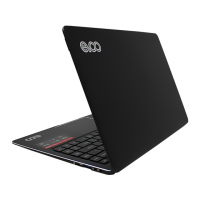

 To Next Page
 General