10
SYSTEM SETUP
3
Changing The WiFi Channel
In most instances, the pre-set WiFi channel should work perfectly well when operating the PMC-
Eight™ wirelessly. However, if you are in an area where a lot of wireless activity is occurring, you may
need to switch the pre-set WiFi channel.
To Change The WiFi Channel:
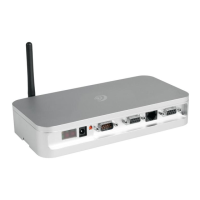
1. Use a pen or a paperclip to push the reset button that is inset on the back of the PMC-Eight™
box near the connection lights. After releasing the reset button, you will notice that the lights will
cycle through several red and green flashes, until the top right green light begins to flash in a
steady pattern.
2. Once this green light is flashing steadily, put the included phone-style RJ-12 jack into the
appropriate port on the back of the box. Once the yellow light flashes once, the channel is reset.
3. If the new channel still does not meet your needs, perform the procedure again until you reach a
satisfactory channel.
Wired Operation
Although it is designed to be operated wirelessly, the PMC-Eight™ can be attached directly to your
Windows device, if desired.
Note: The ASCOM driver supports WIred and Wireless Operation. The ExploreStars Application only
supports Wireless Operation. You will have to use the ExploreStars PMC-Eight ASCOM Driver if you
want to use the Serial Port. See Explore Scientific Application Note “AN002: Switching from Wired to
Wireless Mode” for more information.
To do this, you will need a cable that has a DB9 connector on one end and a connector on the other
end that is compatible to the connections on your chosen device. This cable is not included with
the PMC-Eight™.
For wired operation, you will connect the male DB9 connector on your adapter cable to the PMC-Eight
Serial Port, and the USB connector on your adapter cable to the device USB input port.
You need to switch the default communications port from “wireless” to “serial” by issuing the “ESX!”
command when connected wirelessly.
Additional Support
If you have questions about setting up or operating the PMC-Eight™ system, a selection of video
tutorials are available at
www.explorescientific.com/pmc-eight/
For Frequently Asked Questions, visit the Knowledge Base page at
www.explorescientificusa.com/knowledgebase


 To Next Page