pg. 3 V2. gardenature.co.uk
12, Click the BURN tab, here you can Create the chapter points, select theme … to burn your DVD
Click the Settings icon to set the disc according to requirements.
13, To learn more about the software’s features, click on the? in the upper right corner and select User Guide.
MAC
1, Install hardware installation
Insert the “CD-ROM” into your CD drive. Double click “ezcap.pkg” to start the hardware driver installation.
Please click “Continue” and/or “Install Succeeded” to finish the installation.
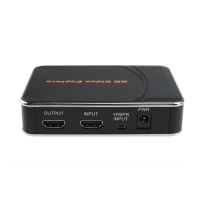
Connect ezcap159 USB 2.0 Video Capture to a USB 2.0 port on your computer, the hardware should be auto
installed to your computer.
Click on the Apple LOGO – About this Mac – More info – Hardware – USB, “ezcap USB audio” should be
seen in the list to indicate the driver has installed correctly.
2, Using the Software
1, Open QuickTime Player. You will find the software by going to Applications – QuickTime Player.
2, When the software opens, click on the File menu and select New Movie Recording.
3, Click the dropdown box next to the red Record icon, and select ezcap USB video device under Camera and
ezcap USB audio in the Microphone option.
4. Play your video source (connected to Video Capture device), and click the red Record button to start
recording, click the Stop button to finish recording.
QuickTime Player automatically saves your captured videos as .mov files.
5, For more information on using QuickTime Player, please click on Help in the panel.
NB:
EzCap159 USB 2.0 Video Capture also works with VLC Media Player or OBS Studio, just select “ezcap USB
video device” to be the video capture device.



 To Previous Page
 Loading...