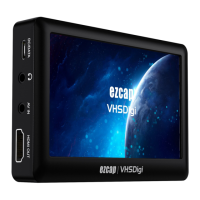
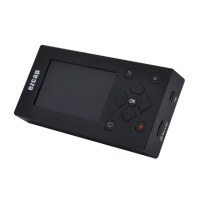
The ezcap181 VHSDigi2 is a VHS digitizer designed to convert VHS and other Composite video sources into digital files, saving them to a Micro SD card or USB flash drive. This device allows users to preserve old video content in a modern, digital format.
Function Description:
The primary function of the ezcap181 VHSDigi2 is to digitize analog video and audio from sources like VHS players, camcorders, or any device with RCA Composite video and L/R audio outputs. It records these analog signals into digital .mp4 files. The device also features an HDMI output, allowing users to preview the video on a TV or monitor during the recording process. Power is supplied via a USB-C connection.
Important Technical Specifications:
- Interface: USB 2.0
- Video Input: RCA Composite video (Yellow for video)
- Audio Input: RCA analog L/R audio (White for left channel, Red for right channel)
- Video Output: HDMI
- Audio Output: HDMI
- User Interface: RECORD/STOP button, Power LED, Record LED
- Storage Media: Micro SD card, USB drive. Supports FAT32 and NTFS formats. Does not support exFAT.
- Record Format: .mp4
- Record Quality:
- NTSC: 720 x 480p @ 30fps
- PAL: 720 x 576p @ 25fps
- Record File Size: Maximum 1.95GB per file. Approximately 16MB per minute, or 950MB per hour. For videos exceeding 1.95GB, the device automatically partitions the recording into multiple files (e.g., Encode_1.mp4, Encode_1_1.mp4, Encode_1_2.mp4).
- Power Supply: USB-C to USB-A power cable (5V2A power adapter not included).
- Dimensions: 76(L) × 81(W) × 23(H) mm
- Weight: 73g
Usage Features:
- Simple Operation: To start recording, connect your analog video source to the RCA inputs, a TV/monitor to the HDMI output (optional for preview), and a Micro SD card or USB drive for storage. Plug in the USB-C power cable. Once connections are ready and the power LED is green, press the RECORD button. The red record LED will flash, indicating recording is in progress. Press the RECORD button again to stop recording; the LED will turn off briefly then light up, confirming the file has been saved.
- Storage Flexibility: Supports both Micro SD cards and USB flash drives for saving recorded files. Note: Do not plug in both a USB drive and a Micro SD card at the same time.
- File Naming Convention: Recorded files are named sequentially, starting with Encode_1.mp4, Encode_2.mp4, and so on.
- Automatic File Partitioning: For long recordings, the device automatically splits files into segments of approximately 1.95GB, ensuring compatibility with various file systems and preventing excessively large single files.
- Reset File Numbering: To reset the file numbering back to Encode_0, unplug the power, then press and hold the RECORD button while plugging in the USB-C power cable. After about 3 seconds, release the button.
- Indicator LEDs:
- PWR LED (Green): Flashes for a few seconds after connecting power, then stays solid green, indicating the device is powered on.
- REC LED (Red): Flashes for a few seconds when a USB drive or Micro SD card is inserted, then stays solid, indicating the storage is ready. It flashes during recording and turns off briefly then lights up when recording stops. It turns off if the storage device is removed.
- Troubleshooting Recording Issues: If recording issues like skipping occur, it might be due to the USB drive or Micro SD card being in NTFS format and not safely removed from a computer, or the format might be incompatible (exFAT is not supported). Formatting the storage device to FAT32 is recommended if problems persist. Ensure the video source is connected and the storage device has sufficient memory.
Maintenance Features:
- Firmware Update: If a firmware update is needed, unplug the USB-C power cable to power off the device. Copy the firmware file to a USB drive or Micro SD card. Plug the storage device into the VHSDigi2. Then, plug in the USB-C power cable. The green indicator will flash for a few seconds and then stay on, signifying a successful firmware update.
- Storage Format Compatibility: The device supports FAT32 and NTFS formats for storage media. It is crucial to note that exFAT is not supported. If experiencing issues, ensure your storage device is formatted to FAT32 or NTFS.
- Safe Removal of Storage: When disconnecting the USB drive or Micro SD card from a computer, always perform a "safety remove" to prevent potential file corruption or recording problems with the VHSDigi2.

 Need help?
 General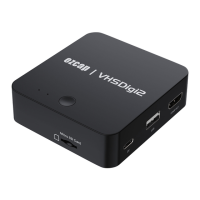

 To Next Page