Introduction
02
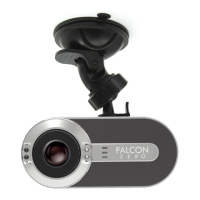
Thank you for purchasing Falcon Zero’s F170HD – an advanced vehicle digital video
recorder (DVR) that is specifically designed to capture real time video of events
happening outside your vehicle while driving.
Mounted on your car’s windshield, the F170HD uses a 170° Wide Angle Lens for
the best field of view and records video in crystal clear Full HD 1080P to ensure all
the important details of your trip are recorded. This User Manual will give you
step-by-step instructions and advice to help you get the best experience from your
new device. Please read carefully before using the F170HD.
Index
Video Settings/Device Settings
Video Recording
F170HD Vehicle Digital Video Recorder
01
Intro
Safety Precautions
Getting Started
Video Recording
Video Settings/Device Settings
F170HD Feature Shortcuts
F170HD LCD Icons
02
03
09
16
22
36
37
F170HD LCD Icons / Buttons
/ Inputs
Troubleshooting
Support
Warranty
38
42
48
49
04
Mounting Location
• Never place the F170HD where the driver’s view or deployment of airbags is
obstructed.
• Mount the F170HD within range of the windshield wipers to ensure clear visibility
in rain.
NOTE: Remove the F170HD carefully if mounting the F170HD on a tinted
window to prevent damage to the tint film.
Safety Precautions
03
These usage and safety guidelines are important. Please follow them carefully to
ensure your own personal safety and help protect your F170HD from potential
damage.
• For in-vehicle use only.
• Do not operate the F170HD while driving.
www.falconzero.com
info@falconzero.com
844.921.4448
06
05
08
07
Getting started
10
09
18
11
22
21
26
25
28
27
30
29
32
31
20
19
Like us on Follow us on
24
23
36
35
38
37
39
40
42
41
!
!
!
!
!
!
15
34
33
• Avoid using or storing the F170HD in an extreme temperature environment.
• Never allow the F170HD to come in contact with water or any other liquids.
• Do not use the F170HD in environments with strong magnetic fields or excessive
vibration.
• If your car’s lighter socket continues to provide power after the engine is
switched off, unplug the F170HD when the engine is off or idling to reduce unnec
essary power consumption and prevent any unexpected problems.
Package Contents
Falcon Zero F170 HD DVR, Vehicle Mounting System, 11’ Power Cord, GPS
Software Disc, USB Cord, Dual USB Car Charger, 32GB Class 10 Falcon Zero SD
Card, and Instruction Manual
Features
• Smooth, detailed Full HD 1080P recording @ 30fps resolution
• Bright 2.7” color LCD screen
• 170 degree 6 glass wide angle lens
• Bundled 32GB microSD memory card
• Motion Detection & Parking Mode
• G-Sensor with customizable sensitivity
Installing the Memory Card
Before you can use or turn on the device, you must install a memory card.
1. On the bottom of the F170HD is the rubber port protector, lift this
carefully.
2. Insert the provided memory card into the slot on the device.
3. Press it in until it clicks then place back the rubber port protector.
The F170HD immediately begins recording video when it turns on, and it continues
recording, overwriting the oldest, non protected videos until it turns off (looping).
16
Protecting a Video File
The F170HD uses a sensor to automatically detect accidental collisions. Also called
a Gravity Sensor (G-Sensor), you can adjust sensitivity in Settings. When the
G-Sensor is on, which is by default, set on Medium Sensitivity, and a collision is
detected, the F170 will automatically lock that clip and prevent any overwriting, You
can also manually protect videos at any time by pressing the Menu button while
recording, you will notice a (key icon here) indicating that clip is now locked and will
not be overwritten, the only way to delete that file is manually.
17
Viewing Videos and Photos
The F170HD has a built in 2.7” LCD screen to calibrate the cameras viewing angle
as well as playing back video with sound or viewing pictures. This also allows the user
to be able to change settings without having to plug the F170HD to a computer.
There are 3 modes: Video, Photo, and Video/Photo Playback. By pressing the Mode
button while the F170HD is not recording, this will allow the user to select between
modes.
Taking a Picture
By pressing the OK button, you will stop the F170HD from recording. The red
on-screen flashing red light will stop, and press the MODE button to switch to
Picture Mode. In this mode press the OK button to take a picture, and if needed use
the UP and DOWN buttons to zoom in and out.
General Use
Power Cord Management
Auto Start
• Hi-Speed USB 2.0 connector for easy computer connectivity and fast file
transfers
• Stream videos on a TV screen via mini HDMI
• Built-in microphone
• Built-in speaker
• Supports 14 languages
• And much, much more.
Connecting the Device to Vehicle Power
1. With the vehicle off, plug the power cable into a power outlet in your vehicle.
2. Plug the other end of the power cable in the USB port on the F170HD
3. Slide the suction cup mount onto the F170HD
4. Press the suction cup to the windshield, and flip the lever back towards the
windshield.
5. Route the 11’ power cable around the interior of vehicle as shown on page 12
6. Turn on the vehicle.
When the device is connected to an ignition-switched power outlet, the F170HD
turns on automatically when you turn on your vehicles and will power down when the
vehicle turns off.
NOTE: If your vehicle does not have an ignition-switched power outlet, you
must manually turn it off by pressing the power button.
12
The F170HD comes with an
11’ USB power cord. Route
the power cord to the 12V
power adapter as shown
below. The power cable should
not be obstructing your view of
the road.
13
14
1. F170HD must not be recording, if so simply press the OK button to stop
2. Press the MODE button until the Video/Photo Playback selection appears
3. Select between the videos and photos by using the UP and DOWN buttons
4. Play and pause a video using the OK button, and to exit the video, press the
MODE button.
Videos and Photos on Your Computer
You can connect the F170HD with the included USB cord to your computer to view,
transfer, or delete videos and photos stored on the device memory card.
Deleting Videos or Pictures
1. Press the MENU button when viewing a video or picture
2. Three options will appear: Delete, Protect, and Slide Show
Video Settings
Resolution: Set the resolution/quality for recording videos, available options are
1080FHD, 720HD, WVGA or VGA. The lower the resolution the lower the quality and
memory usage
Loop Recording: Select 3, 5 or 10 minute loop clips, or select OFF for continuous
recording. When memory card is filled with loop clips, the oldest files will be
overwritten.
NOTE: If OFF is selected the F170HD will record until the SD card is filled,
and then stop recording. You will have to format the card to use again.
Loop Mode is recommended.
Motion Detection: While the F170HD is powered down and the vehicle is shut off,
the internal battery will power on the unit and record a 10 second locked clip should
movement be detected.
NOTE: This is Off by default and should not be On when driving, it is strictly
for a parked vehicle situation.
Gravity sensing: Off, Low, Medium, or High Sensitivity. Also known as the G-Sensor,
this mechanism will detect sudden collisions and automatically lock the recording to
prevent overwriting.
NOTE: Adjust the sensitivity if does not detect events or incorrectly
detects events during normal driving.
HDR: High Dynamic Range is for the best possible clarity as it uses multiple images
to create the most optimal single image. Default this is On, however this feature can
be shut off to save space on SD card.
Exposure: Adjust exposure composition value to lighten or darken the LCD screen;
default is 0.0.
Record Audio: On or Off; default is set to OFF, turn ON to record audio while record-
ing video.
Date Stamp: On or Off; default is set to On. This feature will embed in the recording
the Date and Time on Video Playback.
GPS: Global Position Satellite coordinates can be recorded onto the SD card and
played on your computer with the included software showing the recorded route on
Google Maps. The software will also display speed and time.
Plate Number: If multiple F170s are being used in different vehicles, each F170 can
be assigned the plate number for that vehicle, a very handy setting for vehicle fleets.
Device Settings
Date/Time: Sets Date and Time. Using the Ok button to switch between values and
the Up and Down button to change numbers.
Auto Power Off: 3, 5, 10 minutes or Off. When the F170 is not hooked up to a
power supply and not being used, the unit will power down automatically. If set to Off,
it will remain on until the internal battery is out of power.
Beep Sound: On or Off.
Language: English, French, Spanish, Portuguese, Dutch, Italian, Chinese, Simplified
Chinese, Russian, Japanese, Common Czech, Danish, Norwegian and Swedish.
AutoUpdateTime: GMT Adjustment
Format: Format the SD card right on the F170HD instead of formatting via
computer. Very useful if using Continuous recording and the SD card fills up, this can
be done right on the spot.
Screen Saver: Set duration for display to automatically turn off after recording
begins.
Below you will find some helpful one button press shortcuts to a few key features.
• Night Vision: To toggle between On and Off, press the Mode button while
recording.
• Emergency File Lock: To lock a file while driving press the Menu button while
recording.
• Parking Mode: To toggle between On and Off press the Power button for 1
second
• Microphone: To toggle between On and Off press the Mode button while recording.
My computer’s operating system cannot detect my F170HD
Check the following:
1. Is your F170HD properly connected to the USB port? If not, unplug it and plug it
in again. Make sure the USB port is connected on both ends, as shown in the
User’s Manual.
2. Is your F170HD connected to the Mac keyboard? If yes, unplug it and plug it into
an available USB port on your Mac Desktop.
Delayed Shut Down: Set duration the F170HD is to remain recording for after the
vehicle has been turned off. Settings are off, 5, 10, and 30 seconds. This will be
powered by the internal battery.
Default Setting: Restores the F170HD back to factory settings.
Version: Current operating version.
Frequency: 50Hz or 60Hz. Depending on the region of the world being used, 60Hz
is generally for the America’s and parts of China.
Night Vision: Turn the IR lights on or off, this feature is mainly used for the interior
of the vehicle if recording. However Night Vision can also help the overall outside
clarity at night time or in darkened places.
Parking Monitor: This option can be turned On or Off. If turned On, when your
vehicle is parked and powered down, the F170HD can pick up vibrations and collisions
and will turn on using the internal battery and lock record a 10 second session.
Enter the Video Settings by pressing the MENU button while the F170 is idle and
not recording. Enter Device Settings by quickly pressing the MENU button again.
Below is a list of settings and options.
F170HD Feature Shortcuts
1) Current Mode – Video/Picture/Playback
2) Loop Time – 3/5/10 Min.’s or Off
3) Motion Detection On/Off
4) Exposure – +2.0 to -2.0 Range
5) Date
6) Current Time
7) Battery Charge – Internal Battery only
8) Memory Card – Indicates Card Installed
9) G-Sensitivity – Low/Medium/High/Off
F170HD Buttons
1) Mode
2) OK/Rec
3) Menu
4) Up/Zoom
5) Power
6) Down/Zoom
7) Recording LED
F170HD Inputs
Top
1. USB Port
2. Reset Pin Hole
3. GPS Port
Bottom
1. microSD Card Slot
2. Mini HDMI Out Port
3. Microphone
MODE
MENU
OK
1
10 11
11 9
4
7
8
5
6
2
3
F170HD LCD Icons/Buttons/Inputs
43
3. Is the computer’s USB port enabled? If not, refer to the user’s manual of your
computer (or motherboard) to enable it.
F170HD again.
1. Edited and deformed videos may not display properly on your F170HD.
2. F170HD only play files generated by F170HD.
If your F170HD is not connected to a power source for a long period of time, the
the accompanying documentation for a period of one (1) year from date of original
purchase. Consumer's sole and exclusive remedy and Falcon Zero’s sole and
documentation on the date of your initial purchase. Any replacement may be, at
LifeTime Support for questions and answers.


 To Previous Page
 Loading...