Chapter Two: FSMS Transaction Coding
FedEx Ship Manager
®
Server User Guide, Version 7.6 139
Open Shipping
Open Shipping is a highly flexible shipping option unique to FSMS. Open Shipping allows you to enter
information for a particular shipment as it is received throughout the day, rather than entering all of the
shipping information only when the shipment is ready to be processed. The shipment remains “open,”
accepting each piece as it is entered and closing only when you confirm the shipment.
Basic Open Ship Rules
Below are the basic rules for creating an Open Ship transaction:
• You can use some of the Open Ship flags in conjunction with each other. For example, you can Open
a shipment and Confirm the shipment with one transaction (assuming all required information to ship
a package is received), or Add a piece and Confirm, or even Edit data, Add a piece, and Confirm.
• You can open several Open Ship shipments within the same day, but each must contain its own
unique shipment index number in field 542. This number is used to access the shipment for future
editing. Once the shipment is Confirmed, the Open Ship ID number loses its association with the
shipment and may be reused.
• Shipments that remain open after a Close/EOD transaction has been performed will remain available
for 7 days. After the 7
th
day, the entire shipment will be deleted if it has not been Confirmed.
• If a shipment is not confirmed on the day it was created, or if a Future Day ship date was not
specified during the Create, the Ship Date must be edited to the current day or later.
• All available fields, along with an indication of which Open Ship flags they apply to, are found in the
“Open Ship Table” later in this section.
• To ship a multiple-piece shipment to a single consignee, use Open Ship to add individual pieces to
the shipment.
Setting Up Open Shipping
Open Shipping uses the 020 Global Ship transaction. Typically, Open Shipping requires multiple
transactions: one to Create the shipment, one or more to Add or Edit the pieces of the shipment, and one
to Confirm the shipment. The Open Ship Flags (field 541) tell the server what each transaction will
accomplish. By setting these flags, you instruct the server to perform a function at either the shipment
level or the piece level. You can create multiple Open Ships and open them simultaneously by using the
Open Ship Index (field 542) and setting this field to a unique number. You can reuse this number once
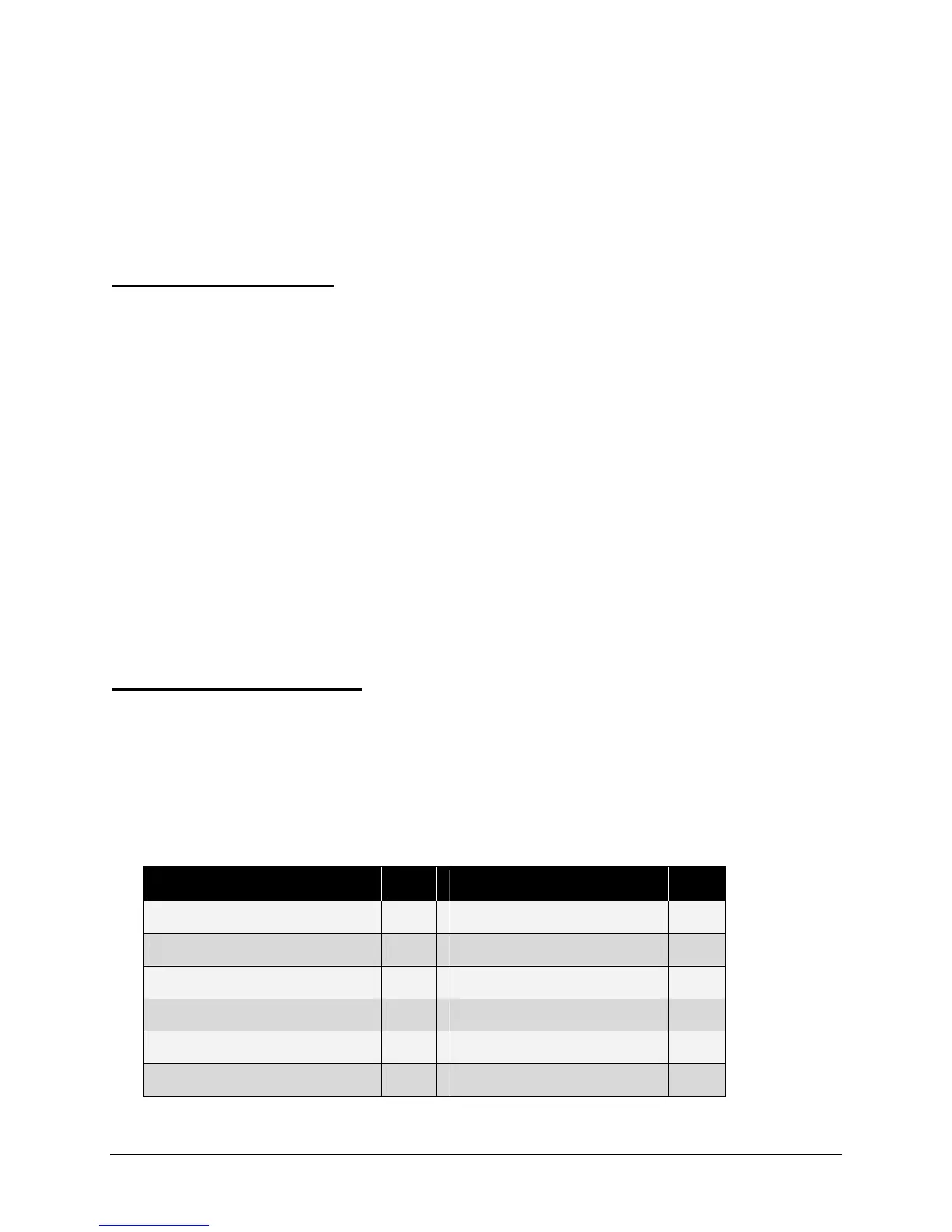
the shipment has been Confirmed. In the following table are the Open Ship Flags that are used in field
541:
Shipment Level Function Flag Piece Level Function Flag
Create the Shipment 1 Add a Piece 4
Route/Time-in-Transit 2 Edit a Piece 5
Rate the Shipment 3 Delete a Piece 7
Edit the Shipment 6 Confirm the Piece 9
Delete the Shipment 8
Confirm the Shipment 9


 To Next Page
 Loading...