EasyManua.ls Logo

Feelcare HN-DPF7000 - User Manual

Feelcare HN-DPF7000
11 pages
Print Icon
To Next Page IconTo Next Page
Loading...
ENGLISH
USER MANUAL
HN-DPF7000
Before connecting, operating or adjusting this product, please read this user’s manual
carefully and completely.
Feelcare
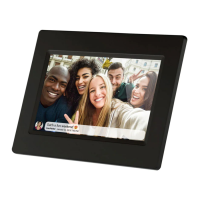
Social Photo Frame
For more information please visit our website: www.feelcaregroup.com
Question and Answer IconNeed help?

Do you have a question about the Feelcare HN-DPF7000 and is the answer not in the manual?

Summary

Getting Started

Frameo App

Download the Frameo app for iOS or Android to send photos to your frame.

Feelcare Quick Setup

Initial setup steps include selecting language, connecting to Wi-Fi, and entering frame details.

Connecting a New Friend

Share a unique code from your frame to allow friends and family to send photos.

Navigating Your Feelcare

Gallery

Access and view all photos stored on the frame.

Photo Display Modes

Choose between 'Fit to frame' or 'Fill frame' for photo viewing.

Settings

My Frame Settings

Customize frame name, location, language, and time zone.

Sleep Mode

Configure screen turn-off and on times to save power.

Manage Photos

View stored photos and hide or delete them.

My Friends Management

View, add, or remove friends who can send photos to the frame.

Display and Slideshow

Adjust photo display duration and order.

Wi-Fi Connection

Connect the frame to a Wi-Fi network.

Backup and Restore

Backup frame data to SD card and restore from backup.

About

Check for Update

Check if a software update is available for the frame.

Share Anonymous Analytics Data

Option to share data to help improve the frameo software.

Guide

Opens the quick start guide shown during initial setup.

Health and Environmental Precautions

Disposal of Electric and Electronic Equipment

Proper disposal guidelines for electronic waste to protect health and environment.

FCC Compliance and Interference

Information regarding FCC rules, potential interference, and corrective measures.

Overview

This document describes the Feelcare Social Photo Frame, model HN-DPF7000, a digital photo frame designed for sharing photos with friends and family.

Function Description:

The Feelcare Social Photo Frame is a device that displays digital photos. Its primary function is to receive and display photos sent from connected friends and family members via the Feelcare (Frameo) app. Users can interact with the frame through its touchscreen to navigate photos, access settings, and manage connections. It supports importing photos from external storage and offers backup functionalities.

Important Technical Specifications:

  • Model: HN-DPF7000
  • Connectivity: Wi-Fi for receiving photos and updates.
  • External Storage Support:
    • Micro USB port: For uploading photos from a USB flash drive (not for connecting to a computer). USB flash drives are recognized as "SD card" when inserted.
    • Micro SD card slot: Supports micro SD cards up to a maximum of 32GB for importing photos and backing up frame data.
  • Power: DC adapter connection.
  • Display: Touchscreen interface.
  • Software: Runs on Frameo software.
  • Dimensions: Not specified in the provided manual.
  • Weight: Not specified in the provided manual.

Usage Features:

Getting Started:

  1. Power On: Connect the DC adapter to power on the frame.
  2. Initial Setup:
    • Select a language.
    • Connect to a Wi-Fi network.
    • Update Frameo software if prompted (recommended).
    • Enter your name, frame location (e.g., "Living room," "Kitchen," "Office"), and set the timezone.
  3. Frameo App: Download the Feelcare (Frameo) app for iOS or Android to send photos to the frame. The app can be found on Google Play or App Store by searching for "frameo" or by scanning the provided QR codes.

Connecting with Friends and Family:

  1. Add Friend: Tap the "add friend" icon on the frame. A unique code, valid for 12 hours, will appear.
  2. Share Code: Share this code with your friend via SMS, E-Mail, IM, or phone call.
  3. Friend Connection: Once your friend adds the code in their Frameo app, they will automatically appear on your frame and can send photos.
  • Touchscreen Interaction: Interact with the frame through its touchscreen.
  • Photo Navigation: Swipe left or right to browse through photos.
  • Menu Bar: Tap once on the screen to access the menu bar, which provides quick access to:
    • "Add friends" dialog.
    • "Settings" menu.
    • Options to hide the currently shown photo or adjust its positioning.

Photo Management:

  • Gallery: Tap to view all photos stored in the frame.
  • Fit to Frame / Fill Frame:
    • "Fit to frame": Displays the photo fully in both vertical and horizontal ways.
    • "Fill frame": Displays the photo fully in vertical or horizontal ways, potentially cropping edges.
  • Show/Hide Photos: Select specific photos to hide or show. Hidden photos are not deleted and can be shown again. Use the icon to hide or show all photos.
  • Delete Photos: Select photos to permanently delete from the frame. Use the icon to select/deselect all and the trash can icon to delete selected photos.
  • Import Photos:
    • Insert a micro SD card or USB flash drive containing photos.
    • Select the photos you wish to import onto your frame.
    • Tap the "import" button to start the process.
    • Note: If both a USB flash drive and micro SD card are inserted, only photos from the most recently inserted device can be imported.

Friends Management:

  • My Friends List: View all people allowed to send photos to your frame.
  • Friend Settings: Grant permission for a friend to share the frame's code.
  • Remove Person: Tap the "delete" icon (X) next to a friend's name to remove them, revoking their permission to send photos. You will be asked to confirm and if you wish to remove all photos received from that person.
  • Add Person: Tap the "add friend" button to allow a new person to send photos, then share the presented code.

Display and Slideshow Settings:

  • Timer: Define the duration a photo should be displayed.
  • Show Caption: Enable or disable the display of captions sent with photos. Check to display, uncheck to hide.
  • Photo Display Order: Choose between "By date" or "Shuffle" for photo display.
  • Brightness Level: Adjust the screen's brightness.

Wi-Fi Settings:

  • Select the Wi-Fi network for the frame.
  • If a captive portal is present, a web browser icon will appear in the top right corner of the screen to enter credentials.

Maintenance Features:

Sleep Mode:

  • Feelcare offers a sleep mode to turn off the screen and reduce power consumption.
  • Default setting: Screen off at 23:00, on at 07:00.
  • Customize sleep mode start/end times.
  • Note: The frame remains powered on and can still receive photos during sleep mode.

Backup and Restore:

  • Backup Frame to SD Card:
    • Tap to create a backup of your photos, friends, and settings onto a micro SD card.
    • The time of the latest successful backup will be displayed.
    • Warning: Any existing backup on the SD card will be overwritten.
  • Automatic Backup:
    • If enabled, the frame will automatically back up within 30 hours of receiving new photos or making changes.
  • Restore from Backup:
    • Before restoring, confirm your backup is up-to-date.
    • To restore, you must first reset the frame.
    • Note: You cannot restore to a new Frameo frame and keep the old frame operational simultaneously.

Reset Frame:

  • Removes all data from the frame, including photos, friends/connections, and settings.

About:

  • Check for Update: Check if a software update is available for the frame.
  • Share Anonymous Analytics Data: Opt-in or opt-out of sharing anonymous analytics data to help improve Frameo software.
  • Guide: Opens the quick start guide that was shown during the initial setup.

Compliance Information:

  • Environmental: Electric and electronic equipment contains materials that can be hazardous if not handled correctly. The device is marked with a crossed-out trash can symbol, indicating it should not be disposed of with household waste but separately at designated collection points.
  • FCC Compliance: The device complies with Part 15 of the FCC Rules.
    • Operation is subject to two conditions: (1) it may not cause harmful interference, and (2) it must accept any interference received, including undesired operation.
    • The equipment has been tested and found to comply with Class B digital device limits, designed to provide reasonable protection against harmful interference in residential installations.
    • If interference occurs, users are encouraged to try measures like reorienting the receiving antenna, increasing separation between equipment and receiver, connecting to a different circuit, or consulting a dealer/technician.

Feelcare HN-DPF7000 Specifications

General IconGeneral
BrandFeelcare
ModelHN-DPF7000
CategoryDigital Photo Frame
LanguageEnglish

Related product manuals