Double tap to wakeup
If it is enabled, double tap the screen can wake up the M15S when it is under
off or in sleeping states.
FiiO Roon
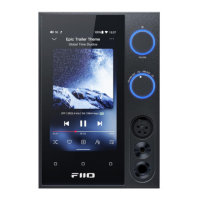
The M15S is Roon Ready certified, allowing you to access music from a
ROON CORE source such as a NAS or a computer.
How to use FiiO Roon(Roon Ready) in M15S?
1. You need to have a PC running Roons core software before anything else.
You can’t just run it on the M15S since it is only an endpoint or controller.
Official website of Roon: https://roonlabs.com/
2. Download Roon on your computer and log in your Roon account. On the
computer:
Roon-Setting-Storage: Add local music or log in your Tidal account as the
media library
Roon-Setting-Audio: Enable the M15S.
3. The computer and M15S should connect to the same Ethernet. Start the Fiio
Roon in M15S and start up the Roon Ready feature on the R7 to enable full bit
perfect audio.
Desktop mode
When the desktop mode is selected, the machine will be powered by USB, and
its battery will neither be charged nor powered, effectively increasing battery
life.
How to exit Desktop mode?
You could turn off the Desktop mode from system setting-General-Desktop
mode.


 To Next Page