19
DIRECTIONAL CASTING STEPS
Place FishHunter in water for it to turn on.
Open your Wi-Fi settings and select FishHunter Wi-Fi XXX
Open the FishHunter app and go into the sonar section
Select DIRECTIONAL CASTING
Set range to the depth you are fi shing in and click the arrow
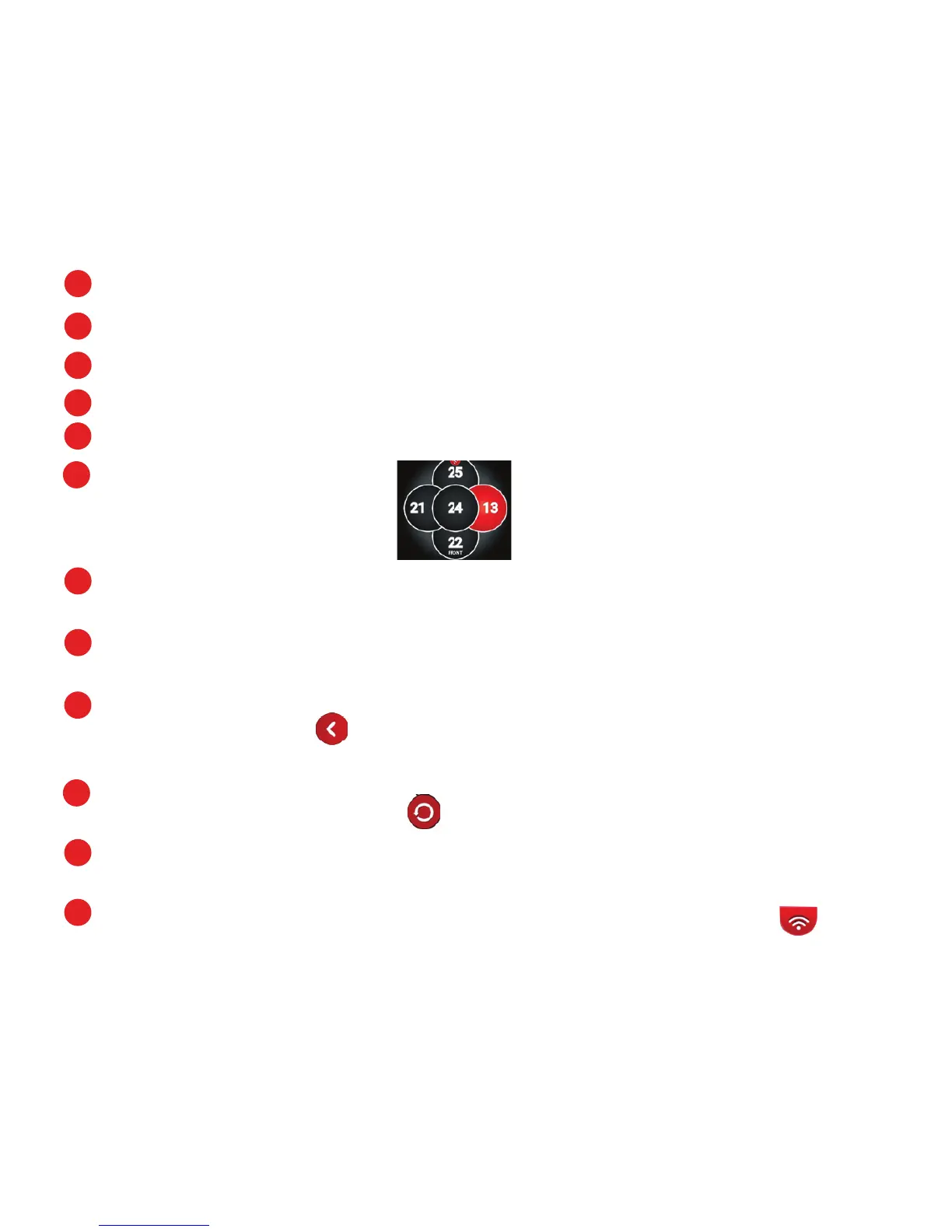
Now in “5 Transducer View”
with each circle representing
one of fi ve transducers
on the bottom of your sonar.
If one of the circles is red, it means fi sh have been detected below that
transducer with their depth.
You can select any transducer on the screen to get the bottom contour by
pressing on the circle.
You can view a split screen of the bottom countour and 5 transducers by
clicking on the arrow. Click the arrow again to return to “5 transducer
view”
Cast your line towards the area of the sonar that keeps lighting up red on
your screen to catch more fi sh.
To adjust where the front of your sonar is facing simply select the rotation
button on the screen.
You can switch between "Raw View" and "Fish View" from top menu.
1
2
3
4
5
6
7
8
9
10
11
You can view a split screen of the bottom countour and 5 transducers by
clicking on the arrow. Click the arrow again to return to “5 transducer
You can view a split screen of the bottom countour and 5 transducers by


 To Next Page
 Loading...