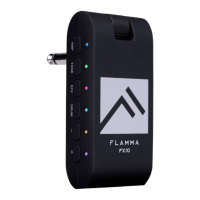
4. Blue Audio
FX10 supports Bluetooth which allows connecting to an external Bluetooth device for
practice or performance. Below is the setup procedure:
Toggle the power switch to BT ON to turn on Bluetooth module.
Open the Bluetooth menu of your smart device and select pair new device
Find the “FX10”
Confirm connection
After pairing is complete, you can hear the audio tracks from the external
Bluetooth device.
Notes: To adjust the volume level of the playback tracks, please adjust it on your external
Bluetooth device. The volume level knob of FX10 can only control the volume level of
guitar signal and drum machine.
5、OTG(USB AUDIO)
5. OTG (USB AUDIO) Recording/Playback
The USB port of the FX10 supports USB AUDIO function. You can use the USB cable
that comes with the device and connect to the OTG cable (needs to be purchased
separately) with your smart phone for recording or audio playback.
Notes:
The USB AUDIO function is for audio recording or playback on mobile device for
practice or directly recording on social media. However, it cannot take the place
of professional audio interface. If you would like to use the FX10 with the DAW on
your Window device, a third-party ASIO driver is needed. It might be an


 To Next Page
 Loading...