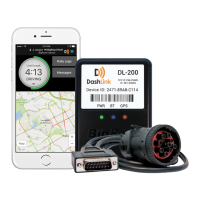
DashLink ELD User Manual
5 DASHLINK ELD USER MANUAL
Getting Started
Log In To
A Truck
CONNECTING TO A DASHLINK ELD-ENABLED VEHICLE:
Ensure that the vehicle is running before you
attempt to connect.
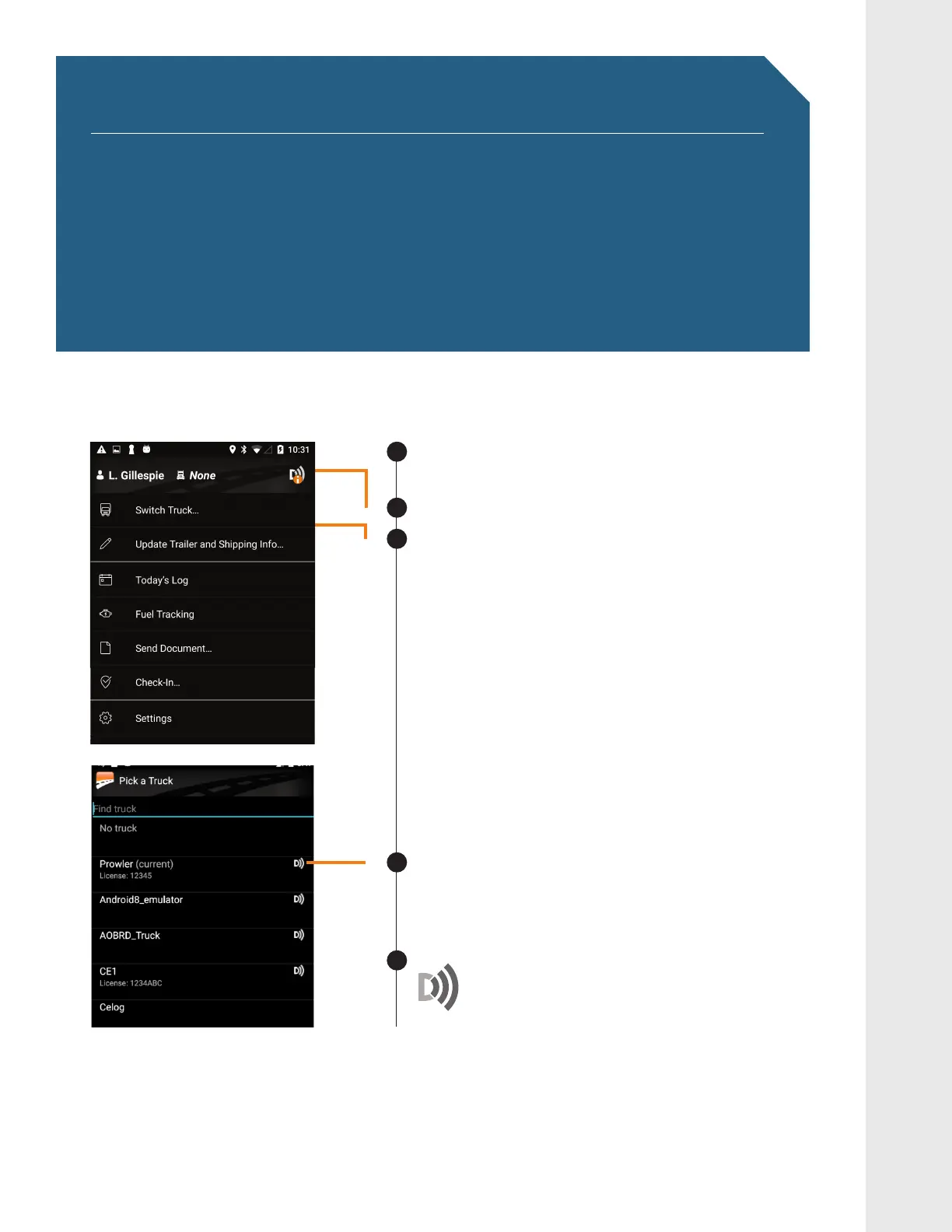
Tap the menu icon.
Select Switch Truck.
Select the truck you want to connect to DashLink
ELD. Note that DashLink ELD-equipped vehicles
will show a DashLink ELD icon beside them.
DashLink ELD should now be connected
to your vehicle. Look for the DashLink ELD
icon in the top-right corner of the BigRoad
0RELOH$SSWRFRQUPVWDWXV
1
2
3
4
5
NOTE: If your ELD-equipped vehicle has not been added to the BigRoad Mobile App, ask your
carrier to add your truck. An Administrator must do this from the Fleet tab in the BigRoad
9GD#RR'.&GSWKRRGFXGJKENGUECPPQVDGCFFGFQTOQFKƒGFWUKPIVJG$KI4QCF/QDKNG#RR


 To Next Page
 Loading...