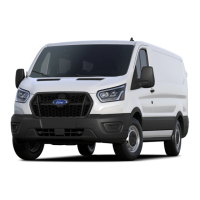
E-Transit – Key Driver Features
360-Degree Camera Views
Pressing the small, white vehicle icon displayed on the top-left corner
of the center screen will display the vehicle camera view options.
Front View Options
1. Front 360 + Normal
View
: Contains the normal
front camera view next to a
360-Degree Camera view. This
view will appear on the screen
when the button is pressed in
any gear other than Reverse
2. Front Normal View
: Provides
an image of what is directly in
front of the vehicle. Access this
view by pressing the camera
button from the Front 360 +
Normal View screen
3. Front Split View
: Provides an
extended view of what is in
front of the vehicle. Access this
view by pressing the camera
button from the Front Normal
View screen
Rear View Options
1. Rear 360 + Normal View
: Contains
the normal rear camera view next to
a 360-Degree Camera view. This
view can be accessed by putting the
vehicle in Reverse, or by pressing the
camera button from the Rear
Split-View screen
2. Rear Normal View
: Provides an
image of what is directly behind the
vehicle. Access this view by pressing
the camera button from the Rear
360 + Normal View screen
3. Rear Split View
: Provides an
extended cross-traffic view of what
is behind and on either side of the
vehicle. Access this view by pressing
the camera button from the Rear
Normal View screen
15



 To Next Page
 Loading...