SYNC
®
3
*
*if equipped
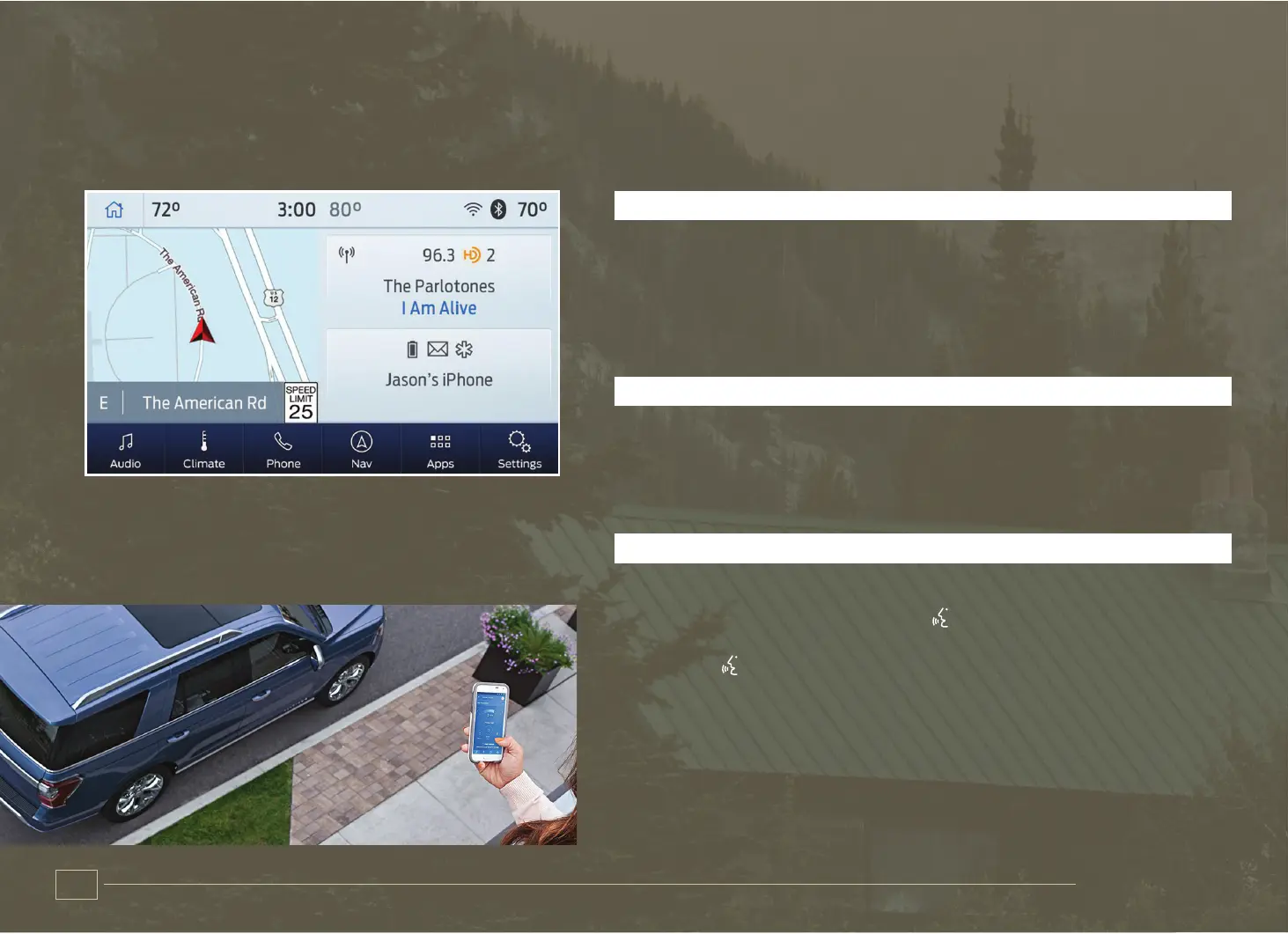
USING THE TOUCHSCREEN
Use the touchscreen to navigate the SYNC 3 features. The status bar
on the top of the screen contains the home button, clock, outside
temperature and status bar icons that inform you about the system.
The feature bar allows you to select system features like audio and
settings. For your safety, some features are speed-dependent. Their
use is limited to when your vehicle speed is less than 3 mph (5 km/h).
UPDATING YOUR SYSTEM
System updates are available through the local Ford website using
a USB or by connecting your vehicle to a Wi-Fi network connection.
With a network connection, you can have your SYNC 3 system
update automatically as well. Please see the SYNC 3 section of your
Owner’s Manual for more information on updating your system.
USING VOICE RECOGNITION
Using voice commands allows you to keep your hands on the wheel
and focus on what is in front of you. To activate the SYNC 3 voice
commands, press the voice button on the steering wheel and wait
for the prompt.
• Press the button during any system voice prompt to interrupt the
prompt and begin your voice command.
• To adjust the volume of the system voice prompts, turn the volume
control when a voice prompt is playing.
• To use Siri on your iOS device, press and hold the voice control
button on the steering wheel.
You can find the available voice commands in the SYNC 3 chapter of
your Owner’s Manual or in the Commonly Used Voice Commands in
this guide.
SYNC 3 allows you to interact with a variety of features using the touchscreen and voice commands. The system
provides easy use of the system elements like audio, phone, mobile apps and settings.
PAIRING YOUR PHONE FOR
THE FIRST TIME
Switch on Bluetooth on your device to
begin pairing. Check the compatibility of
your device on the local Ford website.
To add a phone:
1. Select the phone option on the
feature bar.
2. Select Add Phone.
3. A prompt alerts you to search for the
system on your phone.
4. Select your vehicle on your phone.
5. Confirm that the number appearing on
your phone matches the number on
the touchscreen.
6. The touchscreen indicates when the
pairing is successful.
7. Download the phonebook from your
phone when you are prompted.
To pair subsequent phones, please
see the SYNC 3 chapter in your
Owner’s Manual.
USING YOUR
CONNECTED PHONE
To make calls, select from your contacts,
recent calls or dial the number on the
phone keypad. From the phone menu
you can also adjust phone settings,
change devices or mute your phone.
The do not disturb mode rejects all
incoming calls and switches off ring
tones and alerts.
ANDROID AUTO AND
APPLE CARPLAY
To use Apple CarPlay and Android Auto,
connect your device to a front row USB
port and follow the instructions on the
touchscreen.
Certain SYNC 3 features are not
available when you are using Apple
CarPlay or Android Auto.
Android Auto may need to be enabled
from the settings menu. You can switch
Apple CarPlay or Android Auto off
through the settings menu. See the
SYNC 3 chapter of your Owner’s Manual
for more information.
CONNECTED VEHICLE
A connected vehicle has technology
that allows your vehicle to connect to
a mobile network and to access a range
of features. When used in conjunction
with the FordPass App, this technology
could allow you to monitor and control
your vehicle further, for example
checking the tire pressures, the fuel
level and the vehicle location. For
additional information, refer to the
local Ford website.
The modem has a SIM. The modem was
enabled when your vehicle was built
and periodically sends messages to stay
connected to the cell phone network,
receive automatic software updates
and send vehicle-related information to
us, for example diagnostic information.
These messages could include
information that identifies your vehicle,
the SIM and the electronic serial number
of the modem. Cell phone network
service providers could have access to
additional information, for example cell
phone network tower identification. For
additional information about our privacy
policy, visit www.FordConnected.com
or refer to your local Ford website.
13
12


 To Next Page
 Loading...