8 • 9
*if equipped*if equipped
SYNC
®
3
*
A REVOLUTIONARY WAY TO CONNECT WITH YOUR VEHICLE
Pairing Your Phone with SYNC 3
Pair your Bluetooth-enabled phone with the system before
using the functions in hands-free mode. Switch on Bluetooth
on your device to begin pairing. See your phone’s manual
if necessary.
1. Select Add Phone.
2. A prompt alerts you to search for the system on
your phone.
3. Select your vehicle’s make and model as it displays on
your phone.
4. Confirm that the six-digit number appearing on your phone
matches the six-digit number on the touchscreen.
5. The touchscreen indicates when the pairing is successful.
6. Your phone may prompt you to give the system permission
to access information. To check your phone’s compatibility,
visit owner.ford.com.
Using SYNC 3
SYNC 3 allows you to interact with a variety of features
using the touchscreen and voice commands. By
integrating with your Bluetooth enabled phone, the
touchscreen provides easy interaction with audio,
multimedia, navigation*, and your phone’s
SYNC Applink.
Phone
Aer pairing your phone,
you can access more phone-
dependent features:
• Recent call lists.
• Contacts: Sort alphabetically and
choose a specific letter to begin
viewing your entries.
• Phone settings: Pair another phone,
and set ring tones and alerts.
• Text messages.
• Do not disturb: Send all calls to your
voicemail, and all ring tones and
alerts are set to silent mode.
Note: Use the voice commands to make
calls. Say, “Call James at home” or
“Dial 555-1212”. You can use the
touchscreen to place calls as well.
Refer to the SYNC 3 chapter of your
Owner’s Manual for complete details.
Navigation
*
Press the Navigation* icon and
then select one of two ways to find
your destination:
• Destination mode lets you key in a
specific address or use a variety of
search methods to locate where you
want to go.
• Map mode shows advanced viewing
of 2-D city maps, 3-D landmarks and
3-D city models (when available).
Set a Destination
Press Destination on your touchscreen
and then press Search. Enter a street
address, intersection, city or a Point Of
Interest (POI).
You can also use voice commands. Say,
“Find POI” and then select a category,
such as hotels or restaurants.
Aer you choose your destination, press
Start. The system uses a variety
of screens and visible prompts to guide
you to your destination.
The navigation map shows your
estimated time of arrival, remaining
travel time or the distance to
your destination.
Navigation Menu
While you are on your route, you can
change your touchscreen view. Touch
Menu on the bottom of the screen, and
then select Screen View to choose
from any of the following:
• Full Map.
• Highway Exit Info displays on the
right side of the touchscreen. View
POI icons (restaurants, ATMs, etc.)
as they pertain to each exit. You can
select a POI as a waypoint, if
you wish.
• Turn List shows all of the available
turns on your current route.
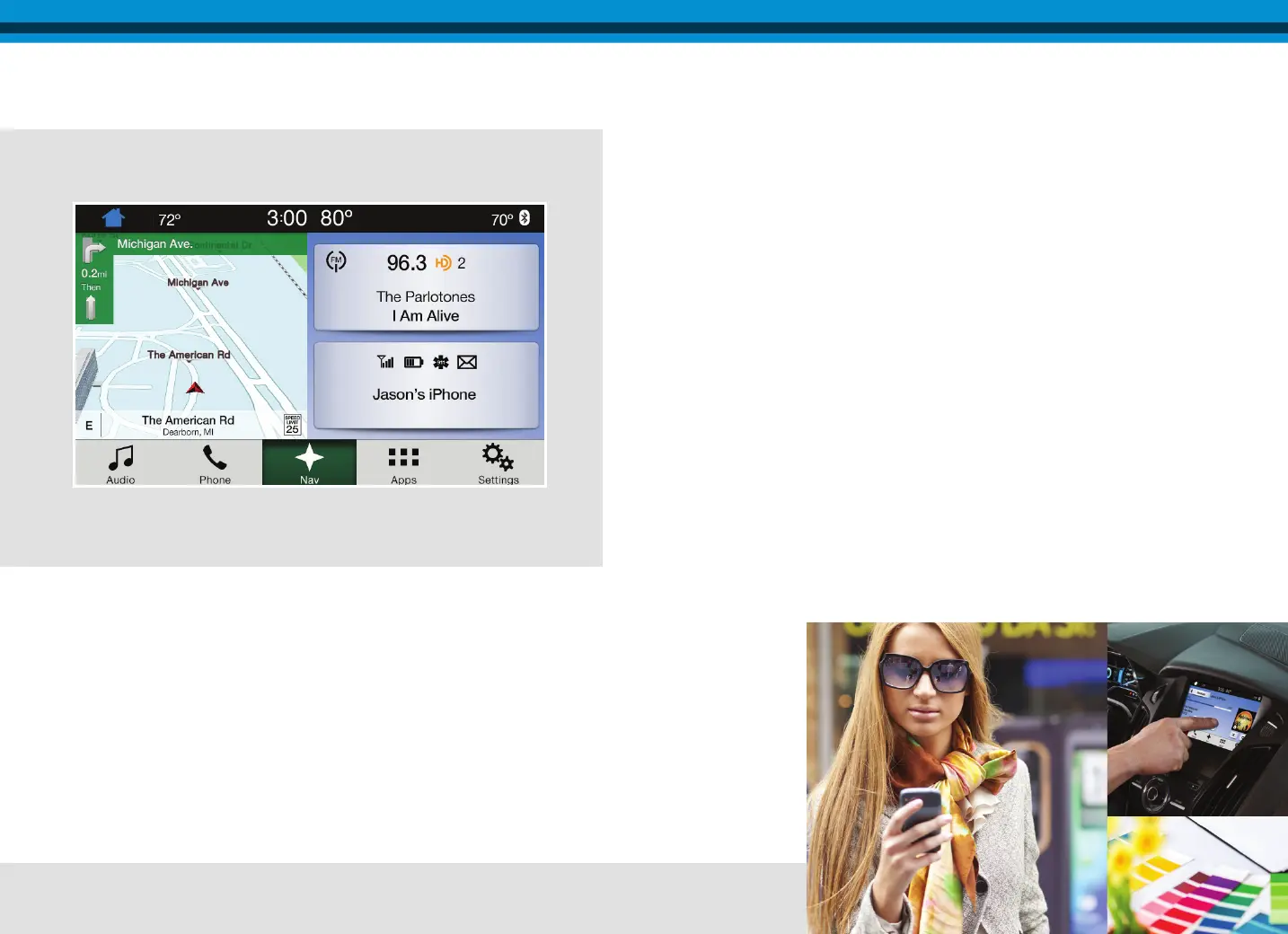
Get in Touch Using Your Touchscreen
Use the Feature Bar at the bottom of the touchscreen to access the many features of SYNC 3.


 To Next Page
 Loading...