11
EN
2. Click the “Picture Setting” icon to enter the advanced image settings.
The user can change the brightness, contrast, colour intensity and focus. It is also possible to
select one of many predened settings.
To exit the image settings, click Back on the projector or EXIT on the remote control.
Installation of additional programs
The project has a built-in Android SMART TV system, which allows installing additional software
on the device using the Play Store application. The Play Store is available only for users who
added their Google account to the device.
1. Click the “Google Play” icon on the start-up screen.
2. Enter required application name into the search eld.
3. Select the application and click “Install”, the application will be downloaded and installed
on the device.
Note: Due to the fact that the device is a SMART TV type device, it may turn out that not all
applications will be compatible. If so, Play Store will not allow installing the given application
and will display a notication about lack of compliance.
Access to applications
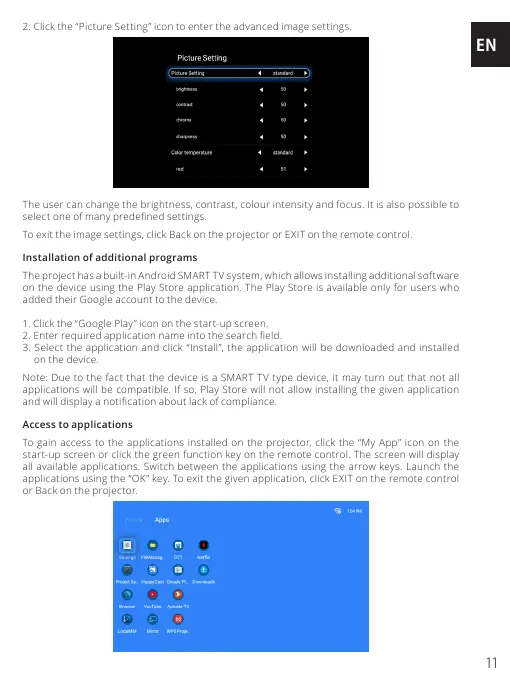
To gain access to the applications installed on the projector, click the “My App” icon on the
start-up screen or click the green function key on the remote control. The screen will display
all available applications. Switch between the applications using the arrow keys. Launch the
applications using the “OK” key. To exit the given application, click EXIT on the remote control
or Back on the projector.


 To Next Page
 Loading...