The VoicePro 575 is a digital headset amplifier designed to enhance communication for users of both desk phones and soft phones, offering a comprehensive suite of features for call management, audio adjustment, and recording. This device serves as an intermediary between a headset and a communication device (either a telephone or a computer), providing advanced control over audio input and output.
Function Description
At its core, the VoicePro 575 acts as a central hub for managing audio in a professional communication environment. It allows users to connect a headset, a desk phone, and a PC, facilitating seamless switching between these communication modes. The primary function is to amplify and process audio signals, ensuring clear and consistent sound quality for both the user and the person on the other end of the line. It supports two-way conversation recording when connected to a PC, making it a valuable tool for quality assurance, training, or record-keeping. The device is powered via a USB connection to a PC, which is essential for its operation.
Usage Features
The VoicePro 575 is equipped with a variety of controls and indicators that allow for intuitive operation and customization of the audio experience.
Connectivity:
- Telephone Cord: Connects the amplifier to a desk phone.
- USB Cable: Connects the amplifier to a PC for power and soft phone integration.
- QD Cable (Headset): Connects a Quick Disconnect (QD) headset to the amplifier.
Controls on the Top Panel:
- Speaker Volume Control: A rotary dial that allows the user to adjust the listening volume of the headset. The display shows the current speaker volume level, ranging from 0 to 60.
- Mute Button: Toggles the headset microphone mute function. When muted, a mute indicator will be ON; pressing it again unmutes the microphone, and the indicator turns OFF.
- 'PC/TEL' Switch: This button allows the user to switch between PC mode (for soft phone communication) and TEL mode (for desk phone communication). The PC/TEL indicator on the display changes color (e.g., green for TEL mode, white for PC mode) to show the active mode.
- Playback Button: Used to play back prerecorded conversations to both the customer and the user when in TEL mode.
Controls on the Side/Bottom Panel:
- Headset/Handset Selection Switch: A physical switch that allows the user to select between using a headset or a traditional handset. This switch should be set to "Headset" for optimal use with the VoicePro 575.
- Telephone Compatibility Switch: This switch, typically labeled '1' and '2', helps ensure compatibility with various desk phone models. Users are instructed to adjust this switch until a clear dial tone is heard in the headset.
- Microphone Volume Control: A rotary dial or slider that adjusts the sensitivity of the headset microphone, allowing the user to control their speaking volume. The display shows the current microphone volume level, ranging from 0 to 56.
- Headset Compatibility Switch (U/P): This switch allows selection between "Universal" (U) and "Plantronics" (P) headset compatibility, ensuring proper functionality with different headset brands.
- Tone Control (Treble/Bass): A switch or dial that allows adjustment of the audio tone, enhancing clarity or richness of sound.
- Automatic Level Control (ALC) Switch: This feature helps maintain a consistent audio output level, preventing sudden changes in volume.
- Microphone Mute (Supervisor) Switch: An additional microphone mute control, potentially for supervisory functions or more permanent muting.
Display Features:
The VoicePro 575 features a clear digital display that provides real-time feedback on various settings and operational modes:
- General Display: Shows BASS/TREBLE settings, ALC status, and Mic. Volume.
- Volume Control Display: Indicates the current speaker volume (e.g., "60") and microphone volume (e.g., "36").
- PC/TEL Mode Switch Display: Clearly shows whether the device is in PC Mode (represented by a computer icon) or TEL Mode (represented by a telephone icon).
- Mute/Unmute Display: Shows "MUTE" with a crossed-out microphone icon when muted, and "UN-MUTE" with an active microphone icon when unmuted.
- Playback Recording Display: Shows "00" with a recording icon when playback recording is active.
Call Management and Recording:
- Call Recording: When in TEL mode and connected to a PC via USB, two-way conversations can be recorded using recording software on the PC. This feature is crucial for quality control, compliance, or training purposes.
- Listening to Recorded Calls: Recorded calls can be listened to when the device is in PC mode.
- Playing Back Recorded Calls to Customer: In TEL mode, prerecorded conversations can be played back to both the customer and the user by pressing the Playback button.
Setup and Operation Flow:
- Power Connection: Connect the VoicePro 575 to a PC via the USB cable. The 'PC/TEL' and mute indicators will blink twice, confirming power.
- Desk Phone Connection: Plug the telephone cord into the VoicePro 575's telephone port, and the other end into the headset port of the desk phone.
- Soft Phone Connection: Ensure the USB cable is connected to the PC. Press the 'PC/TEL' button to switch to PC mode (indicator turns white).
- Headset Selection: Set the headset/handset selection switch to "Headset."
- Telephone Compatibility: Adjust the telephone compatibility switch ('1' or '2') until a clear dial tone is heard in the headset.
- Volume Adjustment: Make a test call to adjust the microphone volume control for optimal speaking volume and the speaker volume control for comfortable listening.
- Mute Function: Use the mute button to mute/unmute the headset microphone as needed during calls.
Maintenance Features
While the manual does not explicitly detail maintenance features, the design implies ease of use and durability. The modular connectivity with standard cables (USB, telephone cord, QD headset cable) suggests that components can be easily replaced if damaged. The absence of complex internal components requiring user intervention means that general maintenance would likely involve keeping the device clean and ensuring proper cable connections. The digital display and clear indicators contribute to troubleshooting by providing immediate visual feedback on the device's status and settings, allowing users to quickly identify and resolve common operational issues. The robust physical switches and dials are designed for frequent use in a professional environment.

 Need help?
 General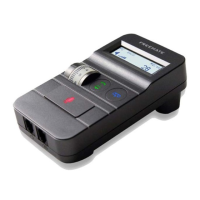

 To Next Page