USAGE GUIDE
After securely mounting and positioning your camera,
you’re ready to use your camera! Access live video and
saved clips, Two-Way Audio, and adjust the Video
Analytics configuration in the Frontpoint mobile app.
LIVE AND SAVED VIDEO
Tap “Video” in the left-hand menu.
• In the “Live” menu, tap the play button in the video
window to view live video.
• In the “Saved” menu, tap a video clip to review
your recording.
TWO-WAY AUDIO
Open your camera’s live video window in full screen.
• Tap the play button ( ).
• Select the full-screen icon ( ).
• To speak through the camera, press and hold the
microphone button. Release the button to listen.
• Mute or unmute incoming audio by toggling the
speaker button. OR
VIDEO ANALYTICS
While video analytics rules are encouraged to be created
during the initial setup, they can be set up or modified at
any time. To create video analytics rules, follow the steps
below:
1. Select “Video” in the left-hand menu.
2. Select the gear in the upper right corner ( ).
3. Select “Recording Rules”.
4. Select “Add New Rule”.
5. Follow the on-screen instructions to continue.
98
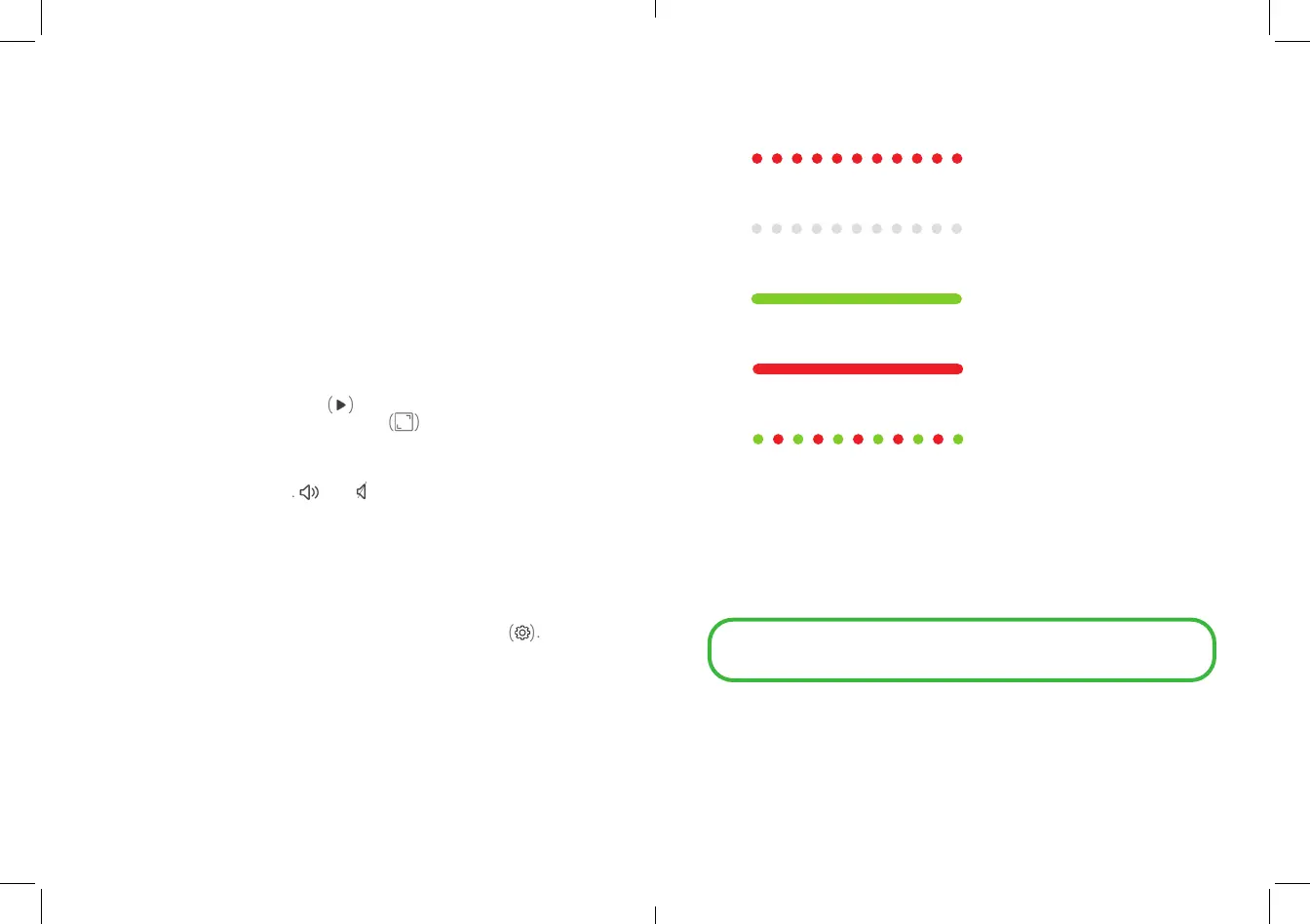
LED REFERENCE GUIDE
Blinking red - Powered on and boot up is in progress.
Blinking white - Ready to connect to Wi-Fi.
Solid green - Ready to use and working normally.
Solid red - Trouble connecting to Wi-Fi.
Blinking red & green - Factory reset in progress.
The camera should be factory reset if there are issues during set up or
anytime the camera is not operating as expected.
To factory reset the Outdoor Camera:
• Press and hold the Reset button for about 15 seconds or until the
LED blinks red and green
• Release the Reset button. The camera will reboot.
WARNING: A factory reset restores factory-default settings. The camera
may need to be removed from your Frontpoint system and re-added when
the reset is complete.



 To Next Page
 Loading...