En-45
4-1. RemoteOperationSetting
(1) Start a browser and input the web page address in the
addresseld.
(Web page address)
https:// [Central Controller IP address]/index.html
(2) Input “Login ID” and “Password”. Select “Language” and tap
the [login] button.
(Input “Login ID” and “Password” which are set on the remote
setting screen.) →Refer to 3-4-6.
(3) Monitoring screen for remote control is displayed.
4-2. Monitor
4-2-1. Monitoringscreen
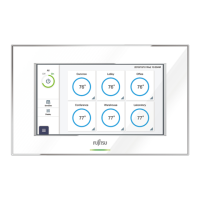
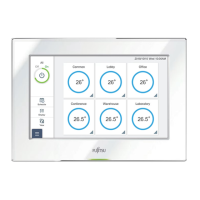
[Tablet Screen]
(1) Check the checkbox of R.C.G. to be changed for the setting.
No. Item Description
Menu button
Selects the process.
• GroupMonitor→Refer to 4-2-1.
• R.C.GMonitor→Refer to 4-2-1.
• ChangePassword→Refer to 1-3.
• Unitdisplayorder→Refer to 1-4.
• EnvironmentSetting→Refer to 4-6.
•
Accountsetting→Refer to 4-6
(When logged in with the account
registered at “Remote Setting”
(→Refer to 3-4-6.) of main unit or
the administrator rights account, this
setting is displayed. )
“Select All” Selects (Checks) all R.C.G..
3
[R.C.G. List]
Displays the list of R.C.G. included
in the selected group. (This list is
displayed only on “Group Monitor”
screen.)
4
[Operation]
Setstheoperation.→Refer to 4-2-2.
5
[Off] Sets the selected R.C.G. to Off.
6
[On] Sets the selected R.C.G. to On.
7
[Icon]
When even one unit is abnormal in the
registered indoor units or outdoor units,
[Error] icon is displayed.
When tapped, the message box
showing the abnormal units list is
displayed.
(1)
(2)
(3)
43
5 6
7
Group Monitor
R.C.G Monitor
4 5 6
7



 To Next Page
 Loading...