3 SETTING
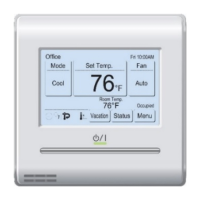
3-1 Select the Setting Items
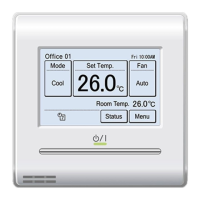
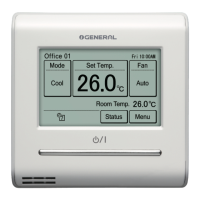
(1) Touch the [Menu] on the moni-
tor mode screen.
26.0
°C
Cool
Auto
Set Temp.
Mode
MenuStatus
Fan
Fri 10:00AM
(2) “Main Menu” screen is displayed.
The screen has 3 pages which are switched by touching
the [Next Page] or [Previous Page].
(Items that indoor unit does not support are not dis-
played.)
Monitor
Next
Page
Page 1/ 3
Main Menu
Air Flow Direction
Setting
Weekly Timer
Setting
Timer Setting
Comfort
~
Monitor
Previous
Page
Page 3/ 3
Main Menu
Maintenance
When the item to be set is touched, each setting screen
is displayed. Refer to the description of each item for
details. When each setting is complete or canceled,
the display returns to this screen. When [Monitor] is
touched, the display returns to the monitor mode screen.
3-2 Comfort
Airowdirection(vertical/horizontal)issettoprovideair
conditioning for the entire room.
Inthecomfortableairowmode,theairowdirectioncannot
bemanuallysetbecausetheairowdirectionisxed.
(1) Touch the [Comfort] on the
“Main Menu” screen.
Monitor
Next
Page
Page 1/ 3
Main Menu
Air Flow Direction
Setting
Weekly Timer
Setting
Timer Setting
Comfort
NOTE
For the indoor units without comfort function, [Com-
fort] is not displayed.
(2) “Comfort” screen is displayed.
Touchthe[On]or[O]onthe
“Comfort” screen.
Comfort
Cancel OK
On
Off
When you touch the [OK], the data is transmitted to the
indoor unit, and then the display returns to “Main Menu”
screen.
3-3 AirFlowDirectionSetting
(1) Touch the [Air Flow Direction
Setting] on the “Main Menu”
screen.
Monitor
Next
Page
Page 1/ 3
Main Menu
Air Flow Direction
Setting
Weekly Timer
Setting
Timer Setting
Comfort
NOTE
Fortheindoorunitswithoutairowdirectionadjust-
ment function, [Air Flow Direction Setting] is not
displayed.
(2) “Air Flow Direction Setting”
screen is displayed. When the
[VT Setting] or [HZ Setting] is
touched, each setting screen
is displayed.
Air Flow Direction Setting
Back
VT HZ
Setting Setting
Whentheindoorunitdoesnothaveahorizontalairow
direction adjustment function, [HZ Setting] is not dis-
playedandtheairowdirectioncannotbeset.
When this remote controller is
connected to the cassette type
indoor unit with individual air
owcontrolfunction,[Individu-
al Hold] is displayed.
1
Air Flow Direction Setting
Back
Individual Hold
VT
Setting
For this operation, refer to “3-3-3 Individual Hold”.
When the [OK] or [Cancel] is touched at each setting
screen, the display returns to this screen. When [Back]
is touched, the display returns to the “Main Menu”
screen.
NOTES
• When using this unit together with a wireless remote
controller,theairowdirectionoftheindoorunitmay
not match the direction indicated on this unit.
• Whentheairowdirectionissetwithcombinationuse
ofwirelessremotecontrollerandthisproduct,airow
directionsettingshownonthisproductmaydierfrom
actual louver position of the indoor unit.
• Whentheairowdirectionissetwithcombinationuse
of wireless remote controller and this product in the
sameremotecontrollergroup,airowdirectionsetting
shownonthisproductmaydierfromactuallouver
position of the indoor unit.
3-3-1 VTAirFlowDirection
(1) Touch the [VT Setting] on the “Air Flow Direction Set-
ting” screen.
(2) “VT Air Flow Direction Setting
”
screen is displayed. Touch
[ ] or [ ]andsettheairowdirectionor“Swing”.
(1) (2)
Air Flow Direction Setting
Back
VT HZ
Setting Setting
1
1
4
VT Air Flow Direction Setting
Cancel OK
(3) When the [OK] is touched after setting, the data is
transmitted to the indoor unit and the display returns to
the
“
Air Flow Direction Setting” screen.
3-3-2 HZAirFlowDirection
(1) Touch the [HZ Setting] on the “Air Flow Direction Set-
ting” screen.
(2) “
HZ Air Flow Direction Setting
”
screen is displayed. Touch
[ ] or [ ]andsettheairowdirectionor“Swing”.
(1) (2)
Air Flow Direction Setting
Back
VT HZ
Setting Setting
1
3
5
HZ Air Flow Direction Setting
Cancel OK
(3) When the [OK] is touched, after the data is transmitted
to the indoor unit, the display returns to the “Air Flow
Direction Setting” screen.
En-8


 To Next Page
 Loading...