XG Series User's Guide Chapter 6 Managing the Device
Actions When Firmware Update Failes (Backup Firm Function)
594
• XG0224 / XG0448 / XG0440DC / XG0440DCR
Directly connect a cable to 10/100/1000BASE-T ports of this device and the PC instead of using a HUB in between.
3. Connect the power cable to the power outlet.
4. Insert the power cable into the power connector while pressing the reset switch on the back of this
device using a pointed tool. After about five seconds, release the reset switch.
The power is turned on and the backup firmware is started.
Precautions
If you do not release the reset switch within 10 seconds after turning on the device, it is regarded as reset switch failure.
Be sure release the reset switch within 10 seconds.
Note
As this device supports AutoMDI/MDI-X function, you can connect a cable to 10/100/1000BASE-T ports without being
conscious of the PC and HUB.
Note
• It takes about one minute to start the backup firmware.
• The Ready LED blinks in green when the backup firmware is running.
• If you start the backup firmware to logon with the console connected, the "backup#" message is displayed on the console
screen.
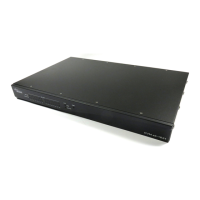
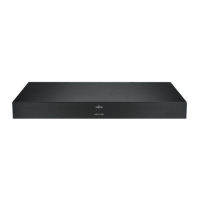
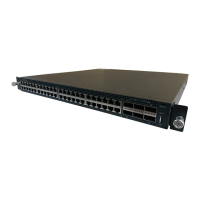
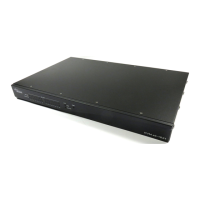
[XG0448]
[XG0224] [XG0440DC/XG0440DCR]
Example:XG0440DCR



 To Next Page
 Loading...