2. OPERATIONAL OVERVIEW
2-15
2.1.13 How to enter alphanumeric data
On some screens it is necessary to enter alphanumeric data. The data can be input
two ways: software keyboard, trackball, or optional keyboard.
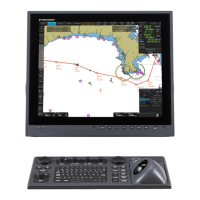
Alphanumeric data entry from the optional keyboard
1. Click the input box.
2. Press appropriate keys on the keyboard and press the ENTER key.
Alphanumeric data entry from the software keyboard
A software keyboard is also available for entry of alphanumeric data. Do as follows to
use the software keyboard. Display the keyboard before opening menus.
1. On the InstantAccess bar™, press the [DISP], [ ] and [ON] buttons to show
the software keyboard. The [BS], [Enter], [n], [p],[ m], [o] and [Spacebar] on the
keyboard function the same as those keys on any ordinary keyboard.
2. To switch between the alphabet keyboard and symbols keyboard, click the [!$&]
key.
Key Function
Tab Move the selection cursor.
Caps Lock Switch between upper case and lower case alphabet.
Shift Turn caps lock on and off with the Caps Lock key.
BS Erase the character left of the cursor.
Enter Terminate keyboard input; insert line feed.
n, p,m,o Move cursor in direction of arrow.
Spacebar Insert a space
Ctrl No use.
Alphabet keyboard
Symbols keyboard



 To Next Page
 Loading...