The FUSWLAN Wi-Fi Camera (HX Series) is a versatile security camera designed for easy setup and remote monitoring. It offers a range of features for both initial configuration and ongoing use, allowing users to keep an eye on their property from anywhere.
Function Description
The FUSWLAN Wi-Fi Camera primarily functions as a surveillance device, capturing video and audio for security purposes. It supports Wi-Fi connectivity, enabling wireless operation and remote access via a dedicated mobile application or PC software. The camera is designed to be integrated into a home or office network, providing real-time monitoring and recording capabilities.
Key functions include:
- Live View: Users can access a live video feed from the camera through the "CamHipro" mobile app or PC software, allowing for real-time observation of the monitored area.
- Video Recording: The camera supports recording video footage, which can be stored on a Micro SD card inserted into the device. This allows for later review of events.
- Motion Detection: An essential security feature, motion detection triggers recording and can send alerts to the user's mobile device when movement is detected within the camera's field of view. Users can customize the detection area and sensitivity.
- Alarm Linkage: When an alarm is triggered (e.g., by motion detection), the camera can perform various actions, such as recording to the SD card, sending email alerts with pictures, or uploading footage to an FTP server.
- Audio Capabilities: The camera includes audio input and output features, allowing for the adjustment of microphone and speaker volumes. This enables two-way audio communication or simply listening to the environment.
- Remote Access: Through the mobile app or PC software, users can access and manage the camera remotely, including viewing live feeds, reviewing recordings, and adjusting settings.
- Multi-Camera Management: The PC software allows users to connect and manage multiple FUSWLAN cameras simultaneously, providing a comprehensive surveillance system for larger areas.
Usage Features
The FUSWLAN Wi-Fi Camera is designed for user-friendly operation, from initial setup to advanced configuration.
Initial Setup:
- Connection Options: The camera offers two primary methods for initial connection:
- LAN Cable Connection: Users can connect the camera directly to a router using a LAN cable. After powering on, the camera performs a self-check, and then it can be added to the "CamHipro" app by searching for devices on the same network.
- AP Mode Setting (without LAN Cable): If a LAN cable connection is not feasible, the camera can be set up in AP (Access Point) mode. This involves resetting the camera, connecting to its temporary Wi-Fi hotspot (SSID: IPCAM-XXXXXX), and then configuring it through the app to connect to the home Wi-Fi network.
- App Download: The "CamHipro" app is available for both Android and iOS devices, downloadable from Google Play or the App Store, or by scanning a QR code provided in the manual.
- Device Identification: Cameras can be added to the app either by searching for them on the local network or by scanning a UID QR code for sharing with other devices.
Wi-Fi Configuration:
- Wireless Settings: Once connected, users can configure the camera's Wi-Fi settings through the app. This involves selecting the home Wi-Fi network (2.4GHz only, as 5GHz is not supported) and entering the password.
- Wi-Fi Name and Password Guidelines: The manual provides important notes regarding Wi-Fi network names (SSID) and passwords, advising against special characters and specifying password length requirements.
- Dual Band Router Compatibility: For users with dual-band routers, it's recommended to either disable the 5GHz band during setup or ensure distinct SSIDs for the 2.4GHz and 5GHz bands to ensure the camera connects correctly.
Recording and Alarms:
- SD Card Management: The camera supports Micro SD card recording. Before the first recording, the SD card needs to be formatted through the app.
- Schedule Recording: Users can set up a recording schedule, choosing between an "Easy setup" (24/7 recording) or "advanced settings" for customized recording times throughout the week.
- Motion Detection Configuration: The motion detection feature can be enabled and customized, allowing users to define specific detection zones and adjust sensitivity levels (from 1 to 50, with 1 being the lowest).
- Alarm Push Notifications: Users can enable "Receive alarm push" to get text notifications on their mobile device when an alarm is triggered.
- Alarm Linkage Actions: Beyond notifications, alarms can trigger recordings to the SD card, send email alerts with pictures, or upload captured images/videos to an FTP server. Email and FTP settings require configuration through the app or PC software.
- Playback: Recorded footage stored on the SD card can be easily accessed and played back through the app, allowing users to search by time interval and download video files.
PC Software Usage:
- Search Tool: A "Searchtool" can be downloaded from the FUSWLAN website to find cameras on the local network, providing their IP addresses and other information.
- IE Browser Access: Users can access the camera's interface through an IE browser on a Windows PC by entering the camera's IP address. This allows for viewing live images and configuring camera parameters.
- PC Software for Multi-Camera Management: Dedicated PC software enables the connection and management of multiple FUSWLAN cameras simultaneously, offering a centralized monitoring solution.
Maintenance Features
The FUSWLAN Wi-Fi Camera includes several features to ensure its continued operation and allow for troubleshooting.
- Reset Button: A physical reset button, typically located near the power port, allows users to restore the camera to its factory settings. This is useful for troubleshooting or reconfiguring the device. Pressing and holding the button for 8-10 seconds initiates the reset process.
- Remote Reset/Restart: The camera can also be restarted or reset remotely via the mobile phone app or PC software, offering convenience without needing physical access to the device.
- Time Zone Setting: Users can set the camera's time zone through the app. If Daylight Saving Time (DST) is active, the DST button should be turned on to ensure accurate recording timestamps.
- Firmware Updates: While not explicitly detailed as a user-initiated feature, the mention of "Version" in the device information suggests that firmware updates may be available to improve performance or add new features.
- Customer Support: The manual emphasizes the availability of detailed setup manuals, video tutorials on the FUSWLAN website (www.cameracd.com), and direct customer service via email (info.us02@fuswl.com) for technical support and inquiries. This ensures users have resources for troubleshooting and assistance.
- Power Adapter and Network Cable: The product includes a power adapter and network cable, ensuring users have the necessary components for initial power and wired connection, which can be crucial for stable setup before switching to Wi-Fi.
- Waterproof Lid: The inclusion of instructions on "How to fit Waterproof lid" suggests that the camera may have outdoor capabilities or require protection from elements, indicating a design for durability in various environments.

 Need help?
 General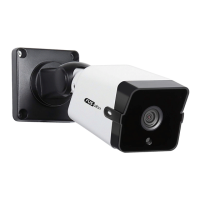

 To Next Page