51834295_V_1_7.DOC
49/60
The masked units are open and the others are closed, so it is very easy to identify the masked units on
stage. After pressing the button for two seconds the unit name appears in the lower line, then a star is shown
at the place of the masked units. After masking press ENTER.
Program scene time:
For every program scene a wait time can be programmed. If you run a program with a programmed scene
wait time, then the scene wait time will overwrite the wait time programmed on the controller.
If you would like to use the program scene time then press the UP button to activate it. If not press the
DOWN button. The current position is shown the display. In the chapter ‘Preparation of a program scene’
you can read how to set this time. After the setting press ENTER.
Program edition:
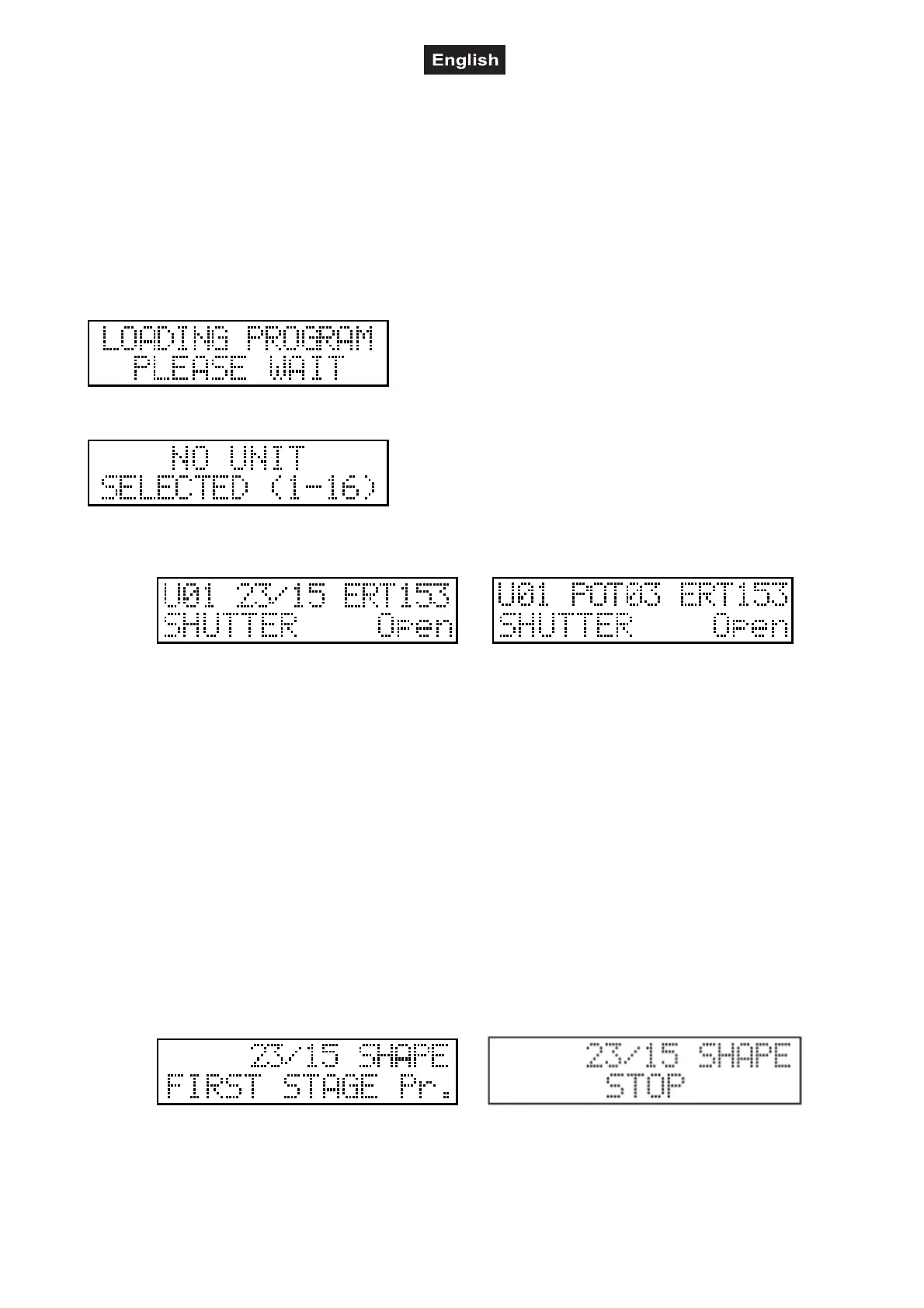
For a few seconds the program is being loaded, then the controller enters the program edition.
The caption warns that a unit has to be selected with buttons 1-16, since the program cannot be modified
without it. Select one or more units with buttons 1-16.
Preparation of a program scene:
If a unit was selected (the LED’s that correspond to the selected units are flashing on buttons 1-16), the
display always indicates data of the modified channel of the last selected unit. After letter U (Unit) in the
upper line the number of the last selected unit is shown . In the middle the number of the last moved
potentiometer, the number of the edited program and the number of the program scene currently being
edited is shown alternately. At the end of the line the current value of the channel appears.
In the lower line the name of the modified channel effect and the type name corresponding to the current
value appears.
Units can be selected with buttons 1-16, its LED will flash, or the selection can be stopped, its LED will glow
at half intensity again. The channels of the selected units can be modified with potentiometers 1-8 and the
SLIDER button. With the JOG discs the mirror and the head movement of the selected units can be set. If
you have set a scene, press the ENTER button to save the scene. On the display the number of the program
scene will increase by one, then the next scene can be set in the mentioned way. A program can consist of a
maximum of 99 steps.
Setup of a shape into a program scene:
Any of the 64 shapes to be edited can be assigned to a program scene. For this press the SHAPE
(MANUAL) button.
The number of the edited program and the scene appears in the middle of the upper line of the display. In
the lower line name the shape assigned to the current step or ‘STOP’ caption appears, or the line is empty.
The empty line means that no shape is assigned to the current step, the ‘STOP’ caption means that each
shape drawing will stop in the current step. If there is a name in the lower line, one is flashing on the LED’s
1-16, this means the number of the selected shape. A shape can be selected with buttons 1-32, if you want


 To Next Page