CopyaProle
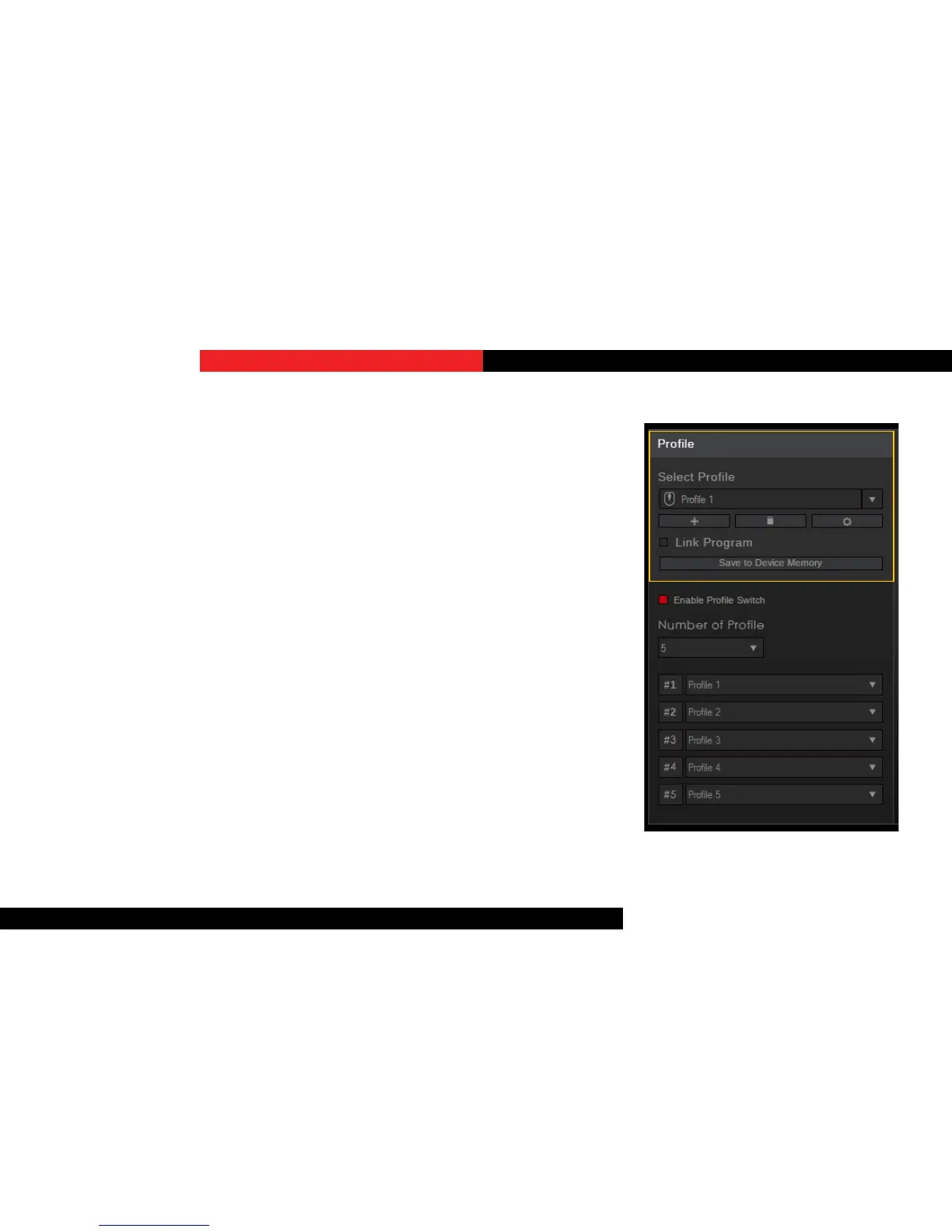
Click on the gear icon below the prole
name, then choose “Copy” from the list to
make an exact copy of the prole.
Export/ImportaProle
Click on the gear icon below the prole
name, then choose “Export” (or “Import”)
from the list. A window will prompt you to
choose a locaon and a le name to save
(or load) your prole.
ApplyProleSeng
To apply the current prole sengs, click
“Save to Device Memory”.
CreateaProle
To create a new prole, click on the “+”
buon located under the prole name.
A new prole will be automacally
generated using default sengs.
SelectaProle
Click the upside-down triangle to the right
of the prole name for a drop-down list
of available proles. If only one prole
is available, the drop-down list will be
unavailable.
DeleteaProle
Click on the trash bin icon located below
the prole name to delete a prole. A
conrmaon dialogue window will pop up
to conrm the deleon. A prole cannot
be deleted if there are no other selectable
proles or if the prole is currently in use
by the device.
Proles


 To Next Page
 Loading...