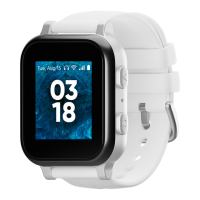
About Your Watch
Note: Devices, software and apps are
constantly evolving. The images, icons and
features mentioned in this document are for
reference only.
Warning: Only use approved chargers with
your device. Use of incompatible chargers
or tampering with the charger port could
damage your device and void the warranty.
Note: Swipe down from the watch face to
access the Quick menu:
Step 1: Prepare Cell Phone to Pair.
Using Your Watch Adjusting the Volume
Setting Up Your Watch
Download the MyGabb App from the
Google Play Store or Apple App Store.
You will need the MyGabb App to pair the
watch and set up GPS location tracking
and SOS functionality.
Create an account or login to get to the
pairing screen.
After getting through the login screen, tap
the devices tab at the top and then tap
“Add Device"
Basic Navigation
Your watch has a tap screen. Just swipe
left or right to switch pages:
Watch face
Contacts
Call history
Message
Gadgets
Settings
Step 2: Charge Your Watch.
Before turning on you watch, make sure
that it is fully charged.
Align the gold pin on the charging
dock with the gold charging contacts
on the back of the watch.
Plug the other end of the cord into
the charging adapter and plug the
adapter into an electrical outlet.
1.
2.
Step 3: Turn on the Watch to
Display QR Code.
Step 6: Turn Your Watch On/O.
To turn your watch on, press and hold
the power button until the screen lights up.
Swipe to the right from the watch
face to the Settings screen.
Tap to go to the Volume screen.
Then drag the icon to adjust
the volume.
To turn it o, press and hold the power
button again until you see “Do you want
to turn o?” on the screen. Then tap
to turn o your watch.
To turn on your watch, hold down
the power button.
Step 4: Pair Watch to MyGabb App.
Step 5: Enter 8-digit Code into
MyGabb App.
When the watch is turned on for the
first time, there will be a QR code that
populates the screen.
Use the MyGabb App “Scan QR Code”
screen to pair the Gabb Watch 2 to
your phone.
After scanning the QR code, the QR
code screen will populate with an
8-digit code.
Enter the 8-digit code to finish pairing
the watch to the MyGabb App.
Adjust the volume
Adjust the screen brightness
Play with the digital pet
Turn on the flashlight


 To Next Page
 Need help?

 General