EasyManua.ls Logo

GameSir Z2 - User Manual

GameSir Z2
8 pages
Print Icon
To Next Page IconTo Next Page
Loading...
User Manual
We hope this manual answered any questions you may have.
If you have any further questions, please contact us:
GameSir Facebook: https://www.facebook.com/myGamesir
Twitter: https://twitter.com/mygamesir
Customer Service: cs@gamesir.hk
1 32 4
GAMESIR GM180 MOUSE DPI ADJUSTMENT
COMBINATION FUNCTION KEYS
AUTOMATIC POWER OFF
POWER INSTRUCTIONS
GameSir GM180 mouse's default DPI is 1600. Press DPI key at its back to
switch 3 levels of DPI adjustment (800/1200/1600).
Equipped with various combination keys, GameSir Z2 Keypad can meet
varied gaming demands through perfectly dealing with different types of
games and scenes. GameSir Z2 Keypad owns two sets of unique default
key layout profiles, which allow you to switch between W/A/S/D mode and
D-pad mode by pressing Fn+W.
W/A/S/D mode: indicator light is on.
D-pad mode: power light and D-pad mode switch light are both on.
When GameSir Z2 Keypad is connected, it will automatically power off within
600 seconds under no operation.
When GameSir Z2 Keypad is disconnected, it will automatically power off within
120 seconds under no operation.
When GameSir Z2 Keypad is connected, power indicator is off.
When GameSir Z2 Keypad is charging or in low power condition (15% and
below), power indicator flashes in red.
a.Power on GameSir Z2 Keypad.
b.Press Fn+F4 to switch to PC mode. The indicator light will flash in green,
indicating GameSir Z2 Keypad can be connected.
c.Insert GameSir Z2 Keypad's 2.4GHz dongle into Window PC's USB port.
d.The indicator light will stay solid green. GameSir Z2 Keypad is successfully
connected with PC.
e.Insert GameSir GM180 mouse's 2.4GHz dongle into Window PC's USB
port.
f.Driver will be automatically installed on PC. After installation, GameSir Z2
Combo can work normally.
a.Turn on Bluetooth of Android device.
b.Power on GameSir Z2 Keypad.
c.Press Fn+F5 to switch to Bluetooth mode. The indicator light will flash in blue,
indicating GameSir Z2 Keypad can be connected.
d.Download GameSir World app, enter "GameSir Spirit" > "Searching
gamepad", connect the gamepad with your phone via Bluetooth.
e.The indicator light will stay solid blue, GameSir Z2 Keypad is successfully
connected with Android devices.
f.Insert GameSir GM180 mouse's 2.4GHz dongle into Window PC's USB
port.
g.GameSir Z2 Combo can work normally. Click "Gamepad Test" in GameSir
World app to take a test.
Scan the QR Code or browse the link below to download GameSir World app.
Connect PC via 2.4GHz dongle
Connect Android(4.0 or above) devices
PRODUCT DESCRIPTION
PACKAGE CONTENTS
SYSTEM REQUIREMENT
Windows 7 or above
Android 4.0 or above
iOS 10 or above
Register your GameSir ID at https://gamesir.hk/ to get latest updates
about GameSir products and gaming news.
REGISTRATION
* 30 calendar days to return an item from the date you received it.
* 12-month replacement with the same model from the date you received it.
* Free online technical support at https://gamesir.hk/
YOUR BENEFITS
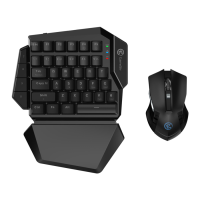
GameSir Z2 E-sports Wireless Keypad & Mouse Combo contains GameSir Z2
wireless one-handed gaming keypad and GameSir GM180 E-sports wireless
gaming mouse. It is compatible with Windows PC/Android through stable
2.4GHz dongle, providing accurate and flexible keypad and mouse control.
GameSir GM180 E-sports wireless gaming mouse greatly optimizes aiming
accuracy and stability to avoid external mouse's poor compatibility and high
consumption.
GameSir Z2 wireless one-handed gaming keypad (with 2.4GHz wireless
dongle)
GameSir GM180 E-sports wireless gaming mouse (with 2.4GHz wireless
dongle)
Mirco USB cable (3.28 ft.)
Detachable and slidable palmrest
User Manual
Built-in with 1000mAh lithium battery, GameSir Z2 wireless one-handed
gaming keypad can be connected through 2.4GHz/Bluetooth. The slidable
ergonomic palmrest perfectly suits different gestures for a faster control.
GameSir • Gaming is Winning.™
© 2018 GameSir Inc. All rights reserved.
Product may vary slightly from those pictures.
5 6 7 8
https://gamesir.hk/gsw
DEVICE LAYOUT
DEVICE LAYOUT
D-pad mode switch light
USB port
Detachable and slidable palmrest
Power Switch
Power light
Micro-USB
Connection indicator light
2.4GHz dongle
Left button
Right button
Middle & Roller DPI Key
Forward Backward
Optical sensor
Mouse skate
Battery box
2.4GHz dongle
GM180
FN+Tab: Print Scrn
FN+F: PgUp
FN+V: PgDn
FN+G: Insert
FN+B: Delete
FN+Shift: =
FN+M: Caps Lock
FN+F3: 2.4GHz dongle force pairing
FN+F1+F2: Bluetooth force pairing: Disconnect
current Bluetooth connection for new connection.
Invalid after reboot.
E-sports Wireless Keypad & Mouse Combo
* When GameSir Z2 Keypad automatically powers off, please switch on and
connect again with your devices.
GameSir Z2

Question and Answer IconNeed help?

Do you have a question about the GameSir Z2 and is the answer not in the manual?

Overview

The GameSir Z2 E-sports Wireless Keypad & Mouse Combo is a comprehensive gaming peripheral designed for competitive play across multiple platforms. This combo includes the GameSir Z2 wireless one-handed gaming keypad and the GameSir GM180 E-sports wireless gaming mouse, offering a unified control experience for gamers.

Function Description:

The GameSir Z2 E-sports Wireless Keypad & Mouse Combo is engineered to provide accurate and flexible control for gaming. The keypad is a one-handed device, optimized for quick and precise inputs, while the accompanying mouse enhances aiming accuracy and stability. The combo supports both 2.4GHz wireless and Bluetooth connectivity, making it versatile for different gaming setups. It is compatible with Windows PC, Android, and iOS devices, ensuring a broad range of usability for various gaming environments. The keypad features a detachable and slidable ergonomic palmrest, designed to adapt to different hand gestures for improved comfort and faster control during extended gaming sessions. The GM180 mouse is specifically designed to address common issues with external mice, such as poor compatibility and high power consumption, by optimizing its performance for gaming.

Important Technical Specifications:

GameSir Z2 Wireless One-Handed Gaming Keypad:

  • Connectivity: 2.4GHz wireless dongle and Bluetooth.
  • Battery: Built-in 1000mAh lithium battery.
  • Compatibility: Windows 7 or above, Android 4.0 or above, iOS 10 or above.
  • Layout: Features a compact, one-handed keyboard layout with essential gaming keys, including Esc, F1-F5, Tab, Caps M, Shift, Ctrl, Fn, Alt, and a WASD cluster, along with additional function keys (PgUp, PgDn, Insert, Delete).
  • Indicator Lights: Connection indicator light (A), D-pad mode switch light (B), Power light (C).
  • Ports: USB port (F), Micro-USB port (G).
  • Power Switch: (H) for turning the device on/off.
  • Palmrest: Detachable and slidable (D) for ergonomic adjustment.

GameSir GM180 E-sports Wireless Gaming Mouse:

  • Connectivity: 2.4GHz wireless dongle.
  • DPI Settings: Default DPI is 1600, adjustable to 3 levels (800/1200/1600) via a dedicated DPI key.
  • Buttons: Left button (A), Right button (B), Middle & Roller (C), DPI Key (D), Forward (E), Backward (F).
  • Sensor: Optical sensor (H).
  • Skates: Mouse skate (G).
  • Battery: Battery box (I) for power source, 2.4GHz dongle storage (J).
  • Operating Voltage: 1.5V.
  • Operating Current: 7mA.

Usage Features:

Connecting to PC via 2.4GHz Dongle:

  1. Power on the GameSir Z2 Keypad.
  2. Press Fn+F4 to switch to PC mode; the indicator light will flash green.
  3. Insert the GameSir Z2 Keypad's 2.4GHz dongle into a Windows PC's USB port. The indicator light will turn solid green upon successful connection.
  4. Insert the GameSir GM180 mouse's 2.4GHz dongle into a Windows PC's USB port.
  5. Drivers will install automatically, and the combo will be ready for use.

Connecting to Android (4.0 or above) Devices:

  1. Enable Bluetooth on the Android device.
  2. Power on the GameSir Z2 Keypad.
  3. Press Fn+F5 to switch to Bluetooth mode; the indicator light will flash blue.
  4. Download the GameSir World app, navigate to "GameSir Spirit" > "Searching gamepad," and connect the keypad via Bluetooth. The indicator light will turn solid blue upon successful connection.
  5. Insert the GameSir GM180 mouse's 2.4GHz dongle into the Android device's USB port (an OTG adapter may be required).
  6. The combo will function normally. A "Gamepad Test" in the GameSir World app can be used to verify functionality.

Combination Function Keys (Keypad):

The keypad offers two unique default key layout profiles: W/A/S/D mode and D-pad mode, switchable by pressing Fn+W.

  • W/A/S/D Mode: Indicator light is on.
  • D-pad Mode: Power light and D-pad mode switch light are both on.
  • Specific Combinations:
    • FN+Tab: Print Scrn
    • FN+F: PgUp
    • FN+V: PgDn
    • FN+G: Insert
    • FN+B: Delete
    • FN+Shift: =
    • FN+M: Caps Lock
    • FN+F1+F2: Bluetooth force pairing (disconnects current connection for a new one; invalid after reboot).
    • FN+F3: 2.4GHz dongle force pairing.

GameSir GM180 Mouse DPI Adjustment:

The mouse's DPI can be adjusted between 800, 1200, and 1600 by pressing the DPI key located on its back.

Maintenance Features:

Automatic Power Off:

  • When connected, the GameSir Z2 Keypad will automatically power off after 600 seconds of inactivity.
  • When disconnected, it will power off after 120 seconds of inactivity.
  • To resume use after automatic power-off, switch the keypad on and reconnect it to your device.

Power Instructions:

  • When the GameSir Z2 Keypad is connected, the power indicator light is off.
  • During charging or when the battery level is low (15% and below), the power indicator light flashes red.

Customer Support and Registration:

Users are encouraged to register their GameSir ID at https://gamesir.hk/ for updates and news. Benefits include a 30-calendar-day return policy, 12-month replacement for the same model, and free online technical support.

GameSir Z2 Specifications

General IconGeneral
BrandGameSir
ModelZ2
CategoryVideo Game Controller
LanguageEnglish

Related product manuals