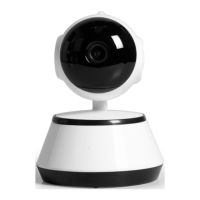
ROTATING HD WIFI CAM
iOS:
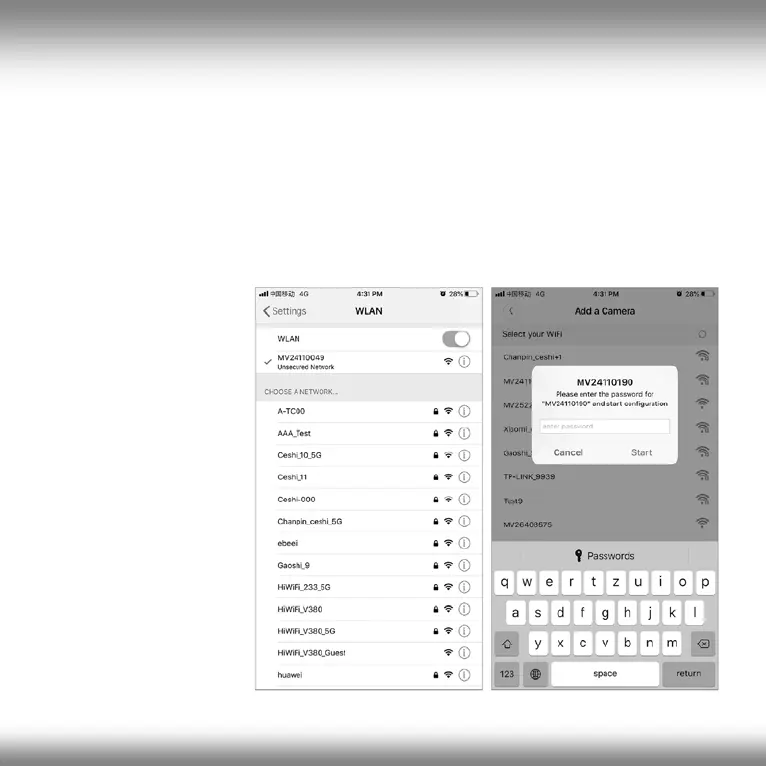
Tap on "Access point established", now go to your phone settings,
open the WiFi settings and connect your phone to the camera's WiFi
network called MVxxxxx. Wait for the status bar to display the “Wi-Fi
connected” icon, then return to the V380 app and tap “next”.
In the next screen, select your WiFi network, enter the password, tap
"confirm" and the camera will connect to your WiFi network.
The camera
is now displayed in
the device list. The
last step in setting up
your camera is to set
a password for the
camera. To do this,
press the play icon.
A password warning
is displayed. Select
“set password” and
follow the
instructions on the
screen to set a
secure password.
22
All brands and logos are registered trademarks of their respective owners


 To Next Page