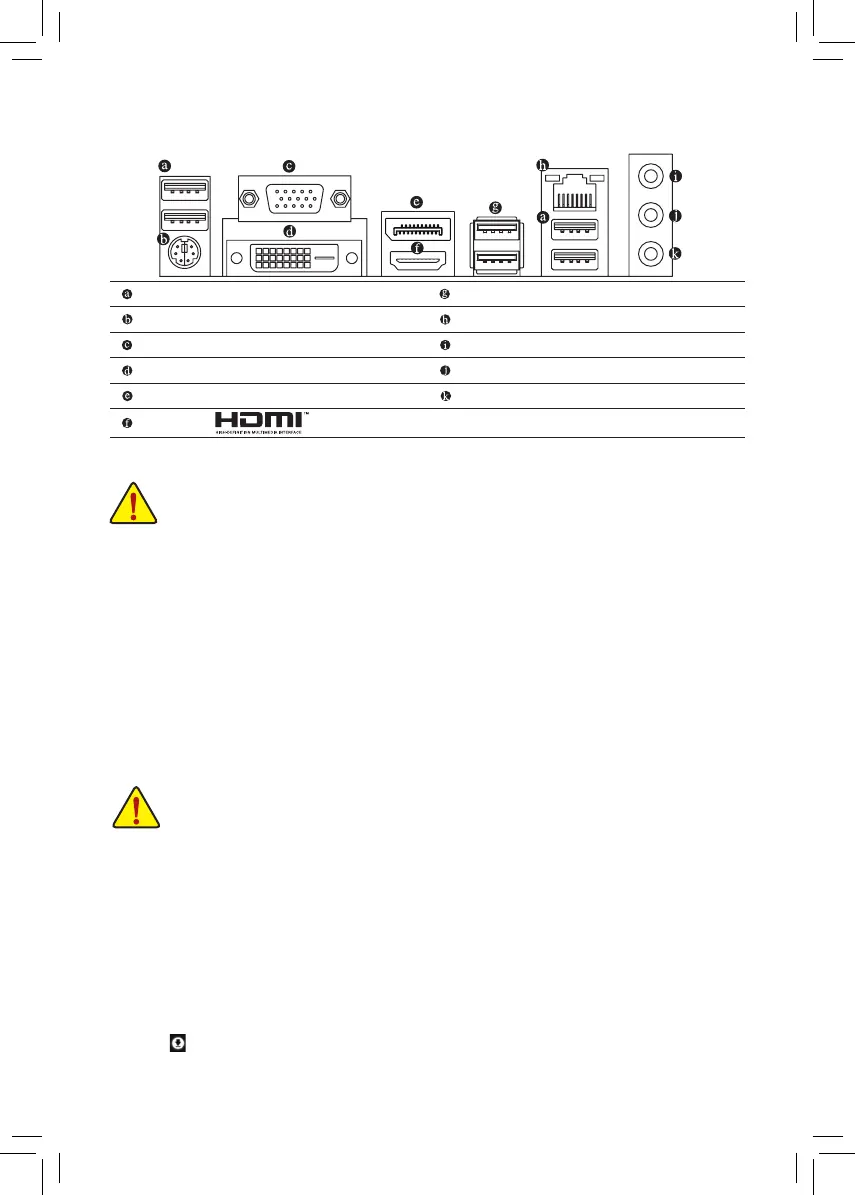
USB 2.0/1.1 Port
PS/2 Keyboard/Mouse Port
D-Sub Port
DVI-D Port
(Note)
DisplayPort
HDMI Port
USB 3.0/2.0 Port
RJ-45 LAN Port
Line In Jack (Blue)
Line Out Jack (Green)
Mic In Jack (Pink)
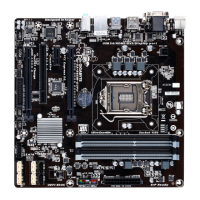
Installing the CPU
Installing the Memory/Expansion Card
Drivers Installation
"Xpress Install" will automatically scan your system and then list all of the drivers that are recommended to
install. You can click the Xpress Install button and "Xpress Install" will install all of the selected drivers. Or click
the arrow icon to individually install the drivers you need.
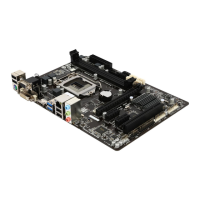
Back Panel Connectors
Read the following guidelines before you begin to install the CPU:
• Make sure that the motherboard supports the CPU.
(Go to GIGABYTE's website for the latest CPU support list.)
• Always turn off the computer and unplug the power cord from the power outlet before installing the
CPU to prevent hardware damage.
• Locate the pin one of the CPU. The CPU cannot be inserted if oriented incorrectly. (Or you may
locate the notches on both sides of the CPU and alignment keys on the CPU socket.)
• Apply an even and thin layer of thermal grease on the surface of the CPU.
• Do not turn on the computer if the CPU cooler is not installed, otherwise overheating and damage
of the CPU may occur.
• Set the CPU host frequency in accordance with the CPU specications. It is not recommended
that the system bus frequency be set beyond hardware specications since it does not meet the
standard requirements for the peripherals. If you wish to set the frequency beyond the standard
specications, please do so according to your hardware specications including the CPU, graphics
card, memory, hard drive, etc.
Read the following guidelines before you begin to install the memory:
• Make sure that the motherboard supports the memory. It is recommended that memory of the
same capacity, brand, speed, and chips be used. (Go to GIGABYTE's website for the latest
supported memory speeds and memory modules.)
• Make sure the motherboard supports the expansion card. Carefully read the manual that came
with your expansion card.
• Always turn off the computer and unplug the power cord from the power outlet before installing the
memory to prevent hardware damage.
• Memory modules have a foolproof design. A memory module can be installed in only one direction.
If you are unable to insert the memory, switch the direction.
(Note) The DVI-D port does not support D-Sub connection by adapter.



 To Next Page