Step 2
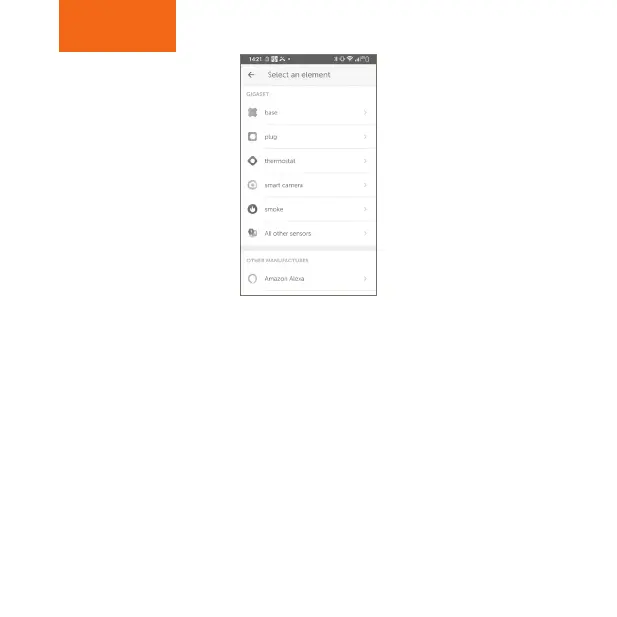
Gigaset elements app starten und auf „Elements“ klicken; hinzufügen „+“ drücken;
„smart camera“ auswählen und den Anweisungen folgen.
Launch the Gigaset elements app and click on "Elements"; press add "+";
select "smart camera" and follow the instructions.
Démarrez Gigaset elements app et cliquez sur « Elements »; pour ajouter,
cliquez sur « + » ; sélectionnez « smart camera » et suivez les instructions.
Avviare Gigaset elements app e fare clic su "Elements"; premere aggiungi "+";
scegliere "smart camera" e seguire le istruzioni.
Gigaset elements app starten en op "Elements" klikken; toevoegen "+" indrukken;
"smart camera" selecteren en vervolgens de instructies volgen.
Abra la aplicación Gigaset elements y haga clic en "Elements"; pulse añadir "+";
seleccione "smart camera" (cámara inteligente) y siga las instrucciones.


 To Next Page
 Loading...