
 Need help?
Do you have a question about the Go AirTies Smart Wi-Fi and is the answer not in the manual?
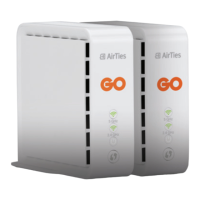
Connect the GO Smart Wi-Fi pod to a power outlet to begin the setup process.
Disable the Wi-Fi on your existing GO modem/router before proceeding with pod setup.
Use the provided Ethernet cable to connect the pod to your GO modem/router.
Allow up to 3 minutes for the pod to complete setup and pair with the modem/router.
Plug the second GO Smart Wi-Fi pod into another power outlet to extend coverage.
Download the AirTies WiFi app from the App Store/Play Store to manage your network.
Connect your mobile phone or tablet to the GO Wi-Fi Mesh network.
Connect the new GO Smart Wi-Fi pod to a power outlet.
Launch the AirTies WiFi app on your mobile phone or tablet.
Navigate to the 'My Network' section within the AirTies WiFi app menu.
Click the '+' icon to add a new AirTies unit to your network.
Follow the on-screen instructions in the app to successfully set up your new pod.
Connect the additional GO Smart Wi-Fi pod to a power outlet.
Press the WPS button on the modem's pod and the new pod for 1-5 seconds each.
Wait up to 3 minutes for the pod to complete setup and pair with the modem/router.
 General
| Brand | Go |
|---|---|
| Model | AirTies Smart Wi-Fi |
| Category | Network Hardware |
| Language | English |

 To Next Page