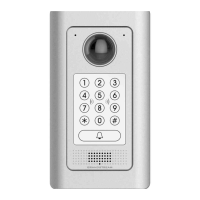
3. Bonjour will now display embedded at Safari. Select “Bonjour” pull-down menu and select “Webpages”, the related device like GDS371x will be
there.
Bonjour Setting Page
4. Click on the displayed GDS371x to access to the configuration page of the GDS371x.
5. To see the MJPEG video stream, users should type in the browser the following URL while specifying the correct protocol (either HTTP or HTTPs
and the correct port number) : http(s)://IP_address_GDS:Port/jpeg/mjpeg.html
Notes:
The instructions provided above are based on Safari/OS-X, other Apple platform like iOS (iPhone/iPad) can use similar method.
iPhone/iPad (iOS) users are recommended to use Applications in Apple Store.
Free or Paid applications from Apple Store like “IP Cam Viewer” is suggested and verified working with Grandstream GDS371x.
Apple Store applications like “IP Cam Viewer” will support H.264 video codec.
Connect to the GDS371x using Static IP
If there is no DHCP server in the network, or the GDS371x does not get IP from DHCP server, user can connect the GDS371x to a computer directly,
using static IP to configure the GDS371x.
1. The default IP, if no DHCP server, or DHCP request times out (after 3 minutes), is 192.168.1.168
2. Connect the Ethernet cable from GDS371x to the computer network port directly.
3. Configure the computer using Static IP: 192.168.1.XXX (1<XXX<255, except for 168) and configure the “Subnet mask” to “255.255.255.0”. Leave
the “Default Gateway” to “Blank” like below:


 To Next Page
 Loading...