.4
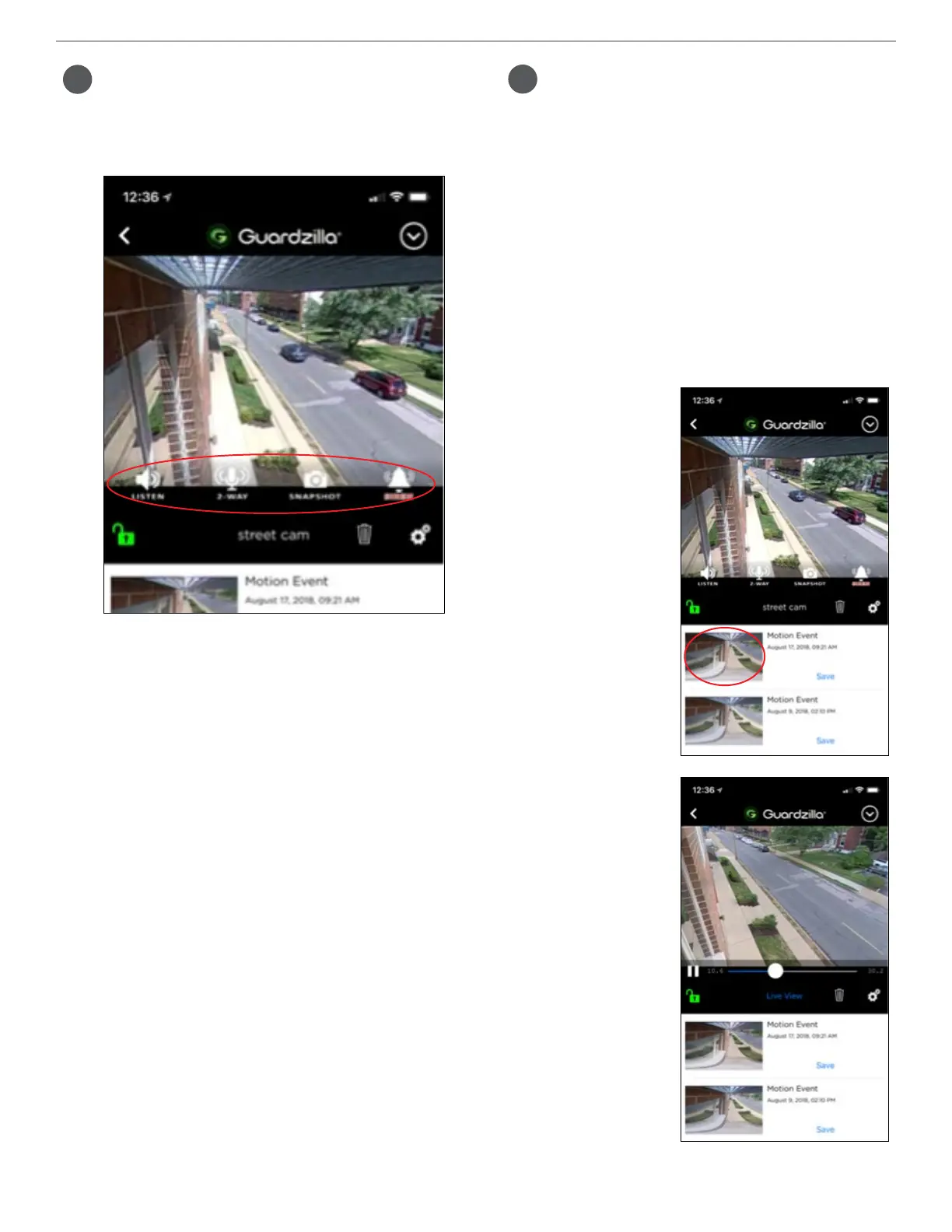
To access the listen, 2-way Talk,
snapshot and siren icons touch the
surface of the screen and a settings
bar will appear.
— To listen into the room press the
“LISTEN” icon. It will light up green
and the sounds in the room will
project through your phone.
— To carry on a conversation with
someone in the room press the
“2-WAY” icon. It will light up green,
enabling a conversation.
— To take a picture of the current view
in your monitor screen press the
“SNAPSHOT” icon. A photo will be
taken and stored on your camera roll.
The first time you take a snapshot
a popup will ask you for permission
to store photos to your camera roll.
Press OK to provide access.
— If you have turned your siren on (See
SIREN SETTINGS), you can sound the
100dB siren by pressing the “SIREN”
icon.
.5
Event History:
Every time the camera is armed and
motion is detected a video of the
event is captured and stored on the
Monitor area of the app. This area
also captures all actions (e.g. alarm
set) and images taken.
To view a recorded event video
follow the below steps. To delete
event videos press the trash can item
located below the monitor:
1. Touch the
thumbnail
image of the
event. Press
Save to save
the video to
your phone.
2. The video
recording will
begin playing.
Press the
Live View to
return to a
live streaming
video of the
protected
area.


 To Next Page
 Loading...
