EasyManua.ls Logo

HACKMOTION HM-G-2-100 - User Manual

HACKMOTION HM-G-2-100
2 pages
Print Icon
To Next Page IconTo Next Page
Loading...
QUICK START GUIDE
1. General information
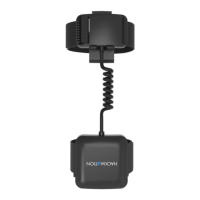
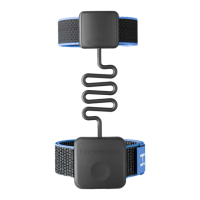
1. Wrist unit
2. Hand unit
3. Glove attachment
Detailed user manual:
hackmotion.com/user-manual
Support:
support@hackmotion.com
4. Power button
- press once to switch the sensor on
- press and hold (3 seconds) to switch it o
5. Micro USB socket for charging the battery
6. Charging indicator (red - charging and o when fully charged)
7. Bluetooth connection indicator (blue; on’ when connected)
8. Power indicator (yellow)
Golf Sensor HM-G-2-100
(iOS and Windows)
1
3
4
2
5
6 7 8
3.2.2. Install HackMotion software.
- Download it from: hackmotion.com/downloads
- Launch software installer.
- Accept Windows security warning if prompted (Click ‘More info
and then ‘Run’) and complete the installation.
2. System requirements
2.1. iOS
- Any device running iOS 11 or later.
2.2. Windows
- At least Windows 10 operating system on your PC. Bluetooth
connection (if your computer does not have a built-in Bluetooth
adapter any Bluetooth USB dongle should do the job).
3. Setting up the system
3.1. iOS
- download HackMotion app from Apple App Store.
3.2. Windows
3.2.1. Pair the sensor
- Make sure your Windows Bluetooth service is enabled.
- Switch the sensor on by pressing the power button. The yellow
LED indicator will light up.
- Pair the device with your PC in Windows Bluetooth settings (has
to be done only once – during initial setup).
Important!
Close Windows
Bluetooth settings
window after the
sensor is paired with
your computer.
There are two ways to wear the hand unit
A. Attaching it to glove velcro
with included clip.
B. Wearing it with palm strap.
Important!
It self xates when stretched
horizontally.
Important!
Pay attention to correct
direction of the clip.
Question and Answer IconNeed help?

Do you have a question about the HACKMOTION HM-G-2-100 and is the answer not in the manual?

Overview

The HackMotion Golf Sensor HM-G-2-100 is a device designed to provide real-time feedback and analysis of golf swing mechanics, specifically focusing on wrist angles. It aims to help golfers improve their technique through data-driven insights.

Function Description:

The HackMotion Golf Sensor measures wrist angles during the golf swing, providing data on flexion/extension and radial/ulnar deviation. This data is then transmitted wirelessly to a companion software application (HackMotion software) running on a computer (Windows or macOS) or a mobile device (iOS or Android). The software visualizes the wrist angles in real-time and provides historical data for analysis.

The system offers different modes of operation:

  • Full Swing: For analyzing the complete golf swing, including pitching and chipping.
  • Putting: Specifically for putting analysis (available in Beta, Windows only).
  • Saved Sessions: Allows users to review data from previous training sessions.

The device is designed to be worn on the wrist, with a glove-like attachment that secures the sensor in place. It utilizes a combination of hardware sensors and software algorithms to accurately track wrist movements. The software provides visual feedback, often using color-coded indicators (e.g., red for charging, green for fully charged, blue for connection status) and numerical values to represent wrist angles.

Important Technical Specifications:

  • Model: HM-G-2-100
  • Compatibility:
    • Operating Systems: Windows 10 or later, macOS 11 or later, iOS (via HackMotion app from Apple App Store), Android (via HackMotion app from Google Play Store).
    • Connectivity: Bluetooth. The device requires a Bluetooth 4.0 USB dongle for Windows computers if not built-in.
  • Battery Life: Up to 7 hours (fully rechargeable in 2 hours).
  • Charging: Standard micro USB cable.
  • Warranty: HackMotion provides a 2-year warranty calculated from the shipping date.

Usage Features:

  1. Setup and Pairing:

    • Hardware: The device is worn on the wrist using a glove-like attachment.
    • Software Installation: Download and install the HackMotion software from hackmotion.com/downloads (for Windows/macOS) or the respective app stores (for iOS/Android).
    • Pairing: The device pairs with the computer or mobile device via Bluetooth. On Windows, this involves adding a Bluetooth device through PC settings. On iOS/Android, it's done through the HackMotion app.
    • Power On/Off: Press and hold the button for 3 seconds to switch it on/off. A short press (1 second) switches the sensor to pairing mode.
    • LED Indicators: The device has LED indicators for charging (red/green), connection status (blue/on when connected), and power status (yellow).
  2. Calibration:

    • Before each session, the device needs to be calibrated. This involves holding the wrist in specific positions (e.g., flat, extended, flexed) to establish a baseline for accurate measurements. The software guides the user through this process.
  3. Real-time Feedback:

    • The software displays real-time wrist angle data, allowing users to see their wrist movements as they swing. This immediate feedback is crucial for making adjustments during practice.
  4. Biofeedback and Slow Rehearsals:

    • The software offers "Immediate Biofeedback" for position training and slow rehearsals. This feature provides immediate sound signals if the parameter is within the chosen range, helping users train specific wrist positions.
    • "After-shot Biofeedback" allows users to review the data after each swing, with the software changing audio tone depending on whether the selected parameter was within the chosen range during the selected position of the swing.
  5. Data Analysis and History:

    • The software records swing data, allowing users to review past sessions and track progress over time. This includes graphical representations of wrist angles.
  6. Multi-dimensional Analysis:

    • The system provides real-time 3D model and flexion/extension, ulnar/radial data corresponding to what you expect. If not, users are instructed to rotate the hand in random directions to allow the sensors to self-correct and settle.
  7. Troubleshooting:

    • Common issues like the sensor not being properly fixed to the hand or not sliding/moving are addressed by ensuring proper attachment.
    • If the sensor does not help, a quick re-calibration is recommended.
    • If data still seems off, a full system restart is advised.
    • Users are reminded not to use the sensor with gloves containing magnets, as this can interfere with measurements.

Maintenance Features:

  • Charging: The device is charged using a standard micro USB cable. The LED indicator will turn red during charging and green when fully charged.
  • Software Updates: Users are advised to keep their HackMotion software updated to ensure optimal performance and access to new features. The software will prompt users about new versions and guide them through the installation process.
  • Storage: When not in use, it is recommended to store the device properly to prevent damage.
  • Cleaning: While not explicitly detailed, general electronic device cleaning practices (e.g., wiping with a dry cloth) are likely applicable for the sensor unit. The strap may require separate cleaning instructions.
  • Warranty Support: In case of hardware issues, users can contact HackMotion support, as the device comes with a 2-year warranty.

HACKMOTION HM-G-2-100 Specifications

General IconGeneral
BrandHACKMOTION
ModelHM-G-2-100
CategoryAccessories
LanguageEnglish