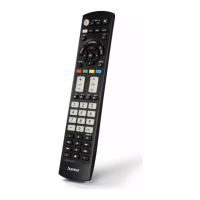
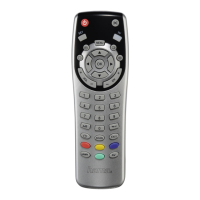
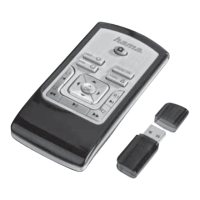
Universal Remote Control
Thank you for your decision for a Hama product.
Take your time and read the following instructions
and information completely. Please keep these
instructions in a safe place for future reference.
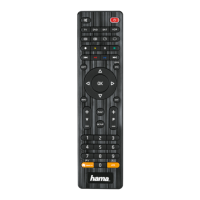
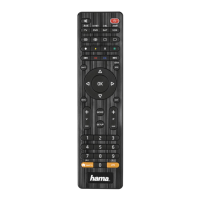
Function buttons (Models 4 in 1, 8 in 1)
1. LED indicator
2. Mode key for selection of secondary device
group (only 8 in 1 model: AUX,DVBT,CBL,AMP)
3. Device selection keys
4. Setup: Remote control settings
5. Vol+/Vol-: Volume control
6. Text ON: Switch on Teletext
Menu: Open device menu
7. Hold: Hold the current Teletext page
8. Number Keys 0-9
9. AV: selects external A/V sources
10. ◄◄ Rewind/red
► Play/yellow
►► Fast forward/blue
● Start recording
■ Stop/green
ll Pause/magenta
11. -/- -: Switch to two-digit channel numbers
12. Info: On-Screen information (if supported by
A/V device)
EPG: Electronic Programme Guide (if supported
by selected A/V device)
13. Text OFF: exits Teletext
EXIT: exits device menu
14. PROG+/PROG-:Programme selection up/down
15. Mute Switch
OK: Confirms a selection
16. Shift key
17. Power: ON/OFF
1. Explanation of the Note symbol
Note
► This symbol is used to indicate additional in-
formation or important notes.
2. Package Contents
- Universal Remote Control (URC)
- Code List
- This operating instructions
3. Safety notes
• Do not use the Universal Remote Control in mo-
ist or wet environments and avoid spray-water
contact.
• Do not expose the Universal Remote Control to
heat sources or direct sunlight.
• Do not drop the Universal Remote Control..
• Never open the Universal Remote Control. It
contains no user-serviceable parts.
• As with all electrical devices, keep the Universal
Remote Control away from children.
4. Getting started – installing the Batteries
Note
► Alkaline batteries are recommended. Use 2
„AAA“ (LR 03/Micro) type batteries.
► Remove the battery compartment lid on the
back of your URC.
► Check the required battery polarity and in-
sert batteries according to the “+/–” marks
inside the compartment.
► Close battery compartment lid.
Note: Code saver
► Any codes you have programmed remain
stored for up to 10 minutes while you re-
place the battery .Make sure you do not
press any buttons before you have placed
new batteries inside the remote control.
All the codes will be erased if a button is
pressed while there are no batteries in the
remote control.
Note: Battery saving function
► The remote control switches off automatical-
ly when a button is pressed down for more
than 15 seconds. This conserves battery
power if the remote control gets stuck in a
position where the buttons are continually
pressed down,such as between sofa cushi-
ons.
5. Setup
Notes
► To obtain a proper infrared (IR) transmission,
allways point your Remote control in the ap-
proximate direction of the device you want
to control.
► Press the “MODE” key to select the seconda-
ry device group :AUX, AMP, DVB-T, CBL (only
8 in1 Model).
► Press the Shift key to operate the blue func-
tion keys. The Shift function deactivates by
pressing the Shift key again, or automatically
after approx. 30 sec. without use.
► No entry for approx. 30 seconds will time out
the Setup mode. The LED indicator shows six
flashes and turns off.
► Each device type can be programmed under
any device key, i.e a TV can be programmed
under DVD, AUX, etc.
► If you want to control a device , it´s not pos-
sible while the Universal Remote Control is
in the Setup Mode. Exit the Setup mode and
select the device you want to control using
the device selection keys.
5.1 Direct Code Entry
Your Universal Remote Control Package contains a
code list. The code list shows 4-digit codes for most
A/V device manufacturers in alphabetical order and
grouped by device type (e.g. TV, DVD, etc.). If the
device you want to control is covered by the code
list, the Direct Code Entry is the most convenient
entry method.
5.1.1 Turn on the device you want to control
5.1.2 Press the SETUP key until the LED indicator is
permanently lit.
5.1.3 Select the device you want to control using
the device key (e.g. TV). A successful selection
is indicated by the LED with one flash follo-
wed by permanent light.
5.1.4 Check code list for brand and type of the
device you want to control.
5.1.5 Enter the corresponding 4-digit code using
the 0 – 9 keys. The LED indicator confirms
each entered digit via a short flash and turns
off after the fourth digit.
Note
► If the code is valid, it is saved automatically
► If code is invalid, the LED indicator flashes
six times and then turns off. Repeat steps
5.1.1 to 5.1.5 or use a different code entry
method.
5.2 Manual code search
Your Universal Remote Control is equipped with
an internal memory, which is preloaded with up to
350 codes per device type for the most common
A/V devices. You can zap through these codes until
the device you want to control shows a reaction.
This might be that the device you want to control
switches off (POWER key) or changes the channel
(PROG+/PROG- keys).
5.2.1 Turn on the device you want to control
5.2.2 Press the SETUP key until the LED indicator is
permanently lit.
POWER
SETUP SHIFT
OK
MENU EPG EXIT
TV
VOL-
PROG+
PROG-
1 2 3
4 5 6
7 8 9
AV -/--
0
VOL+
DVD SAT
VCR
1
3
4
5
6
7
8
9
10
17
14
16
15
13
12
11
4in1
Art.Nr.: 00011412
MODE
POWER
AUX
SETUP SHIFT
OK
MENU EPG EXIT
DVBT CBL
AMP
TV
VOL-
PROG+
PROG-
1 2 3
4 5 6
7 8 9
AV -/--
0
VOL+
DVD
M
SAT
VCR
1
2
3
4
5
6
7
8
9
10
17
14
16
15
13
12
11
8in1
Art.Nr.: 00011413
2
3
g
Operating Instruction
00011412man_cs_de_el_en_es_fi_fr_hu_it_nl_pl_pt_ro_ru_sk_sv_tr.indd 5-3 02.09.14 15:43



 To Next Page
 Loading...