X1D II 50C USER GUIDE www.hasselblad.com
124
SETTINGS
Contents
Service Menu
LENS FIRMWARE UPDATE
MAIN MENU > GENERAL SETTINGS >
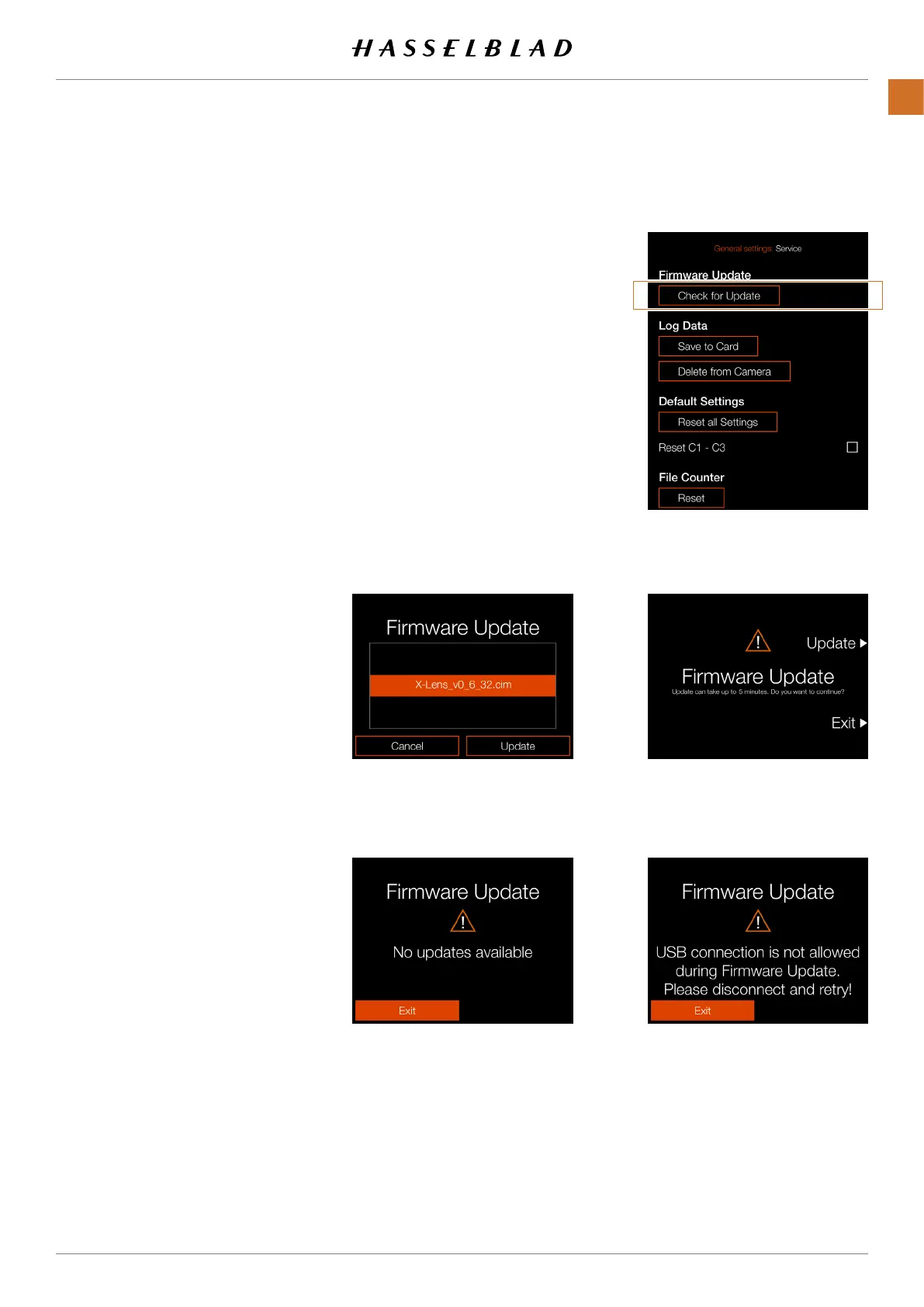
SERVICE > CHECK FOR UPDATE
1 Press the Settings icon on the Touch
Display.
2 The General Settings Menu appears.
3 Press the Service Menu.
4 Press the Check for Update button.
5 The camera will now check the
inserted card/cards for update les.
Swipe right or press the Menu / EXIT
button to get back to the Main Menu.
Lens Firmware Update Procedure
1 Attach the lens to the Camera.
2 Download the latest XCD Lens
Firmware from www.hasselblad.com.
3 Save the Firmware le to an SD Card.
4 Insert the SD Card in the Camera.
5 Select Settings from the Main Menu.
6 Select Service / Firmware Update /
Check for Update.
7 Make sure the Firmware File Name
and Number corresponds to the latest
Firmware File you have downloaded.
8 Select Update.
9 Select Update in the Update Dialogue
to start the Lens Firmware Update.
10 During the update the text "Update in
progress" is displayed on the Camera
Display.
11 Do not turn off the Camera during the
Update Progress.
12 The Update will take several minutes.
13 When the Update is nished this text
will be displayed:
"Update is completed!".
14 The new Lens Firmware is now
installed!
No Firmware Update les are
available on the SD Card USB Warning dialogue
Update Conrm dialogue


 To Next Page
 Loading...