User's Guide
Using the Notebook PC
4-2
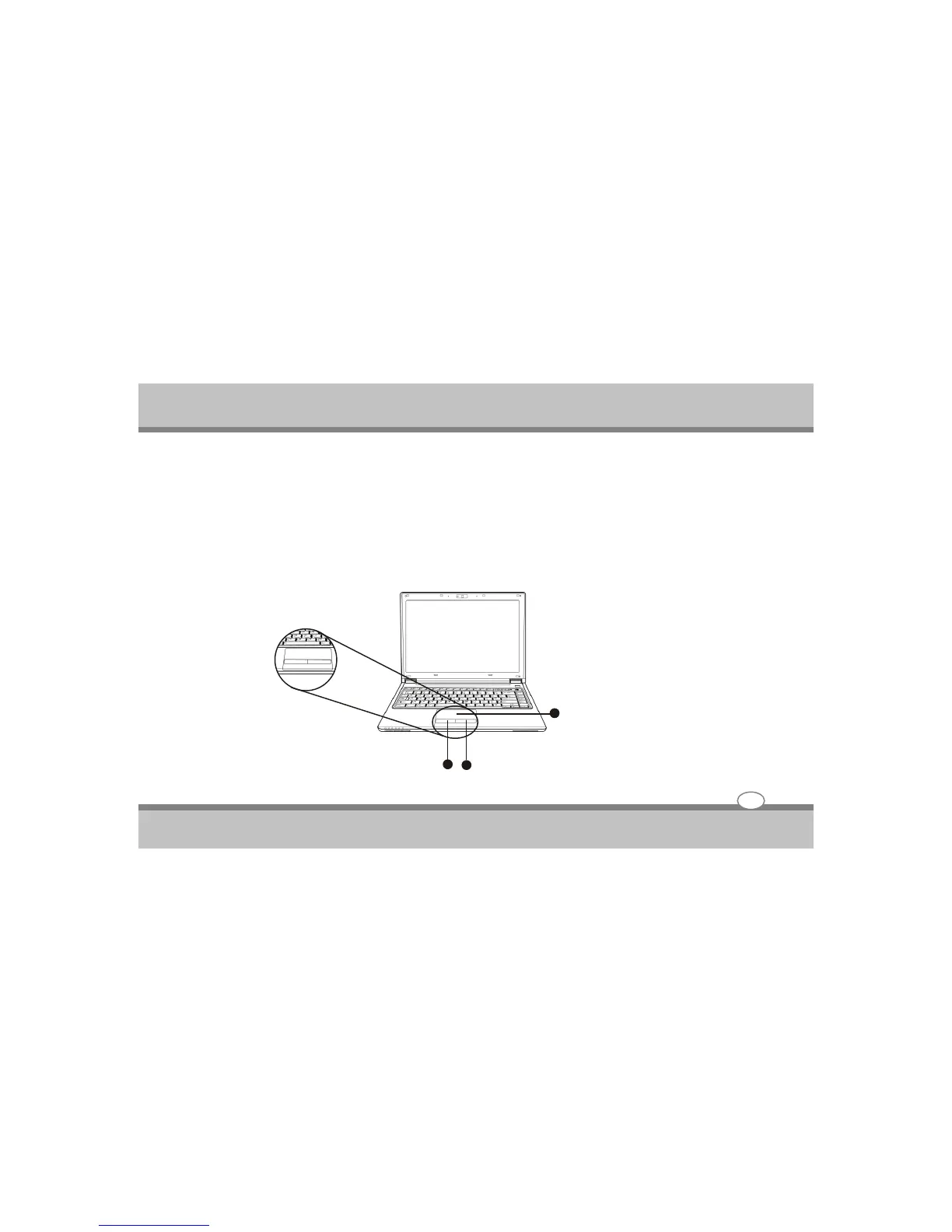
Using the Touchpad Pointing Device
Your computer comes with a built-in touchpad pointing device that is found on the center to the palm-rest
area. The touchpad offers a number of options that let you customize how it functions. To access these
options, locate the Control Panel and double click on the Mouse icon. The options let you control the size
and color of the cursor, cursor speed, the accepted double-click speed, and selection button orientation.
The touchpad works as a mouse pointing device replacement that is used under Windows-based
operating system. If you want to utilize the added features of the touchpad, you may want to try installing
its own device driver that comes with added utilities for enhancing the function of the device.
1. Left Selection Button
2. Right Selection Button
3. Touchpad
1
2
3



 To Next Page