Optical Drive
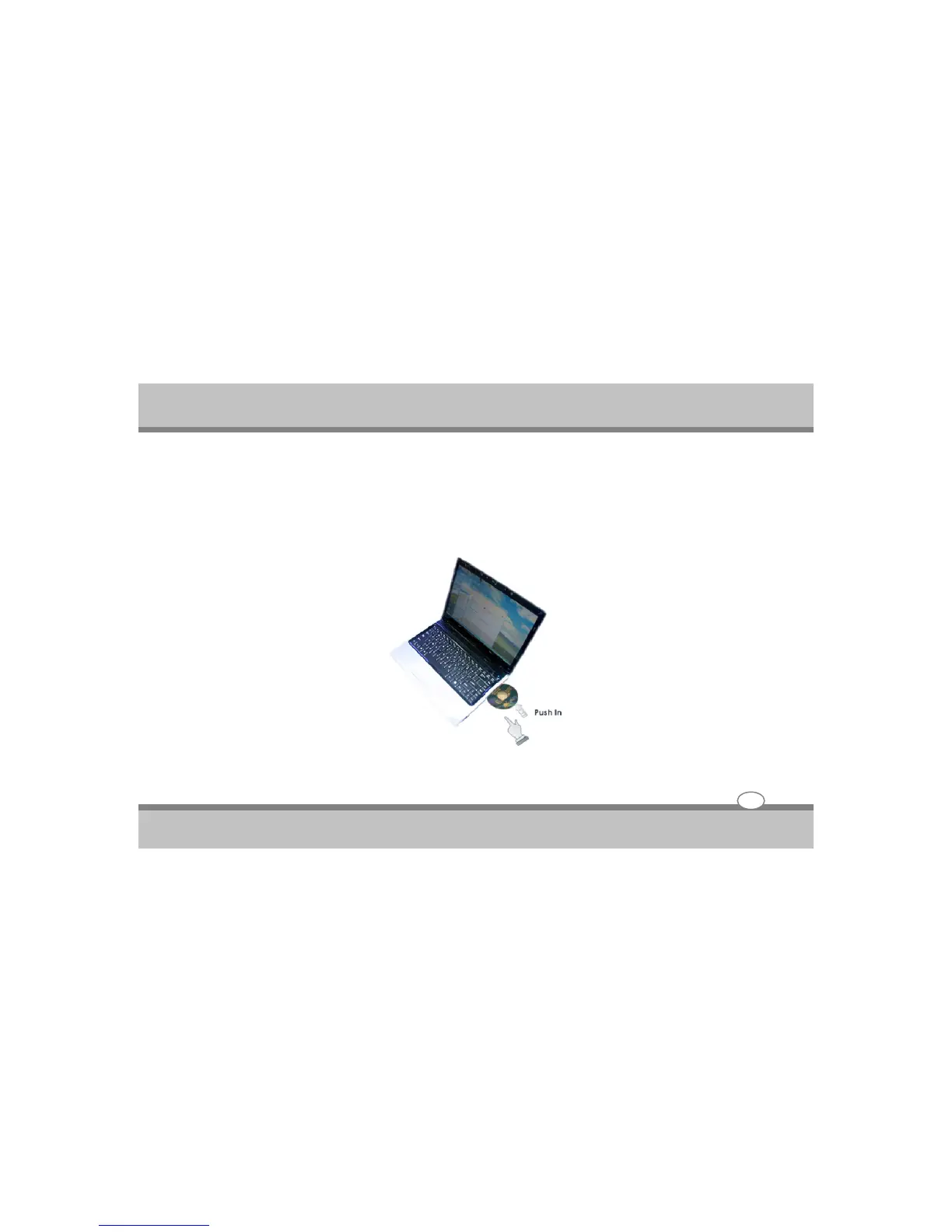
Your system ships with an optical disk drive(slot in Type) installed on the right side of your computer.
You would normally use the drive for installing operating system and software application programs.
To insert and remove a disc on the drive:
1.Make sure the computer is turned on. Insert the Optical disk into the drive slot with the label side
facing up. The optical disk will be automatically slide in the optical drive.
2.To remove the disc, press the eject button found on the left bottom side of the optical drive.
3.The Optical disc will pop-out slightly
User's Guide
4-7
Using the Notebook PC



 To Next Page