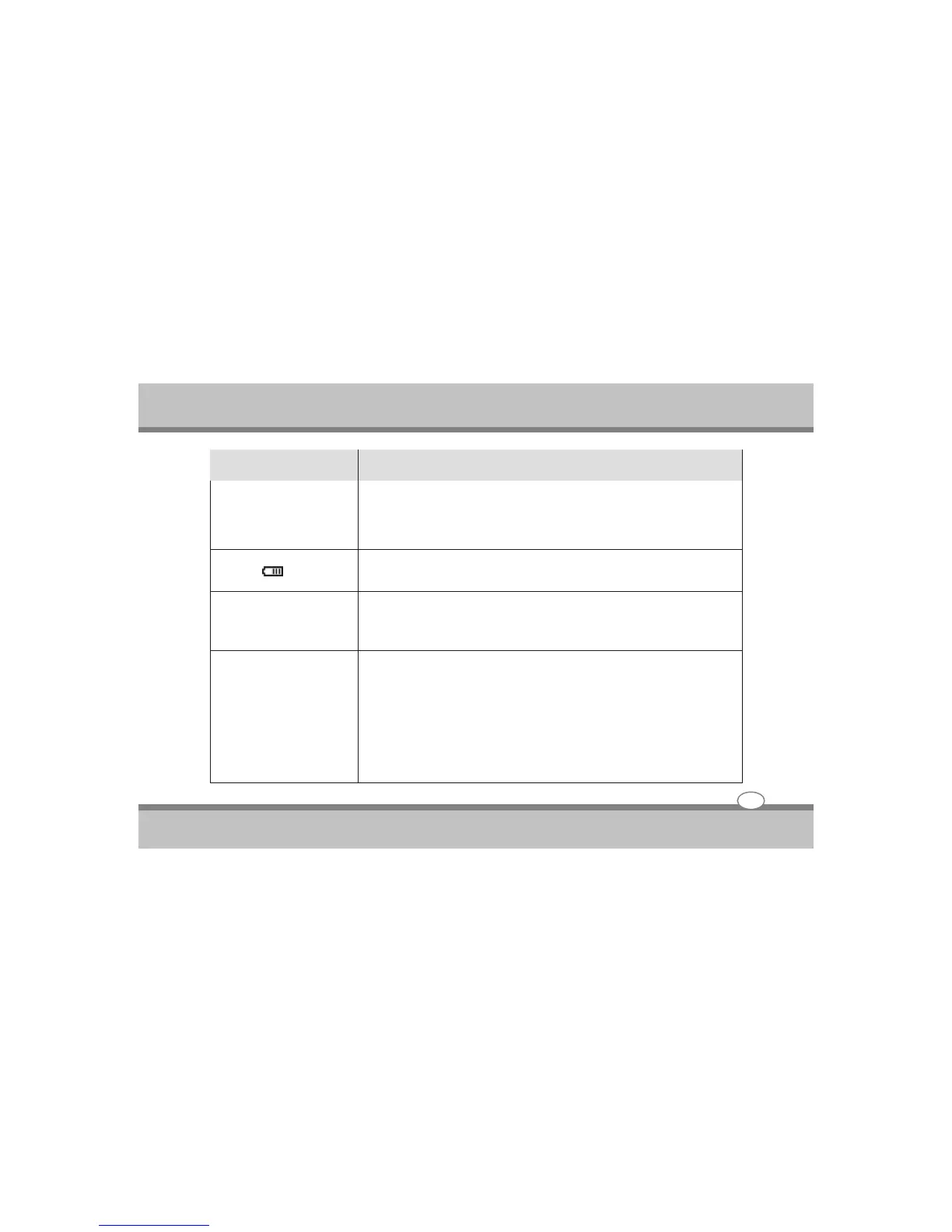
Battery missing / incorrectly installed. Check the battery bay, make sure
the battery is present and seated properly (the design of the battery only
allows it to go in one way). Make sure there’s nothing interfering with the
battery contacts.
Low Battery. Plug in the DC power source. If the computer doesn’t start up
immediately, turn it off then on again.
The system is using too much power. If your OS has a Power Options
scheme check its settings. You may also be using an ExpressCard/USB
device/external device that is drawing a lot of power.
The battery has not been fully discharged before being recharged. Make
sure the battery is fully discharged and recharge it completely before
reusing.
Power Options have been disabled. Go to the Control Panel in Windows
and re-enable the options.
A peripheral device/USB device/ExpressCard is consuming a lot of
power. Turn off/remove the unused device to save power.
Problem
Possible Cause - Solution
You turned on the power
but it doesn’t work.
The battery LED power
indicator , is blinking
Red.
You are losing battery
power too quickly.
Actual battery operating
time is shorter than
expected.
5-6
User's Guide
Troubleshooting


 To Next Page
 Loading...