EasyManua.ls Logo

Hitron CODA-5 1 Series - User Manual

Hitron CODA-5 1 Series
2 pages
Print Icon
To Next Page IconTo Next Page
Loading...
1
STEP/ ÉTAPE
Check the box contents/ Vérifiez le contenu de la boîte
Look in the box and make sure you have the following:
Regardez dans la boîte et assurez-vous d’avoir les items suivants :
User configuration/ Configuration du profil d'utilisateur
7
QUICK START GUIDE
GUIDE DE DÉMARRAGE
ETHERNET CABLE
CÂBLE ETHERNET
QUICK START GUIDE
GUIDE DE DÉMARRAGE
CODA-5x1x series
Read me
first!
Lisez-moi
d’abord!
Connect to the network
Connexion à Internet
Set up your wireless network
Configuration du réseau sans-fil
2
STEP/ ÉTAPE
Connect the cable port/ Branchement du câble
Connect the device’s coax CABLE connector to a cable outlet in your
home.
Branchez le câble coaxial à partir du connecteur CÂBLE du modem
jusqu’à une prise coaxiale de votre maison.
3
STEP/ ÉTAPE
Connect the power adapter/ Branchement de l’alimentation
Connect the included power adapter from the POWER port to a wall
outlet.
Branchez le bloc d'alimentation à partir du port d’ALIMENTATION du
modem jusqu’à une prise électrique.
STEP/ ÉTAPE
5
STEP/ ÉTAPE
Connect any LINE port to a telephone. This is required only if you have
ordered telephone service.
Branchez n'importe quel port LINE à un téléphone. Ceci est requis
seulement si vous avez commandé le service téléphonique.
6
STEP/ ÉTAPE
For initial setup, click “LET’S GO” to test your connection and enter your
preferred SSID and Passphrase. The Wi-Fi Passphrase will also act as your
administrator password (log with username “cusadmin” the next time you
visit 192.168.0.1). Make sure to complete the Easy Connect walk-through
so it does not come back.
Note: If the CODA receives a factory reset request, the Easy Connect
interface will appear again.
Pour la configuration initiale, cliquez sur « LET'S GO » pour tester votre connexion et
entrer votre SSID et mot de passe de votre choix. Votre mot de passe Wi-Fi sera
également votre mot de passe administrateur (vous pourrez vous connecter en tant
qu'utilisateur « cusadmin » la prochaine
fois que vous visiterez 192.168.0.1).
Assurez vous de compléter le processus
pour qu'il ne revienne pas.
Note: Si le CODA est réinitialisé avec les
valeurs d'usine par défaut, l'interface
Easy Connect s'affichera de nouveau.
Access LAN for initial configuration / Accédez au réseau local pour configuration initiale
Ethernet Method/ Méthode Ethernet Wi-Fi Method/ Méthode Wi-Fi
4
Pour compléter l'installation initiale, votre CODA affichera l'interface Easy Connect sur
le premier appareil connecté. Vous pouvez y accéder en branchant un ordinateur par
le câble Ethernet (fourni) à l'un des ports LAN (réseau local) ou en connectant un
appreil sans fil au réseau Wi-Fi. Vous trouverez le nom et le mot de passe du réseau
Wi-Fi (Default Wi-Fi network/key) sur l'étiquette à l'arrière de votre CODA.
To complete initial setup, your CODA will launch Easy Connect user
interface on the first connected device. You can access it using a laptop
connected by a Ethernet cable or any mobile device with the default
Wi-Fi network name/password found on the back label of your new CODA.
Wireless devices (optional) / Périphériques sans-fil (optionnel)
You can now connect your wireless devices with the correct SSID and
Passphrase chosen in Step 5.
Vous pouvez maintenant connecter vos appareils sans-fil avec votre SSID
et « Passphrase » choisis à l'étape 5.
OPTIONAL: To connect a wireless device with the Wi-Fi Protected Setup button (WPS),
You need to first access the GUI with the user “cusadmin” and your Wi-Fi Passphrase
as password, enter the Wireless page to enable WPS and set Encrypt Mode to AES then
save the changes. Press the WPS button on the CODA and on the device you wish to
connect. You will have 2 minutes to complete the pairing process.
OPTIONNEL : Pour connecter un appareil sans-fil avec le bouton WPS
(« Wi-Fi Protected Setup »), vous devez d'abord accéder à
l'interface usager avec l'utilisateur « cusadmin » et votre mot
de passe Wi-Fi, entrez dans la page « Sans-Fil » pour activer
WPS et définissez « Encrypt Mode to AES » puis enregistrez les
modifications. Appuyez sur le bouton WPS du CODA et de
l'appareil que vous souhaitez connecter. Vous aurez 2 minutes
pour compléter le processus de jumelage.
STEP/ ÉTAPE
CODA-5x1x
POWER CORD /POWER ADAPTER
BLOC D’ALIMENTATION /CÂBLE
P/N:1234567890AB
Default Wi-Fi network: HitronXXXXX-EasyConnect
Default Key: AB1234567890
S/N:AB1234567890
CM MAC:AB9876543210
SSID-2.4G:YZ1234567890
PassPhrase: 9876543210YZ
SSID-5G:YZ1234567890
Made in XXXXX
FCC ID:U4P-CODA5519
IC: 10778A-CODA5519
Input: 12VDC, 4.5A
This device complies with Part 15 of the FCC Rules.
Operaon is subject to the following two condions:
(1) this device may not cause harmful interference, and
(2) this device must accept any interference received, including
interference that may cause undesired operaon.
Model Name: CODA-5519
Web address: 192.168.0.1
User name: cusadmin
Password: (your Wi-Fi password)
2
P3300006CN17
Connect a telephone device (optional)/
Branchement d’un appareil téléphonique (optionnel)

Question and Answer IconNeed help?

Do you have a question about the Hitron CODA-5 1 Series and is the answer not in the manual?

Overview

This document describes the setup and features of the CODA-5x1x series device, a high-performance communications device designed for home and office environments.

Function Description:

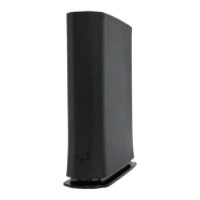
The CODA-5x1x series device is a cable modem that provides internet connectivity, supports Wi-Fi, and includes telephone line capabilities. It connects to the network via a coaxial cable and provides internet access to connected devices through Ethernet cables or Wi-Fi. The device is designed to establish DOCSIS (Data Over Cable Service Interface Specification) connections, provision services, and maintain an online and active state for network operation. It also supports WPS (Wi-Fi Protected Setup) for easy pairing with Wi-Fi devices and includes a telephone line for voice services.

Important Technical Specifications:

  • Operating Environment: The device should be kept in an environment between 0°C and 40°C (32°F and 104°F).
  • IP Addressing: For proper network access, connected devices should be configured to receive an IP address automatically (recommended) or use a static IP address within the range of 192.168.0.2 to 192.168.0.253.
  • Cable Distribution System Grounding: The cable distribution system must be grounded (earthed) in accordance with ANS/NFPA 70, the National Electrical Code (NEC), specifically Section 820.93, "Grounding of Outer Conductive Shield of a Coaxial Cable."
  • Power: The device uses a power adapter, which should be connected to a wall outlet.
  • Connectivity: It supports coaxial cable input, Ethernet cable output, and Wi-Fi for wireless connectivity. It also has a telephone line port.

Usage Features:

  • Quick Start Guide: The device comes with a quick start guide to facilitate initial setup.

  • Easy Setup Steps:

    1. Check Box Contents: Verify that all components (CODA-5x1x device, power cord/power adapter, Ethernet cable, and quick start guide) are present.
    2. Connect Coaxial Cable: Connect the device's coaxial cable connector to a cable outlet in your home.
    3. Connect Power: Connect the included power adapter from the POWER port to a wall outlet.
    4. Initial Configuration (LAN/Local Account): After connecting the device, access the CODA Easy Connect user interface by opening a web browser and navigating to 192.168.0.1. The default username is "user" and the password is "password." This interface allows for basic setup, including Wi-Fi settings.
    5. User Configuration (Profile/Administrator): For initial setup, the default username is "user" and password is "password." It is recommended to change the password for security. If the device requires a factory reset, the Easy Connect interface will appear again.
    6. Telephone Device Connection (Optional): If using the telephone line feature, connect a telephone device to the LINE port. This is only required if you have ordered telephone service.
    7. Wireless Devices Connection (Optional): To connect wireless devices, use the Wi-Fi Protected Setup (WPS) button or manually enter the SSID and passphrase. The WPS button can be pressed for 2 minutes to complete the pairing process. Alternatively, access the web interface (192.168.0.1) to view or change Wi-Fi settings.
  • LED Display Indicators: The device features various LED indicators to show its operational status:

    • Green - Slow Blinking: Booting.
    • White/Green - Alternating: Establishing DOCSIS connection.
    • White - Slow Blinking: Service Provisioning.
    • White - Steady: Online & Active (Normal state).
    • Cyan - Steady: Online & Active but all WiFi disabled.
    • Cyan - Slow Blinking: Software upgrade in progress.
    • Blue - Blinking: WPS Sync.
    • Blue - Steady (60 seconds): WPS Paired.
    • Light blue - Steady: A phone is off-hook (if equipped).
    • Red - Blinking: DOCSIS issue.
    • Red - Slow Blinking: Service provisioning issue.
    • Red - Steady: Hardware failure.

Maintenance Features:

  • Troubleshooting IP Addresses: If the CODA is connected to the network but devices cannot access the internet, check the device's IP address settings. Ensure it's configured for automatic IP address acquisition or a static IP within the specified range.
  • Software Upgrades: The device supports software upgrades, indicated by a cyan slow blinking LED.
  • Factory Reset: If necessary, the device can be reset to factory defaults, which will revert the Easy Connect interface to its initial state, allowing for re-configuration.
  • Environmental Care: To prevent overheating, do not place any objects on top of the device and ensure proper airflow around it.
  • Safety Warnings: Avoid exposing the device to water or moisture to prevent electrical shock. The manufacturer disclaims liability for damage caused by improper use.
  • Documentation Updates: The manufacturer reserves the right to revise the document or update its content without obligation to notify any person of such revisions or amendments. Specifications are subject to change without notice.

Hitron CODA-5 1 Series Specifications

General IconGeneral
BrandHitron
ModelCODA-5 1 Series
CategoryTransceiver
LanguageEnglish