AQ251 SERIES BOILER RESET CONTROL PANELS
69-1974—04 16
AQ251 – System Programming
This section describes how to navigate the user interface using
the keypad and LCD display, and how to program the AQ251
Control Panel, which begins on page 17.
Keypad
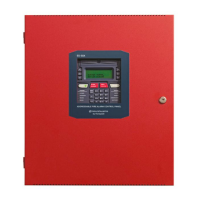
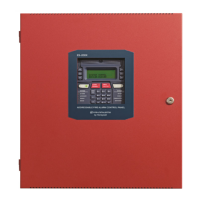
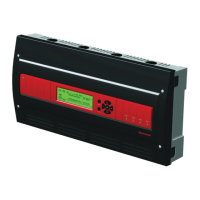
The AQ251 User Interface consists of an LCD screen (16
characters by 3 rows) and a 7-button keypad for navigating the
menus, as illustrated in Fig. 22. Fig. 21 provides an isolated
view of the keypad.
Fig. 21. AQ251 keypad.
Menu Press this button to access the User Menu. When
pressed while in a sub-menu, the sub-menu’s
values are saved before going up one level in the
current menu.
Home Press this button to leave the User or Installer Menu
and return to the Home Page display screen.
OK Press this button to enter a sub-menu of the active
menu item. A menu item is active when the indicator
arrow (←) is positioned beside the item.
^
and v Press these buttons to scroll up/down in the menu
items. Pressing one of these buttons automatically
saves your current selection, exits the edit mode,
and moves to the previous or next menu item.
– and + Press these buttons to decrease/increase the value
of a selected menu item, or to scroll through a list of
pre-defined options.
- If the menu item being modified is a number, the
displayed value will decrease/increase by pressing
these buttons. When holding the – or + button for
more than a second, the values automatically
decrease/increase at a faster pace, similar to setting
the time on a digital clock radio
.
- If the menu item is an option, pressing these
buttons scrolls through the list of available options
one at a time.
LCD Display
The LCD on the AQ251 Control Panel is used to:
— Monitor system status and performance.
— Select and/or modify control settings for the hydronic
system.
— Diagnose and troubleshoot system problems.
The layout of the display is logical and simple to navigate. The
information displays so that the installer can see at a glance
the system’s operating temperatures, as well as the status of
the system equipment, such as a call for heat, DHW pump on,
Boiler T-T terminals energized, etc. In addition, all system
information displays in simple, straightforward English for quick
system diagnosis. Fig. 22 illustrates the layout and features of
the LCD display panel and keypad.
Fig. 22. LCD display and keypad layout.
LCD Display Navigation
This section describes how the keypad is used to navigate the
LCD display and menus.
• The LCD displays up to three lines of text at a time. For
menus with more than three lines, use the up and down
buttons (
^
or v) to scroll through the menu options.
• As the menu is scrolled up or down, the indicator arrow (←)
shows which menu item is active.
• If the active menu item is part of a list of predefined options
(e.g., Day of the Week) press the – or + button to scroll
through the available options until the preferred option is
displayed. The option is automatically saved when the
indicator arrow is scrolled away from the value being edited.
M23538
ARROW INDICATES
THE CURRENTLY SELECTED
“ACTIVE” MENU ITEM.
M27748
UP ARROW, IF DISPLAYED,
INDICATES THAT OTHER MENU
ITEMS EXIST ABOVE AND CAN
BE VIEWED BY SCROLLING
UP WITH THE BUTTON.
DOWN ARROW, IF DISPLAYED,
INDICATES THAT OTHER MENU ITEMS
EXIST BELOW AND CAN BE VIEWED
BY SCROLLING DOWN WITH
THE BUTTON.
STATUS OF SYSTEM DEMANDS
- CALL FOR HEAT
- CALL FOR DHW
- SIGNAL ON AUXILIARY INPUT
STATUS OF SYSTEM OUTPUTS
- AUXILIARY OUTPUT ACTIVE
- BOILER T-T OUTPUT ACTIVE
DISPLAY AREA SHOWING
SYSTEM STATUS AND MENU
OPTIONS AND SELECTIONS
MADE
STATUS OF LINE VOLTAGE OUTPUTS
- PRIMARY (BOILER) HEAT
- DHW PUMP
- AUXILIARY “PUMP” OUTPUT
GRAPHIC SHOWING
THE PERCENTAGE
OF THE BOILER’S
HEATING CAPACITY
T WHICH IT’S
OPERATING; ARROWS
BOVE AND BELOW
THE BAR SHOW THE
TREND OF THE
BOILER’S
TEMPERATURE
(UP OR DOWN)


 To Next Page
 Loading...