5
Connect
Connect to Wi-Fi
Be sure you are on the same Wi-Fi network you wish to
connect your camera to.
1
Choose your Wi-Fi network from the list. Press NEXT.
2
Enter your Wi-Fi password, if necessary. Press DONE.
Note: The camera will beep during some steps in this
process, which is normal.
NEXT
2.7-5.9 in
Connect to mobile device
1
Enable Bluetooth on your mobile device.
2
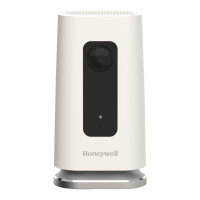
The app will look for the camera.
• For one camera, it will connect
automatically.
• For more than one camera, the
app will prompt you to select one
camera at a time. Each camera has a
unique Media Access Control (MAC)
ID printed on the back. The MAC ID
is a unique identifier assigned to the
camera. Use that ID to select the camera you want to connect.
3
A QR code will display in the app as shown in the image above. To connect your
camera to the app, hold your mobile device to display the QR code approximately
3-6inches (7-15cm) from the camera lens.
4
The camera LED turns purple and the camera beeps
when the mobile connection is complete.



 To Next Page
 Loading...