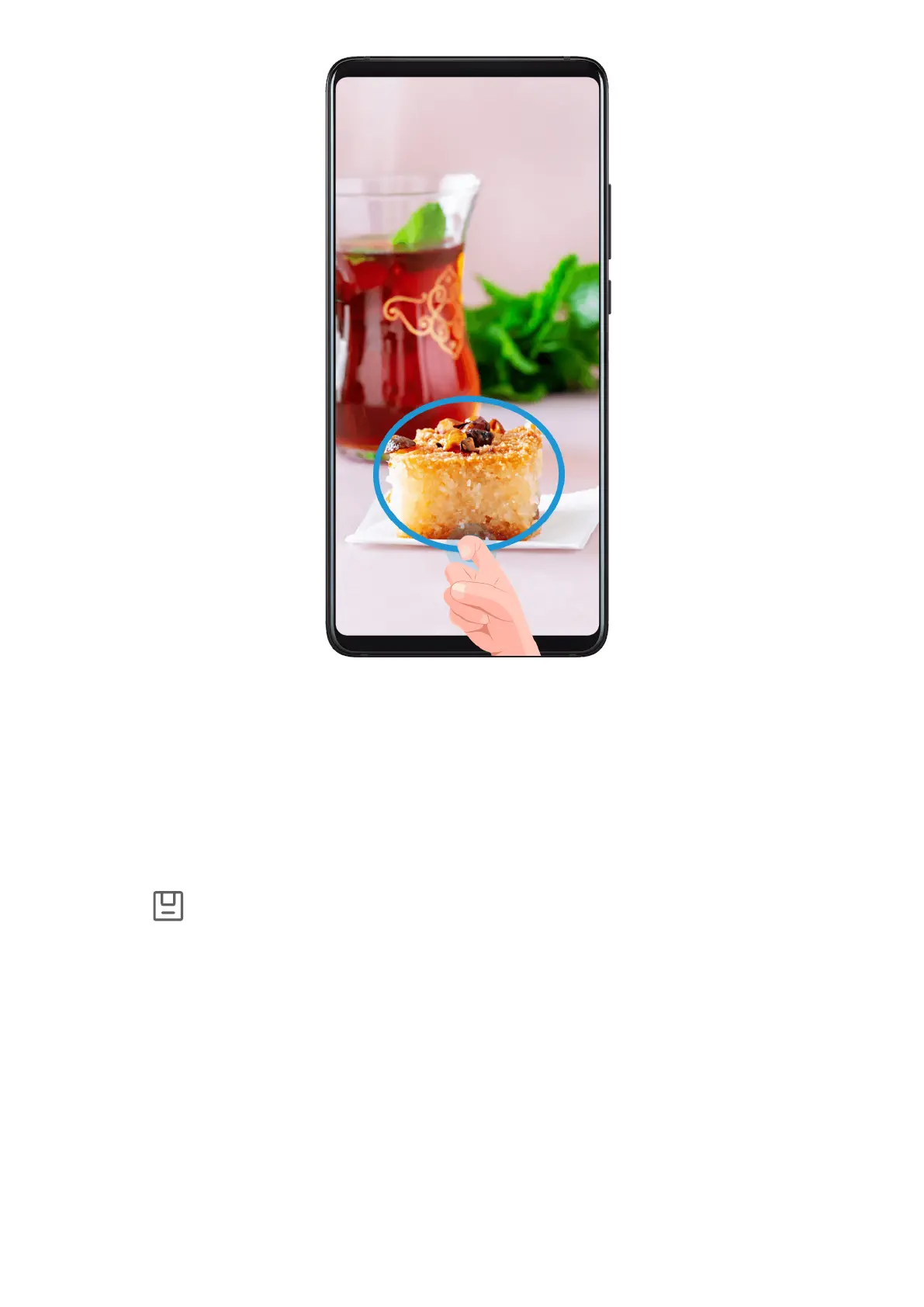
1 Knock on the screen with a knuckle and hold to draw an outline around the part of the screen
that you want to capture. Make sure that your knuckle does not leave the screen.
2 The screen will display the movement trajectory of your knuckle and take a screenshot of the
selected area. You can then:
• Drag the frame to the desired position or resize it.
• Touch a shape icon to determine the shape of the partial screenshot, or retain the current
shape.
3 Touch to save the screenshot.
Precautions for Using Knuckle Screenshots
• Please double knock the screen consecutively at the same place and at an appropriate speed.
• Keep your knuckle vertical to the screen.
• If you want to take more than one screenshot, wait 2 seconds before knocking on the screen
again.
• If there is a screen protector on the screen, knock the screen harder or remove the screen
protector and try again.
Record screen
You can record operations on the screen as a video and share it with your friends and family.
Essentials
13















 To Next Page