2 On your phone, swipe down from the status bar to open the notification panel, and turn on
.
3 Swipe down again to show all shortcuts and enable Wireless Projection. Your phone will
start searching for available display devices.
4 In the device list, touch the name corresponding to the large display or wireless HDMI
adapter to complete the projection connection.
After the connection is set up, you can place your phone in landscape mode for a better display.
Alternatively, swipe down from the status bar, and touch Disconnect.
Phone Projection Using a Wired Connection
You can project your phone screen on a large display (for example, a TV) using a wired
connection.
It is recommended that you purchase the accessories from authorized channels.
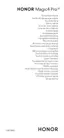
Projection Using a Type-C Cable
1 Prepare a Type-C cable.
Use a Type-C to HDMI, Type-C to DP, or Type-C to MiniDP cable depending on your large
display.
2 Connect the Type-C end to your phone and the other end to the large display.
Settings
86















 To Next Page