Getting Started
Creating an FM Signal
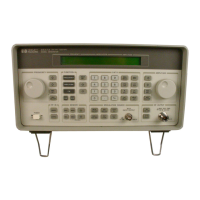
HP ESG Family Signal Generators
Setting the FM Deviation
1.
Press
FMQM.
2. Press the
FM Dev
softkey.
3. Enter 75 using the numeric
keypad and press the
kHz
softkey.
The first level menu of FM softkeys is displayed.
FM deviation becomes the active function and the preset value
for FM deviation is displayed in the active entry area.
The new FM deviation is displayed below the
FM Dev
softkey.
You should see 7 5 . 0 0 0 0 kHz in the second line of the
softkey label.
Setting the FM Rate
1. Press
the
FM Rate
softkey.
FM rate becomes the active function and the preset value for FM
rate is displayed in the active entry area.
2. Enter
10
using the numeric
The new FM rate is displayed below the
FM Rate
softkey. You
keypad and press the
kHz
should see 10 . 0 0 0 0 kHz in the second line of the softkey
softkey.
label.
Turning On Frequency Modulation
The signal generator is now configured to output a 0 dBm, frequency-modulated carrier at
104.9 MHz with the FM deviation set to 75 kHz and the FM rate set to 10 kHz. The shape of
the waveform is a sinewave.
NOTE
Sine is the default selection for the
FM Waveform
softkey. Press
More (1 of 2) to see
the softkey.
Follow these remaining steps to output the frequency-modulated signal:
1.
Press the
FM Off On
softkey.
FM toggles from Off to
On.
Notice, also, that the FM display
annunciator is turned on, indicating that you have enabled
frequency modulation.
2.
Press RF On/Off.
Notice that the display annunciator changes from RF OFF to
RF ON. The modulated signal is now available at the
RF OUTPUT connector.
1-4 Quick Start Guide



 To Next Page
 Loading...