1
Install the battery:
5
Insert the Companion CD:
Insert the
HP iPAQ Pocket PC Companion
CD into your personal computer
and click Start Here.
6
7
Install Microsoft Outlook:
Install Microsoft Outlook from your Companion CD onto your personal
computer, if necessary.
Note: Install Outlook if you plan to synchronize e-mail, contacts, calendar
or tasks on your personal computer with your Pocket PC
Install ActiveSync 3.7 (or greater):
Click to install the latest version of ActiveSync from your Companion CD and
follow the instructions.
2
Charge the unit:
Note: Unit must be fully charged before synchronizing with your computer,
it takes about 4 hours to fully charge the unit.
4
Set up:
With unit on, follow the steps on the Welcome screen.
8
Connect Pocket PC to personal computer:
Connect USB connector to appropriate port on your personal computer
and reinsert Pocket PC into the cradle.
9
Establish a partnership:
Follow the on-screen ActiveSync instructions to establish a connection
between your Pocket PC and your personal computer.
Remove battery door Insert battery Replace battery door
USB synchronization cradle AC adapter
OR
3
Remove Pocket PC from cradle:
Important: Do not insert Pocket PC back into cradle until ActiveSync requests it.
ActiveSync must be installed before establishing a partnership with your PC.
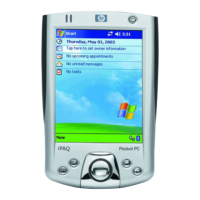
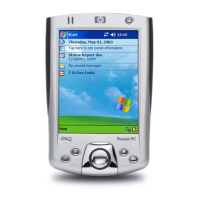
Today Screen
When you turn on your HP iPAQ Pocket PC for the first time each day (or after
4 hours of inactivity), you see the Today screen. You can also display it by
tapping and then Today. On the Today screen, you can see at a glance
important information for the day.
Tap to change date and time.
Your day at a glance.
Tap to switch
to a program.
Tap to change volume or mute all sounds.
Tap to create a new item.
Tap to view connection status.
Bluetooth power on/off.
Tap to set ISP or work connections.
Note: See the User’s Guide on the iPAQ Pocket PC Companion CD for information on
using Bluetooth Wireless Technology.
293145-001 Hammer_ GSG.P65 5/8/2003, 4:25 PM2


 To Previous Page
 Loading...