Overview
The touch-screen control panel shows you the printer’s current status, and enables you to interact with the
printer, respond to an error condition, and configure options.
The control panel is organized into pages of related functions. To switch between the pages, press the
corresponding icon at the bottom of the screen (the Activity Tray, see Figure 6-1 Home page on page 35).
The control panel provides various forms of online user assistance: online help, interactive procedures,
scheduled cleaning reminders, and diagnostics.
Home page
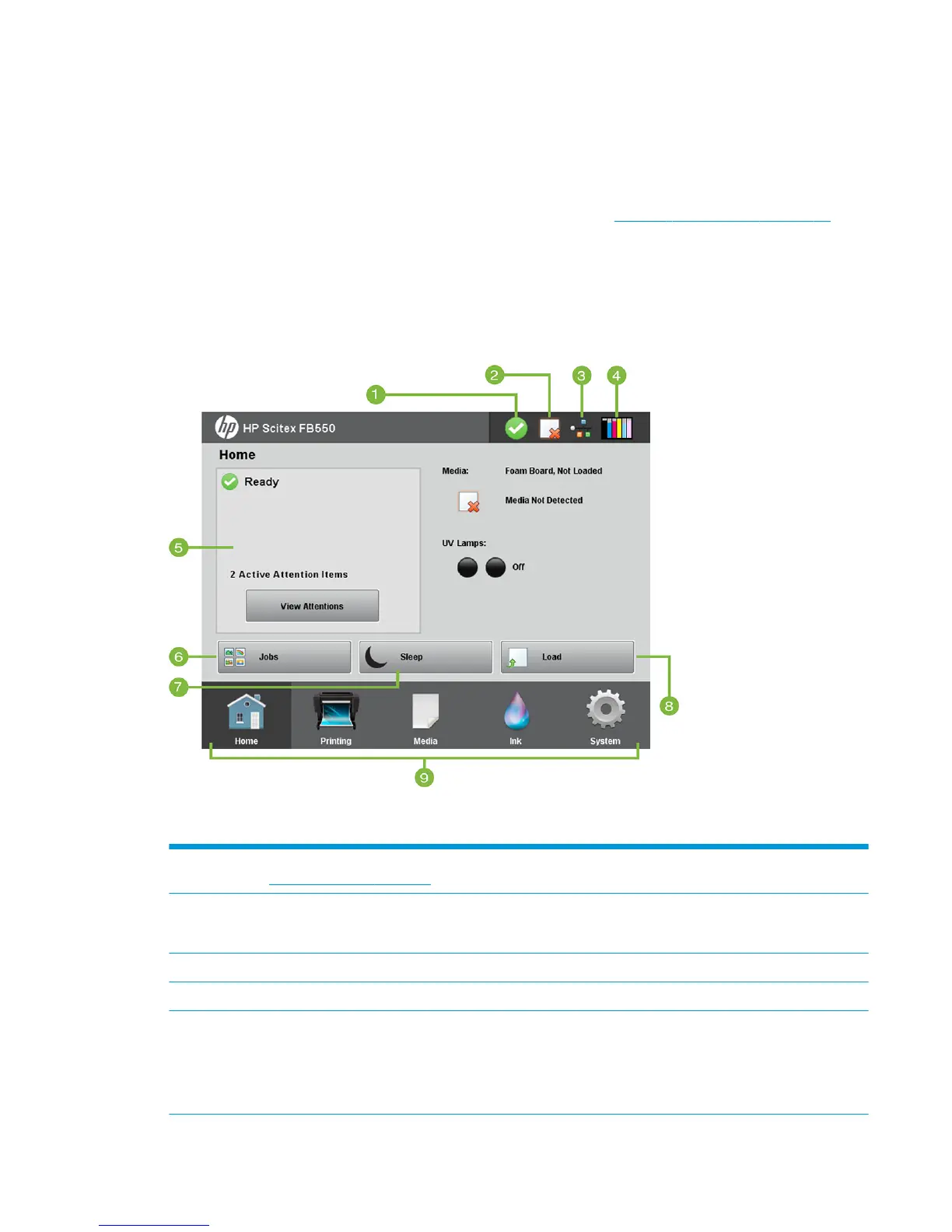
Figure 6-1 Home page
The Home page is displayed when the printer is first powered on. To switch to the Home page from another
page of the software, press the Home icon in the Activity Tray.
1
Ready icon — Displays when the printer is ready to print. One or more Warning informational messages may be present
(see Attention messages on page 36), but printing can proceed.
2 Media detection status — Indicates whether media is detected. The media sensor can only detect the presence of white
or light-colored media. Clear or reflective media cannot be detected. In this case, you must enter the media width
manually when prompted by the control panel.
3 Network status — Indicates whether the printer is connected to the local area network.
4 Ink levels — Shows the current ink level for each color.
5 Printer status — Indicates whether the printer is ready to print, and lists any error messages.
●
Media — Name of the currently configured media.
●
UV Lamps — When printing, lamp intensity levels are displayed. Icons show the lamp status: black=off, yellow=on,
blinking=warming up.
ENWW Overview 35



 To Next Page