Need help?
Do you have a question about the Huawei E5573CS-509 and is the answer not in the manual?
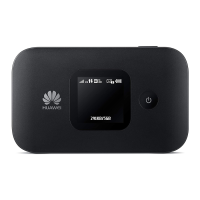
Displays battery status (green, blinking green, red) and signal strength (green, yellow, red) via LED lights.
Functions for powering the device on/off, and restoring factory settings by pressing and holding the reset button.
Visual guide illustrating the process for installing a SIM card into the Mobile WiFi device.
Steps for connecting to the Mobile WiFi network, including information on default SSID and Wi-Fi key.
Instructions for downloading and using the app or web interface to manage device settings and data.
Explanation of how to use the Wi-Fi extender feature via the HiLink app to increase coverage and reduce data usage.
Information on using compatible chargers and notes that the charger is an optional accessory.
Answers to frequently asked questions regarding device responsiveness, connectivity, power issues, and overheating.
This document outlines the quick start guide for a Mobile WiFi device, covering its appearance, installation, Wi-Fi connection, and management via the HUAWEI HiLink app, as well as troubleshooting tips.
The Mobile WiFi device serves as a portable Wi-Fi hotspot, allowing multiple devices to connect to the internet. It utilizes a SIM card for mobile data connectivity. A key feature is its Wi-Fi extender capability, which broadens Wi-Fi coverage and can connect to existing Wi-Fi networks to reduce mobile data usage.
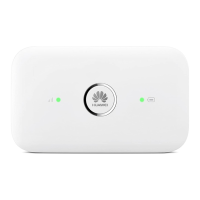
Device Overview: The device features a battery indicator, a power button, a Micro USB port for charging, and a signal indicator.
Installation and Connection: Installation involves inserting a SIM card into the designated slot. Once the device is powered on, it broadcasts a Wi-Fi network. The default SSID (Wi-Fi network name) and Wi-Fi Key are printed on the Mobile WiFi label, allowing users to connect their devices. It is strongly recommended to change these default credentials for security purposes.
HUAWEI HiLink App: The HUAWEI HiLink app offers enhanced management capabilities for the Mobile WiFi. Users can download this app to:
Web Interface Management:
Alternatively, the Mobile WiFi can be managed through a web interface accessible at http://192.168.8.1. The default username and password for this interface are "admin". The web interface also includes an online help section for more detailed information about the device.
Wi-Fi Extender Functionality: The Wi-Fi extender feature is designed to increase Wi-Fi coverage. When enabled via the HUAWEI HiLink app, the Mobile WiFi can connect to other Wi-Fi networks, thereby reducing reliance on mobile data and extending the reach of the Wi-Fi signal.
Charging: The device is charged via a Micro USB port. It is crucial to use only compatible chargers provided by a designated manufacturer. The charger is an optional accessory, and users may need to contact an authorized retailer to purchase one. The charging process is indicated by the blinking green light on the battery indicator.
Troubleshooting and Support: The manual provides several troubleshooting tips:
192.168.X.1 is inaccessible, it might be due to an IP address conflict. Trying 192.168.X+1.1 is suggested in such cases.These features and guidelines aim to provide a comprehensive user experience, from initial setup to ongoing management and troubleshooting, ensuring reliable mobile internet access.
 General
| Device Type | Mobile Wi-Fi Hotspot |
|---|---|
| Model | E5573CS-509 |
| Network Standards | 4G LTE, 3G UMTS, 2G GSM |
| Maximum Download Speed | 150 Mbps |
| Maximum Upload Speed | 50 Mbps |
| Wi-Fi Standards | 802.11 b/g/n |
| Wi-Fi Frequency | 2.4 GHz |
| Wi-Fi Speed | Up to 150 Mbps |
| Number of Wi-Fi Connections | 10 |
| Battery Capacity | 1500 mAh |
| Display | LED indicators |
| 3G UMTS Bands | 1, 8 |
| 2G GSM Bands | 850/900/1800/1900 MHz |
| SIM Card Type | Micro-SIM |
| 4G LTE Bands | 1, 3, 5, 7, 8, 20 |

 To Next Page