1-6EN
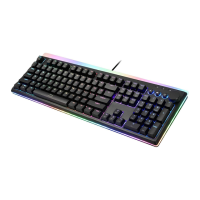
RGB Illuminated Mechanical Keyboard
RGB Illuminated Mechanical Keyboard
Package Contents
•Keyboard x 1 •Quick Start Guide x 1 •USB-C Cable x 1
System Requirements
•Compatible with: Windows® 7 , Windows® 8.1 and
Windows® 10 or later.
•Available USB Port
Specifications
•Interface: USB ( Full Speed )
•Key number: 107 Keys
•Smart dial wheel: 1 Set
•Switch type: Mechanical Switch
•Key stroke: 4.0 mm
•N-Key rollover ( NKRO)
•Multimedia Hotkeys: 15 keys
•Backlight Effect Hotkeys: 8 keys
•Rated Voltage / Current: DC 5V / 500 mA Max.
•Weight: approx. 1.3 kg
•Cable length: approx. 180 cm
•Dimension: 444 (L) X 155 (W) X 42 (H) mm
Hardware Installation
1. Turn on computer
2. Plug USB cable into an available USB port on your computer and
keyboard ( USB-A for computer & USB-C for keyboard )
3. Your computer will automatically detect the keyboard
4. You may use the keyboard after detection
Product Information
1. LED indication
•Num lock LED Indicator
•Caps lock LED Indicator
•Scroll lock LED Indicator
•Win lock LED Indicator
PS1 : 4 indicators blinking: backlight customization mode
PS2 : Esc key backlight only: full key lock is in effect ( Fn+Esc )
2. Hotkeys
Press “ “ and desired function key simultaneously to use
hotkeys.
2.1 Setting key function
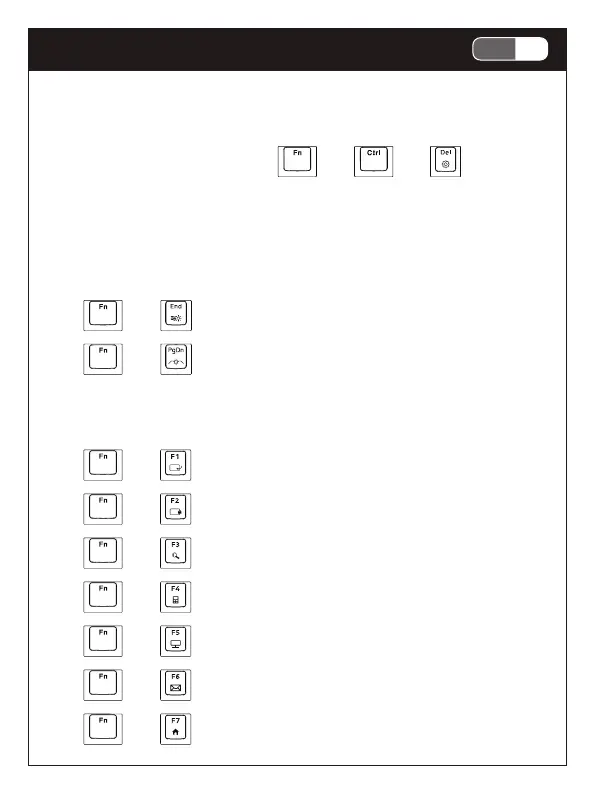
•“ “ + “ “ + “ “:N-Key Rollover anti-ghosting
function ( default )
•“ “ + “ “ + “ “:6-Key Rollover anti-ghosting &
standard USB settings
•“ “ + “ “ + “ “:Factory reset
( Press and hold for 5 seconds )
2.2 Backlight Function Keys
Side Backlight
•“ “ + “ “ + “ “ or “ “ : Select side backlight
colors
( depending on backlight effects )
•“ “ + “ “ + “ “ or “ “:Adjust side backlight
speed
( depending on backlight effects )
•“ “ + “ “:Turn side backlight on or off
•“ “ + “ “:Switch between side backlight effects
( 7 types )
Keyboard Backlight
•“ “ + “ “ or “ “:Adjust brightness ( 4 levels )
•“ “ + “ “ or “ “ : Select or switch key backlight
colors
( depending on backlight effects )
•“ “ + “ “ or “ “:Adjust backlight speed
( depending on backlight effects )
•“ “ + “ “:Turn keyboard backlight on or off
•“ “ + “ “:Light fadeout and tracing effects ( 5 types )
•“ “ + “ “:Monochrome and breathing backlight
effects
•“ “ + “ “:Backlight Customization Mode
Onboard memory can store up to five backlight customization
profile. Users may set backlight according to their preferences,
and profiles will be stored in 1 / 2 / 3 / 4 / 5 key respectively
after saving.
How to customize backlight:
A. Press“ “ + “ “ or (2/3/4/5) to select and switch to lighting
mode 1 ( 2/3/4/5)
B. Press“ “ + “ “ + “ “ simultaneously to activate
custom backlight setting
( 4 LED key indicators will start blinking )
C. Press desired key you want to configure, and the key will light
up; press“ “ + “ “ or “ “ to select colors for the key
D. Setting next key and color
E. Press the same illuminated key to cancel backlight setting for
the key
F. After configuration, press“ “ + “ “ + “ “ to save all
settings to current lighting mode and leave backlight
customization mode ( all 4 indicators will stop blinking )
G. Follow the same step A to F for setting 2/3/4/5 lighting mode
•“ “ + “ “:RGB Backlight Effects – Set A ( 3 options )
•“ “ + “ “:RGB Backlight Effects – Set B ( 7 options)
2.3 Multimedia & function key
•“ “ + “ “:Show Desktop
•“ “ + “ “:Lock PC
•“ “ + “ “:Search for files or folders
•“ “ + “ “:Launch Calculator
•“ “ + “ “:Open my Computer
•“ “ + “ “:Open E-Mail
•“ “ + “ “:Open the internet browser
•“ “ + “ “:Media player
•“ “ + “ “:Play / pause
•“ “ + “ “:Backward
•“ “ + “ “:Stop play
•“ “ + “ “:Forward
•“ “ + “ “:Full key lock
( keyboard only lights up Esc key when mode is in effect )
•“ “ + “ “:Turn Windows lock on or off
2.4 Smart wheel function
Smart wheel is powered by Windows 10 protocol without
additional software, if you’re using the latest version of
Windows 10.
Smart Wheel is customizable and will automatically switch to your
preferred tool depending on software you’re using. Switch
between scrolling, zoom, rotation, brush tuning, video editing,
multimedia control and more. Smart Wheel support ranges from
Windows 10 built-in apps to pro software.
Press the below button to switch wheel mode
•“ “:Wheel - volume control mode
Wheel clockwise: Increase volume
Wheel counterclockwise: Decrease Volume
Wheel button: Mute
•“ “:Wheel - Task Switcher Mode
Wheel clockwise: Next Window
Wheel counterclockwise: Previous Window
Wheel button: Select
•“ “:Wheel - Smart Wheel
Only works on PC with Windows 10
Go to Windows 10 Settings -> Devices -> Wheel for
customization


 To Next Page
 Loading...