•DPI default setting as below, Can be reset by application software
400 dpi (Red) > 800 dpi (Blue) > 1600 dpi (Green) > 2400 dpi (Purple) > 5000 dpi (Yellow)
•Mouse function key
Press “Middel button”+”Right button”+ “Side backward button” to change backlight effects
and OFF.
Press “Middel button”+” Side backward button” to change backlight speed or colors
(depending on backlight effects)
Optical Gaming Mouse
Package Contents
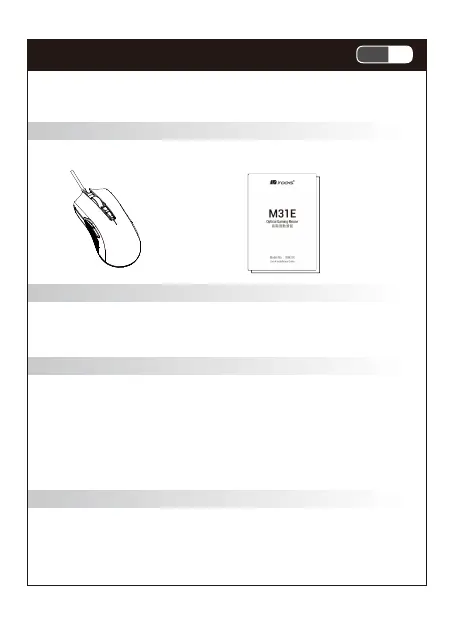
•Mouse x 1 •Quick Installation Guide x 1
System Requirements
•Microsoft Windows® 7 Windows® 8.1, Windows® 10, Windows® 11.
•USB ports
Features
•High-end microswitches on main buttons with up to 60 million click lifespans
•Gaming optical sensor and RGB backlight
•Soft braided cable design, more comfortable to operate and control
•Onboard memory for settings and customizations on the go
•Application software enabled – sensitivity tuning, button macros, RGB backlight adjustment
and more
Specifications
•Interface : USB
•Button : 7 keys
•Resolution : 200-6200 DPI
•Report rate : 125 / 250 / 500 / 1000 Hz
•Backlight : RGB LED
•Supports application software
•Power consumption : Max 100 mA
•Dimension : 124 mm X 66 mm X 40 mm
•Cable Length : 180 cm with braided
•Weight : approx. 88 g ( excluded cable )
approx. 120 g ( included cable )
Hardware mouse installation
1. Turn on your computer
2. Plug the mouse in an available USB port on your computer
3. Your computer will automatically detect the mouse
4. You are now ready to use the mouse
Software installation
You must plug in the mouse in order to start the software.
1. Run the installation software you downloaded from i-Rocks official website, and follow the
instructions on the screen step by step.
2. Plug in the Mouse after installation, the software will start to recognize your mouse.
3. Launch the software. It will take some time to synchronize settings between the software
and the mouse.
4. Save the configuration after setting up the mouse. The software will only overwrite the
profile on the mouse with the one you are focusing on.
Software function
The application software function as below:
1. Keys setting
2. Performance setting.
3. Backlight setting.
4. Macro setting.
Product information
•
Buttons function as below
1-1CH
Optical Gaming Mouse



 To Next Page
 Loading...